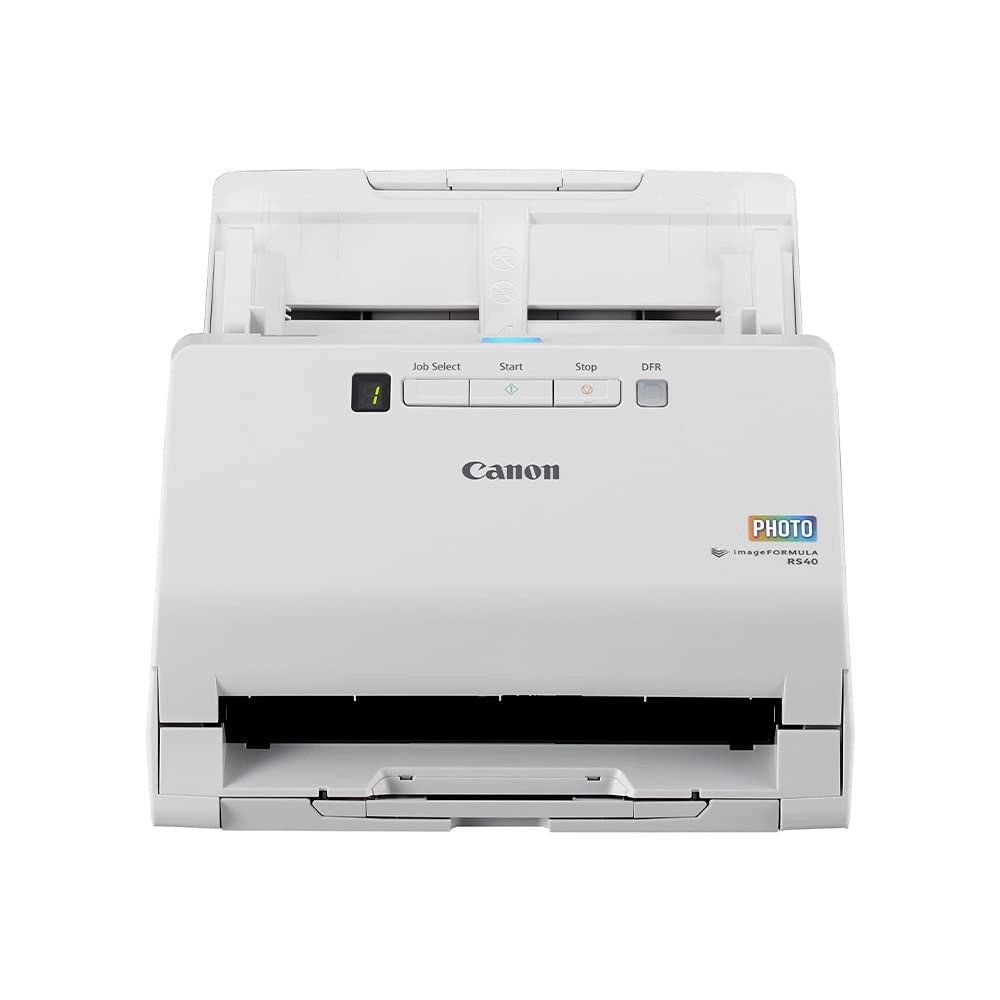
Canon RS40 - USB
Best offer
AED
1 70000
AED
3 06800
-44%
Key Features
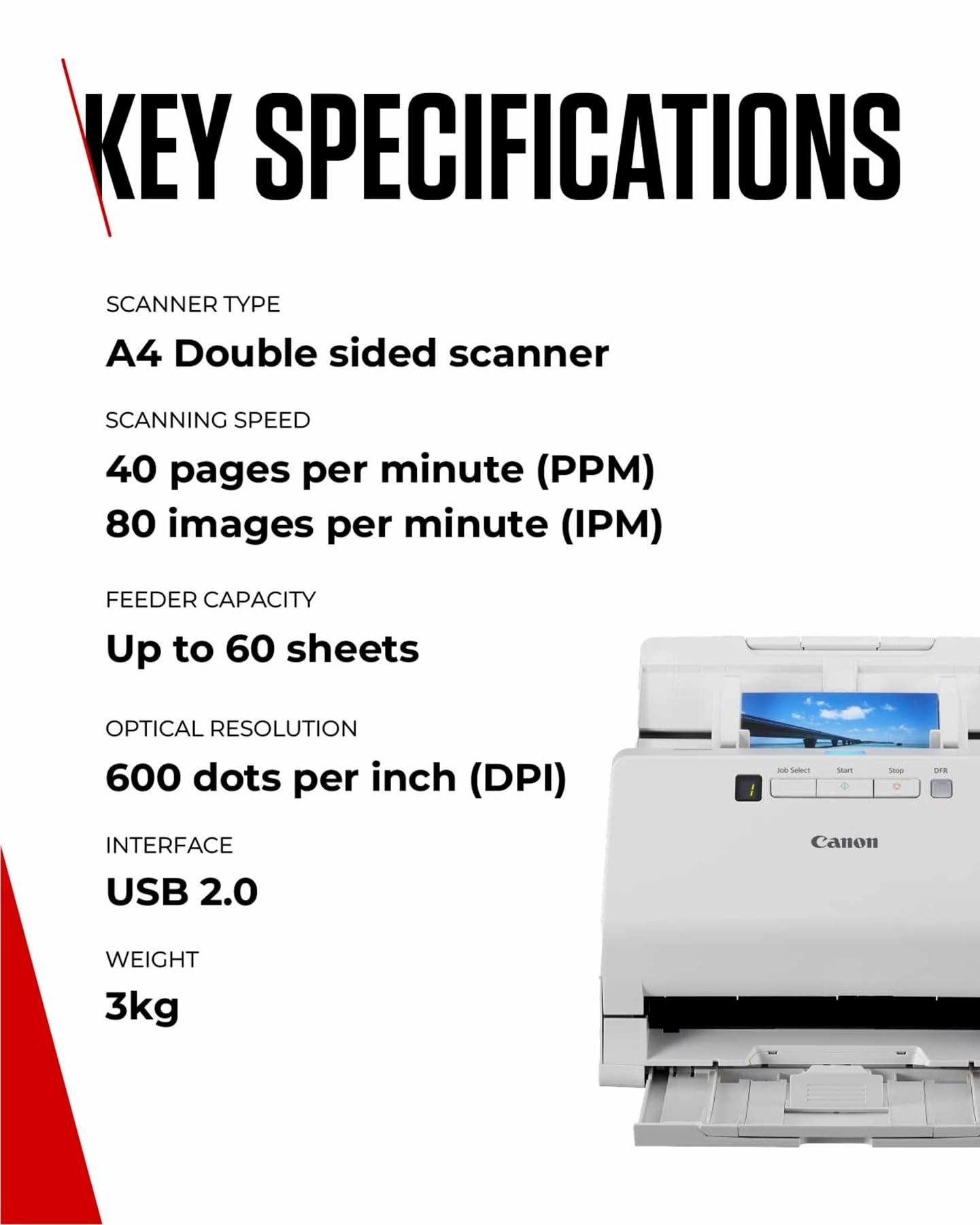
- Scanner type: receipts
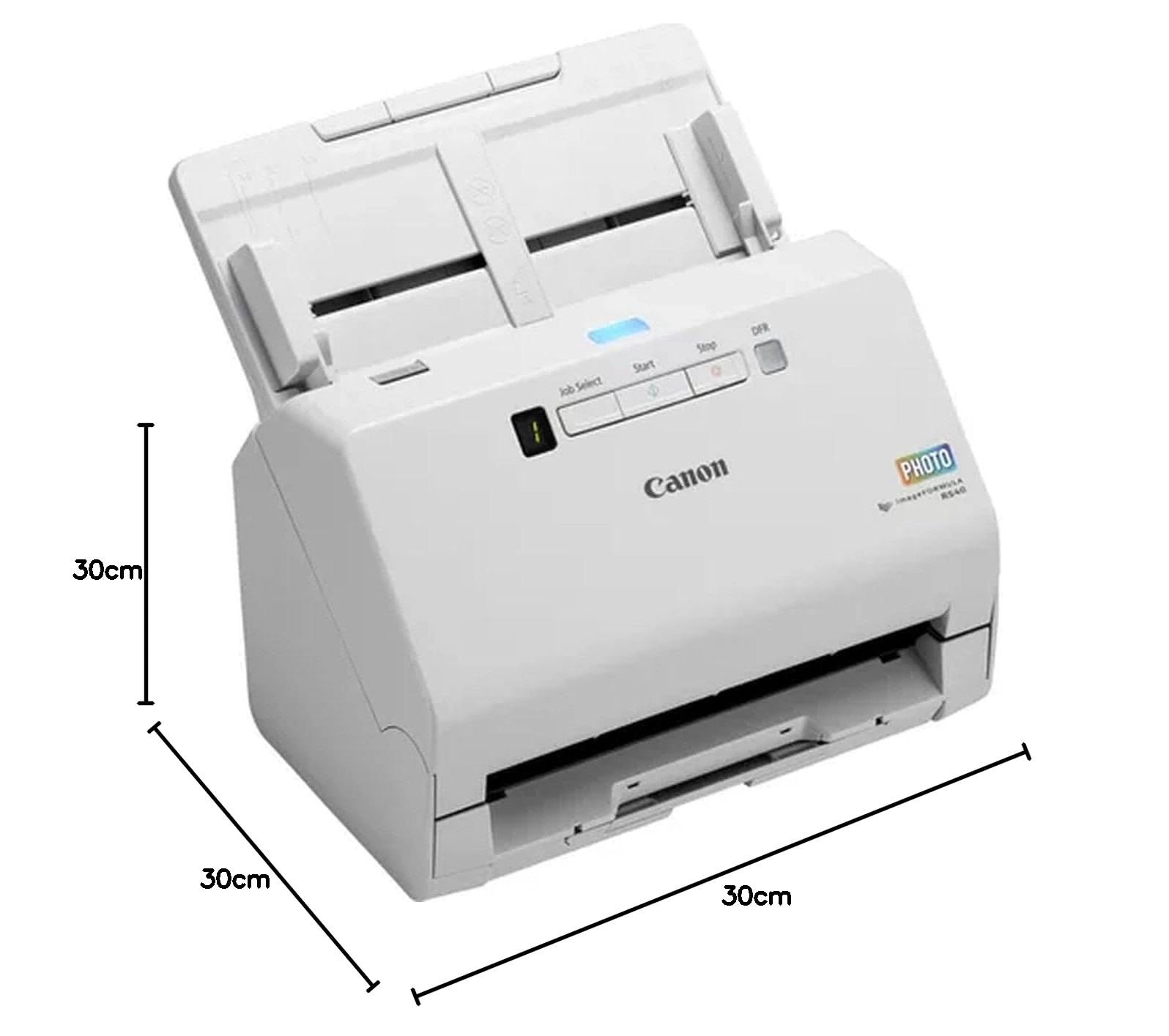
- Weight: 2993.70964g
- Minimum system requirements: Windows
Specifications
Weight & dimensions
Weight
2993.71 g
System requirements
Minimum system requirements
Windows
Scanning
Scanner type
receipts
Product Details
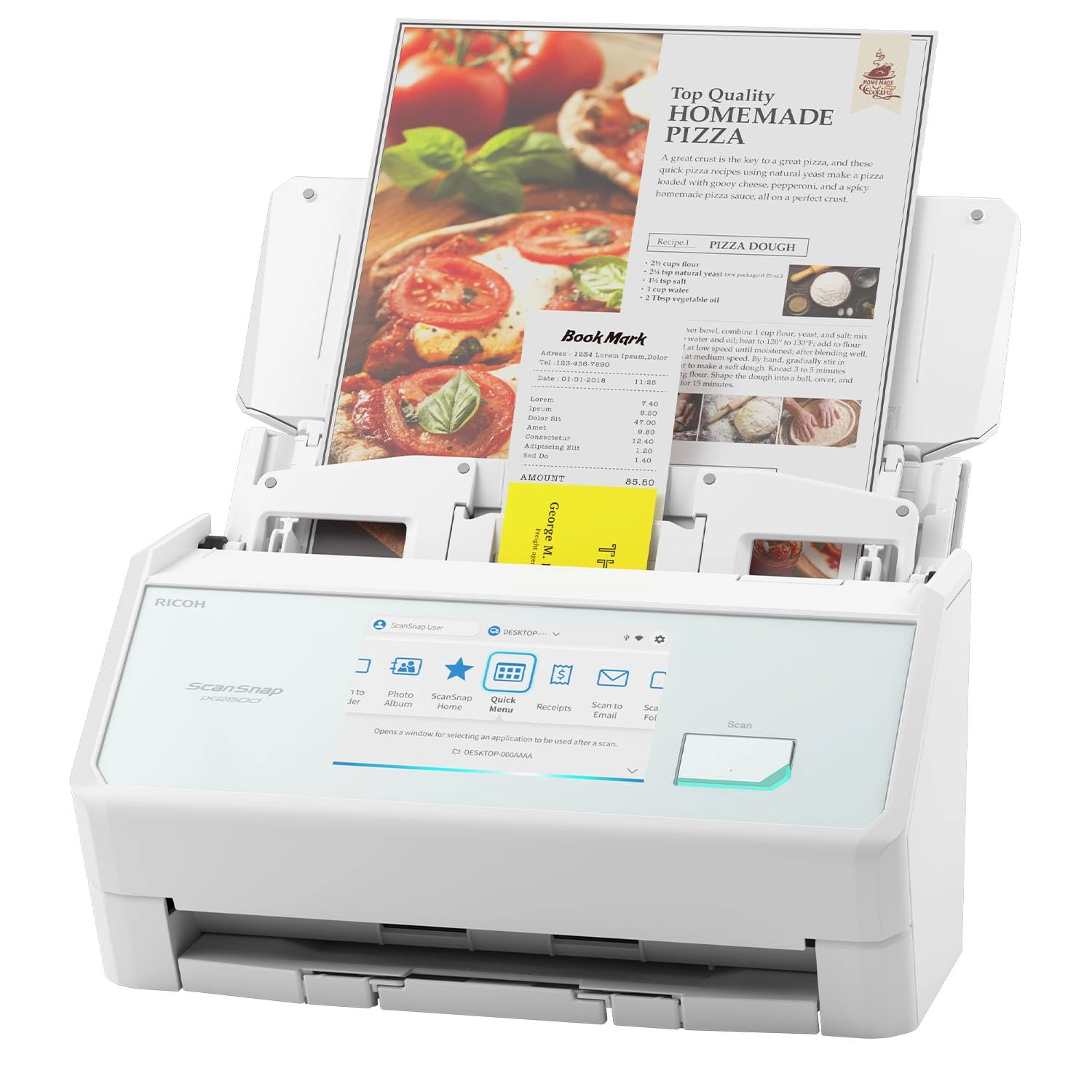
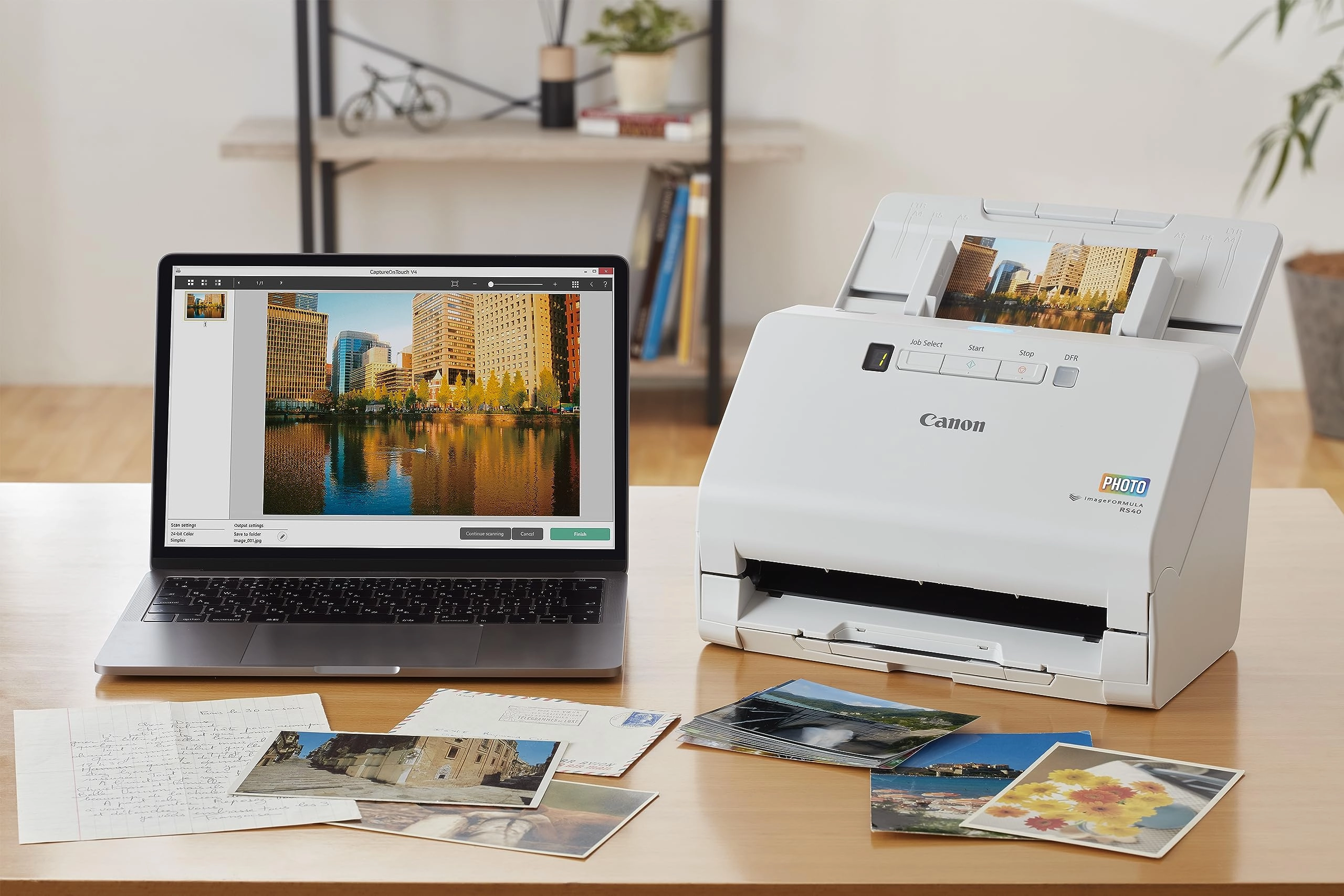
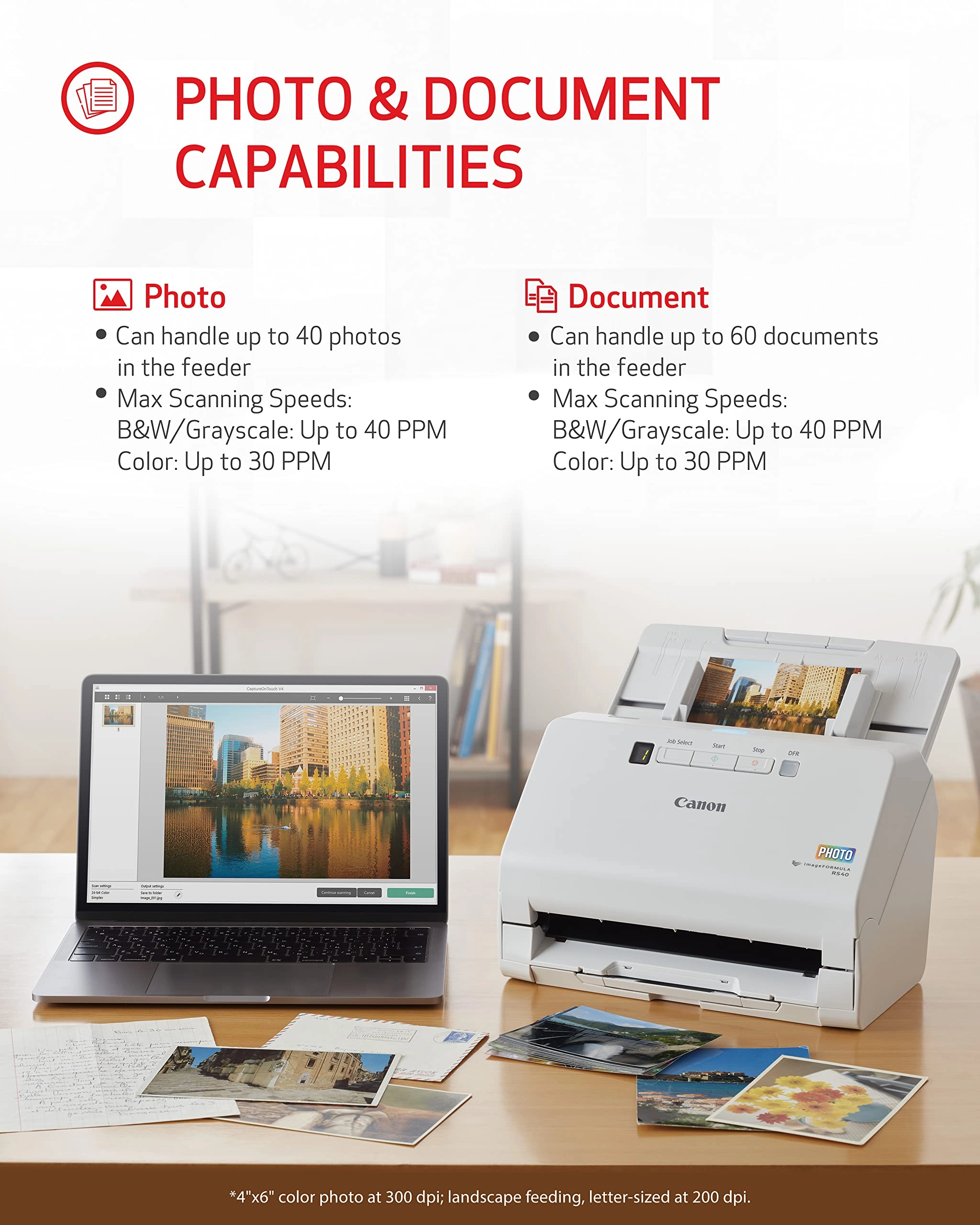
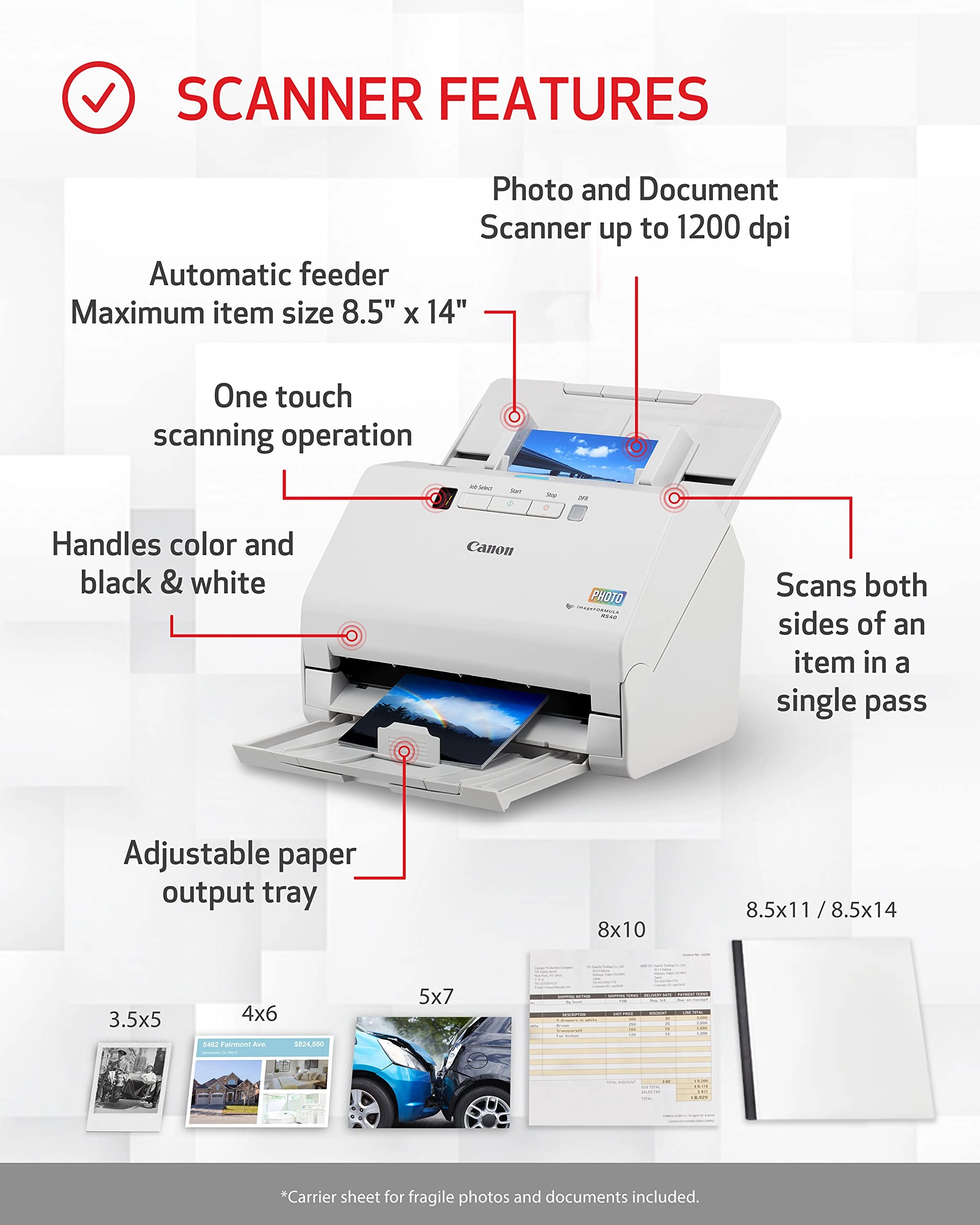
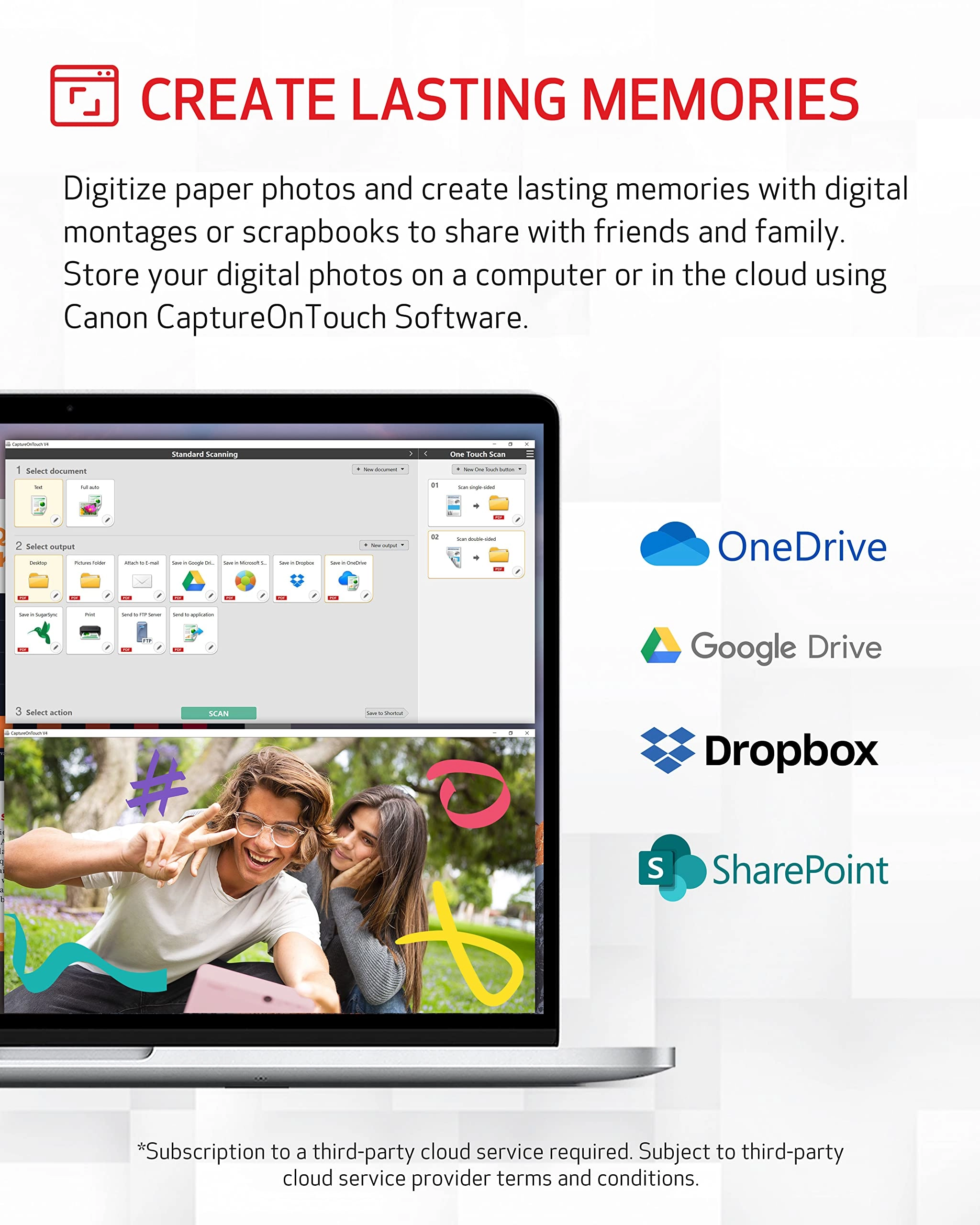
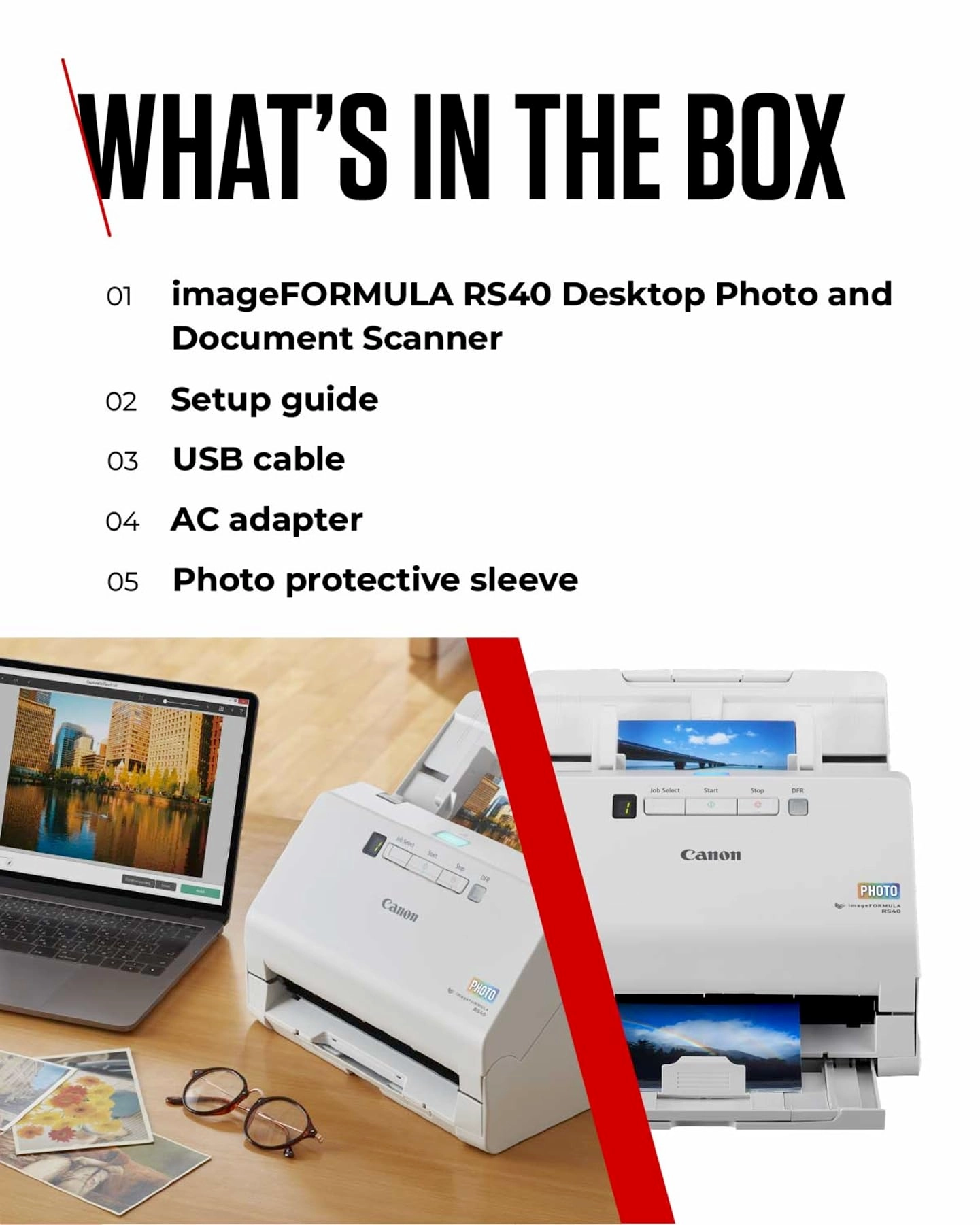
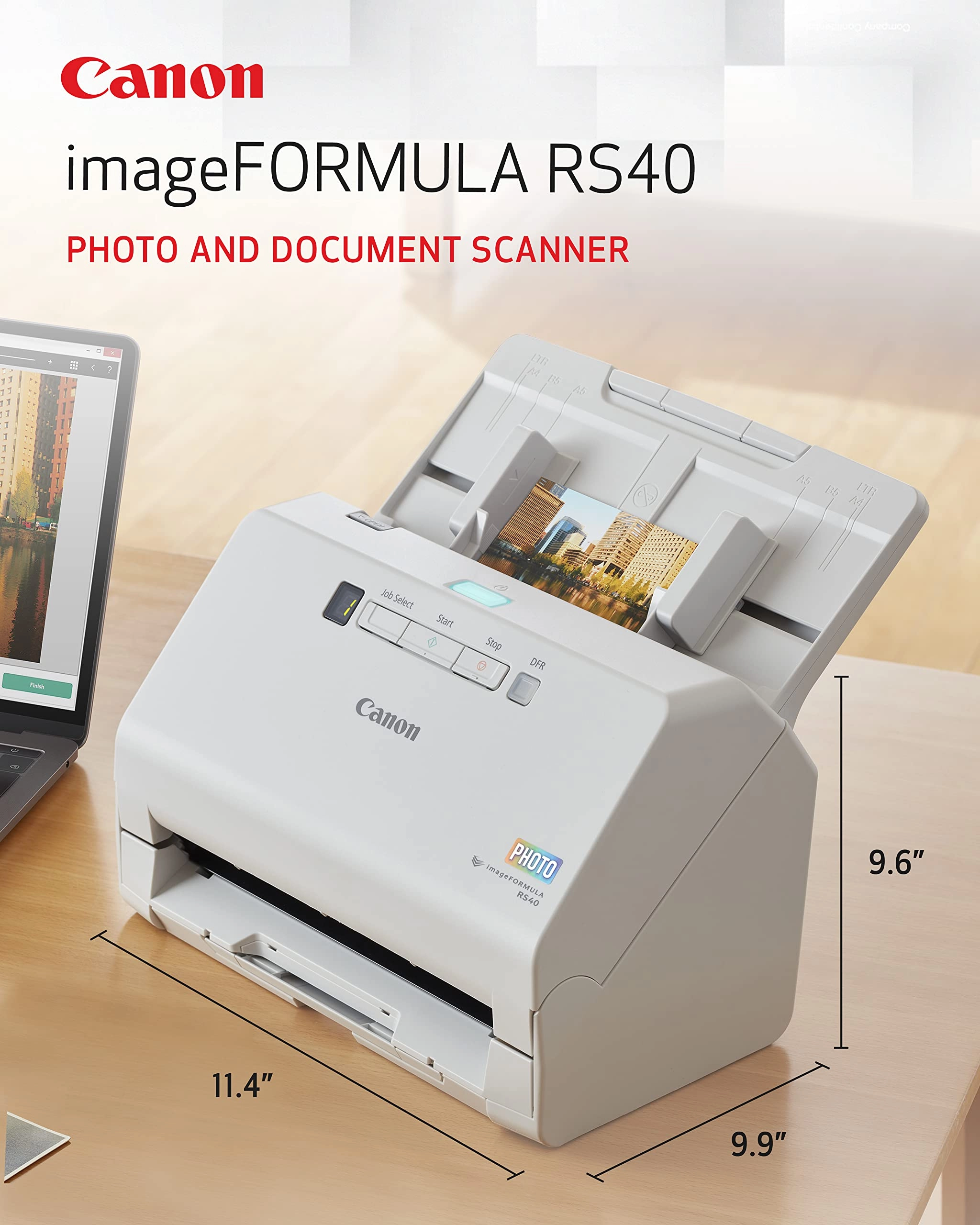
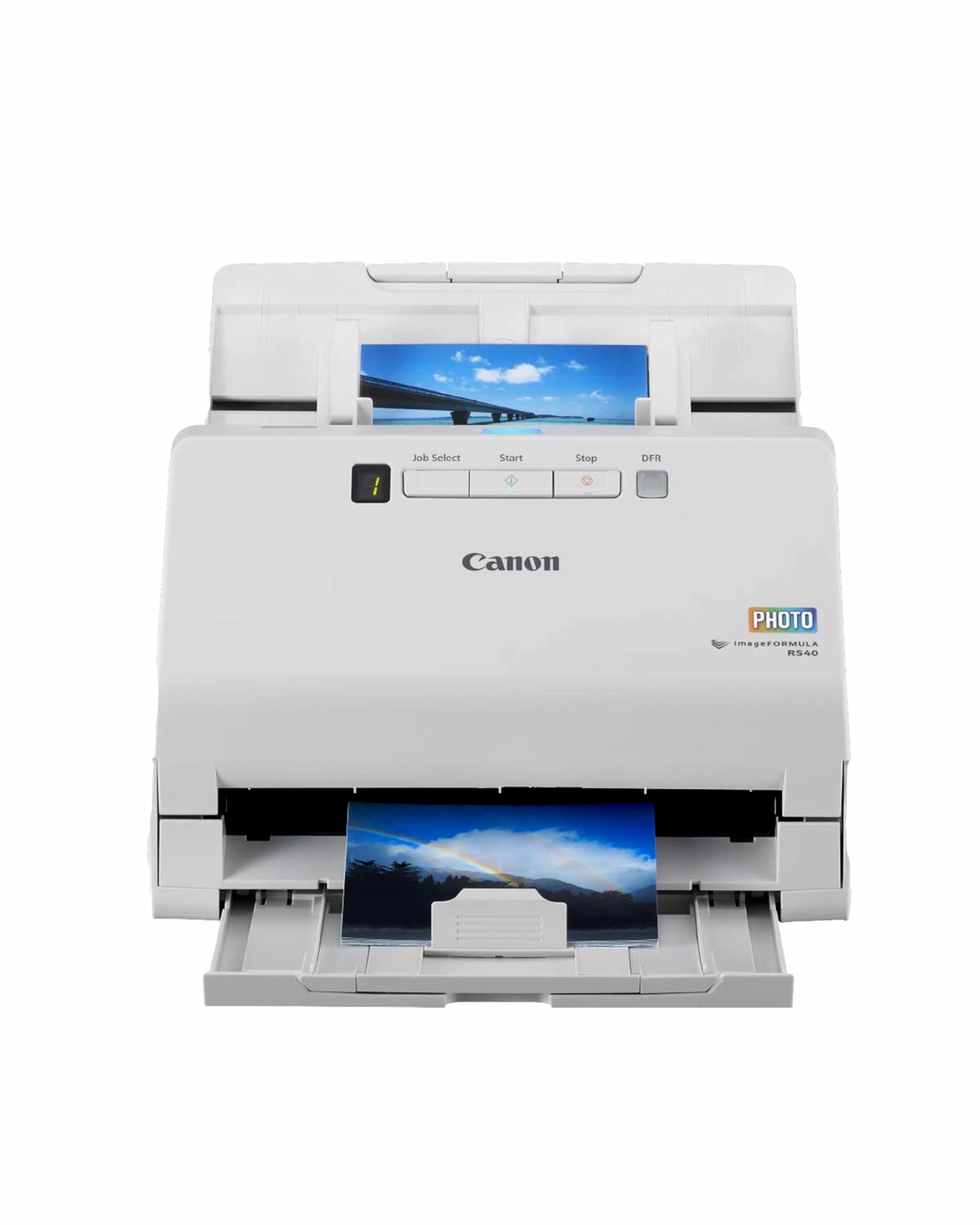
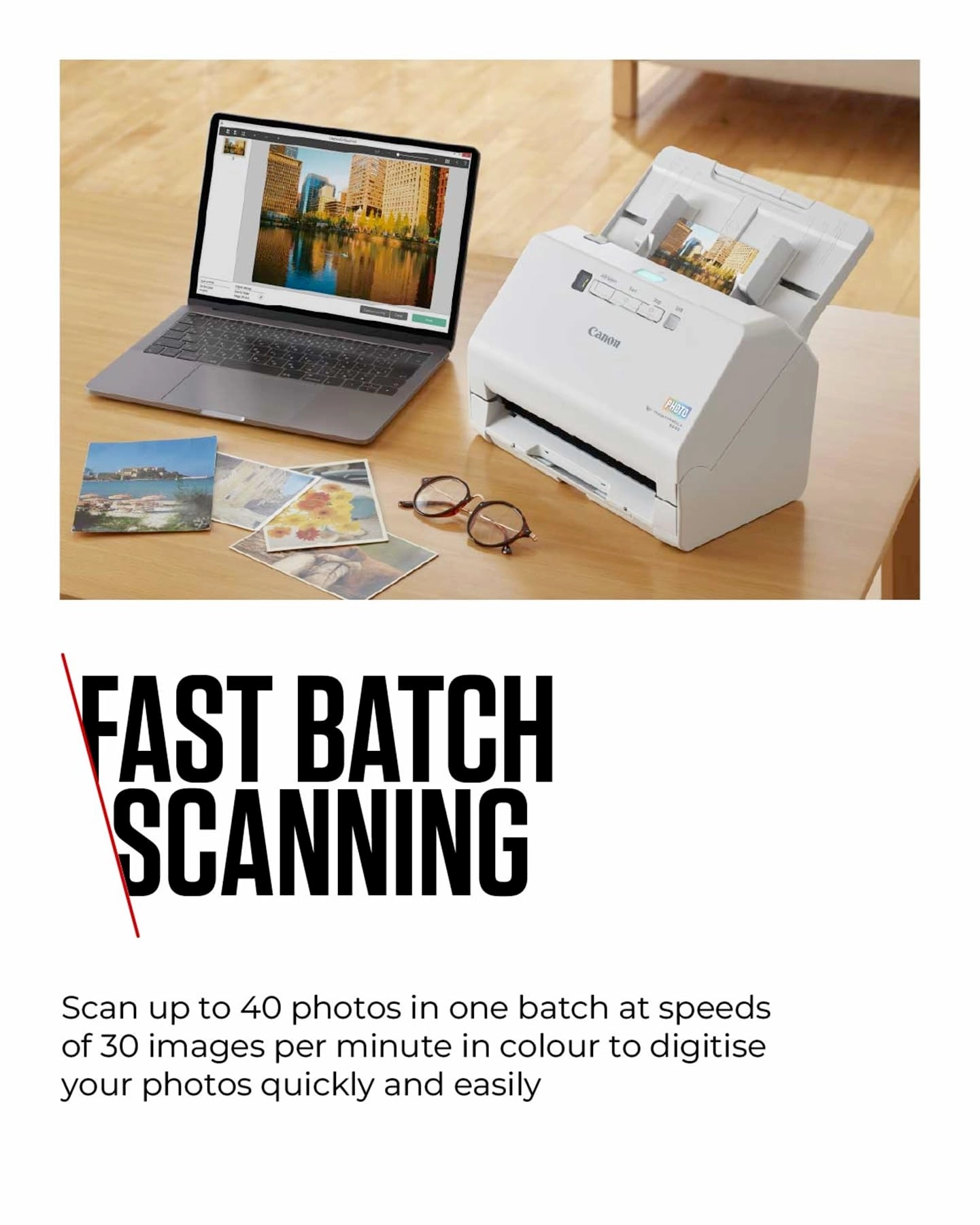
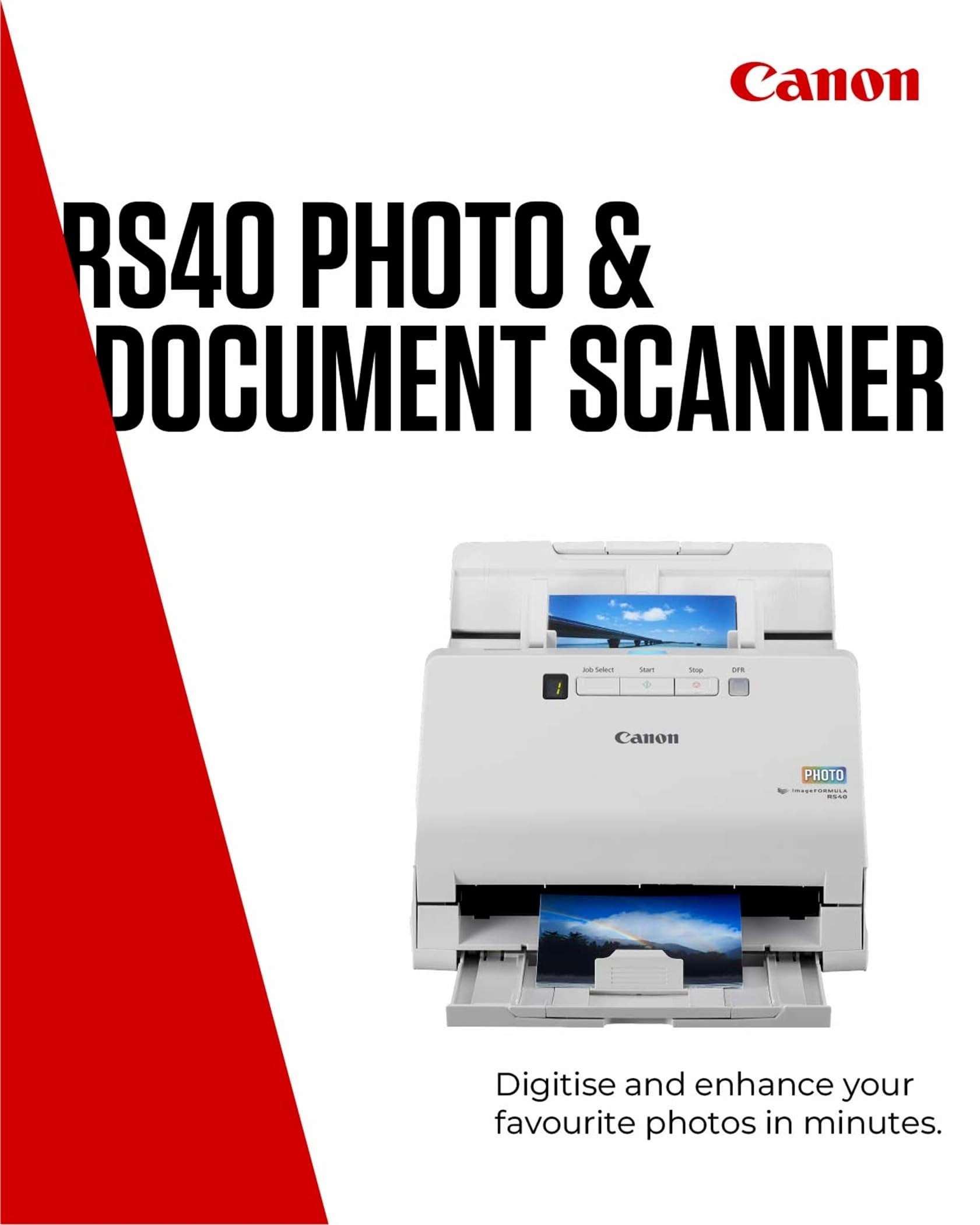
With the Canon imageFORMULA RS40 Photo and Document Scanner you
can convert old photos to digital formats and store them in the
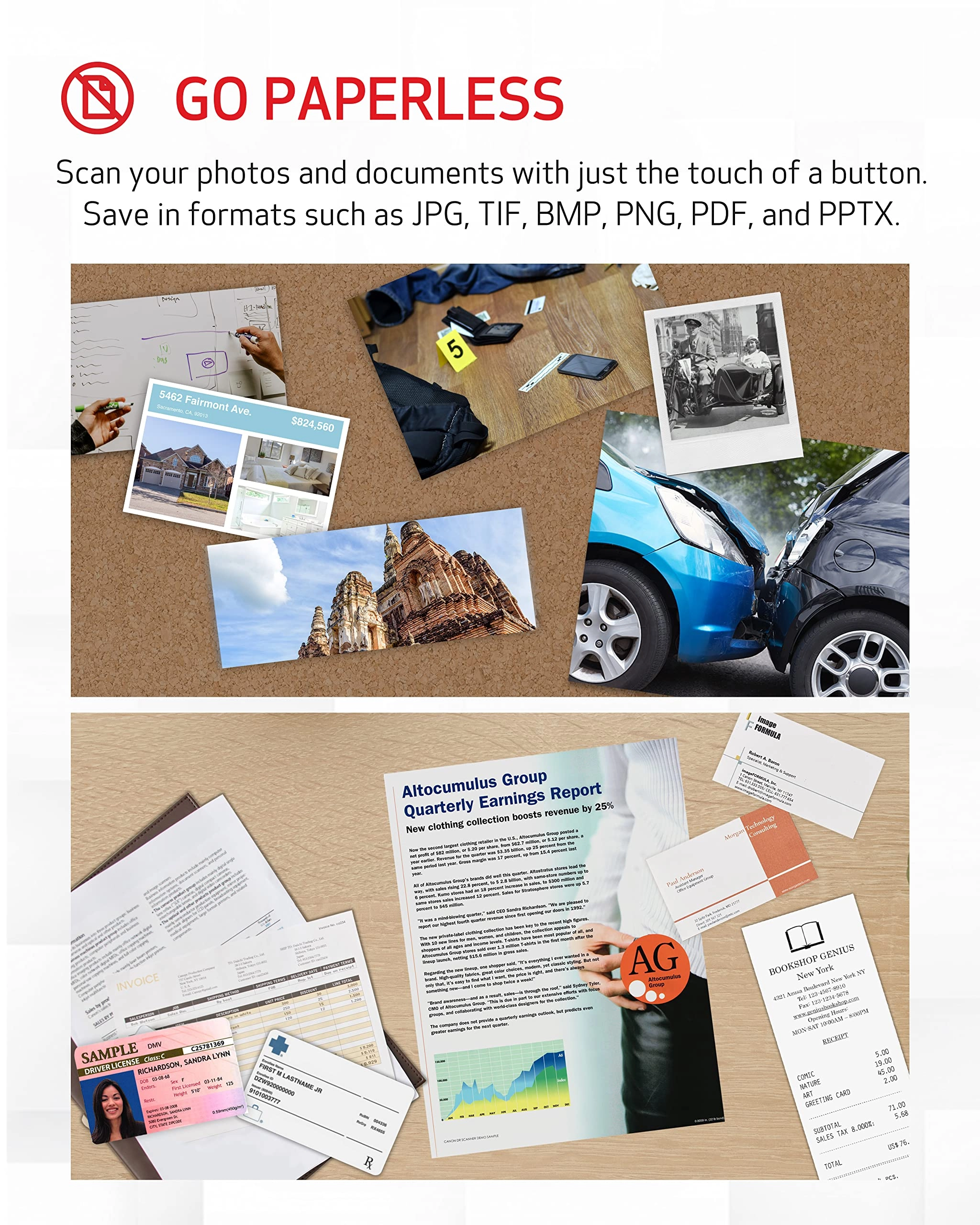
cloud*. The automatic document feeder allows you to easily scan
mixed batches of photos and documents in color, with just the
touch of a button. You can scan both sides of items and save in
multiple file formats including PDF and most common photo
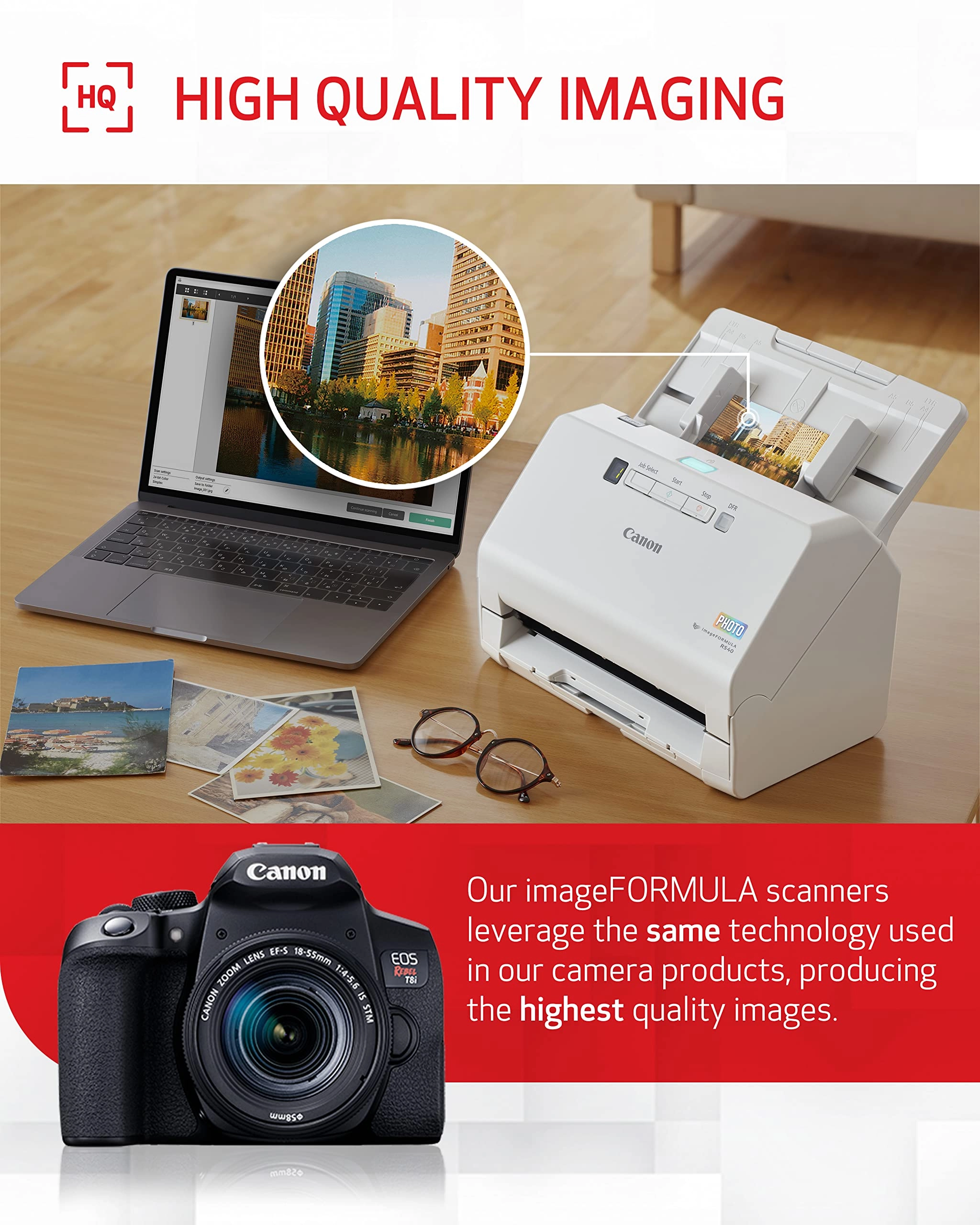
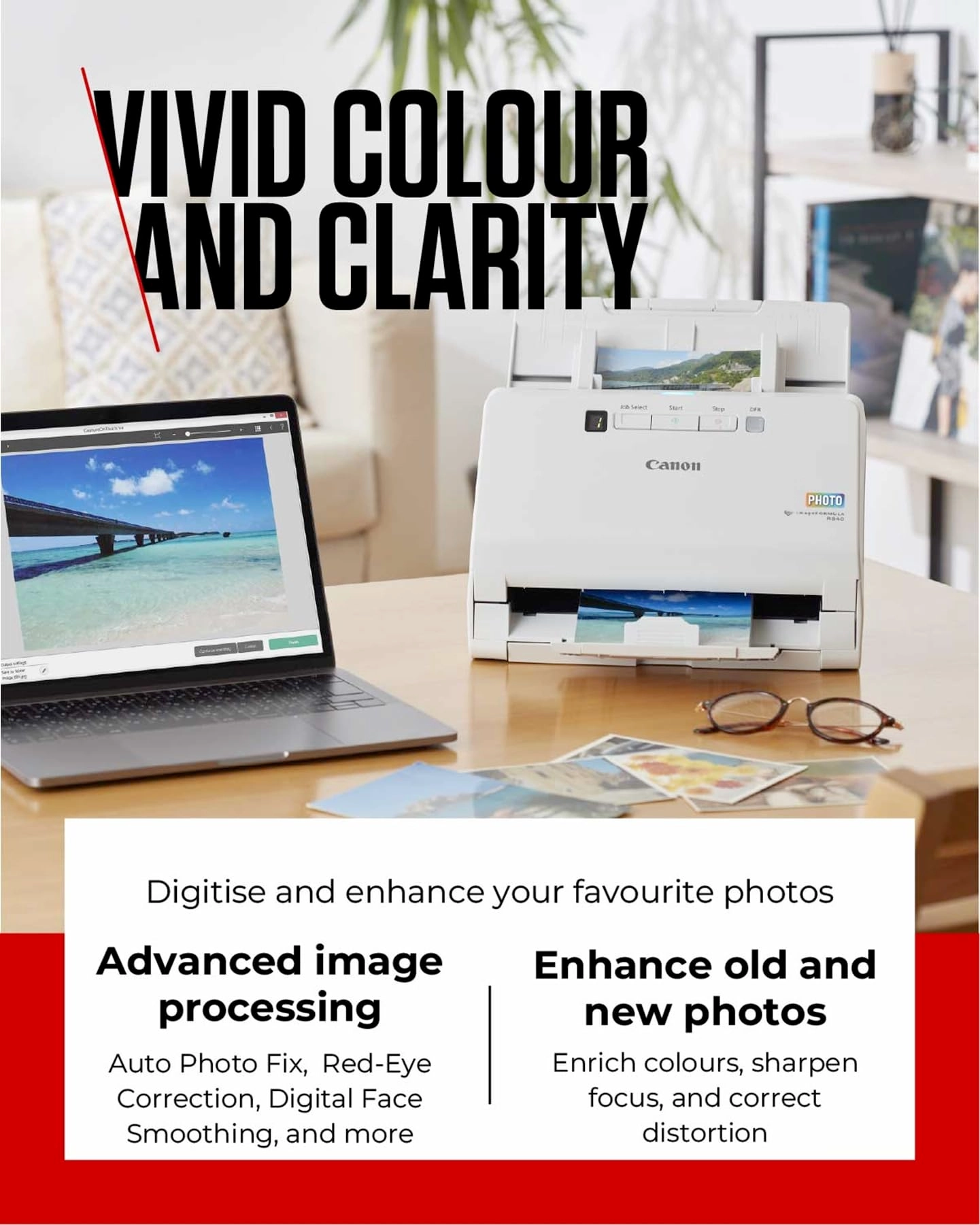
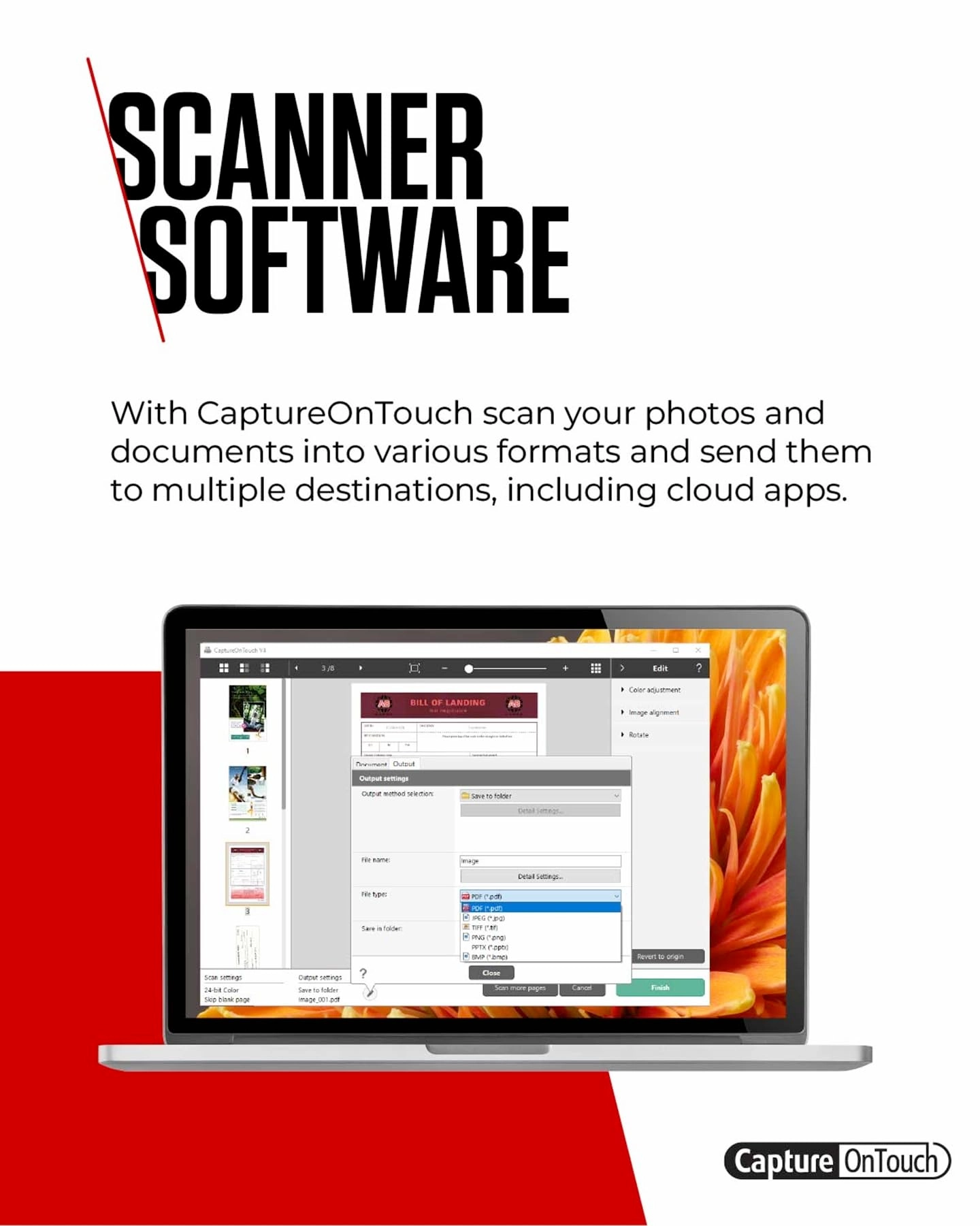
formats. Bundled software called CaptureOnTouch is included with
your Canon scanner to edit and enhance the quality of your
photos. The RS40 is both Windows and Mac compatible. You can
easily connect to your device with a USB cable; TWAIN driver is
also included. Your investment is protected with a one-year
limited warranty and U.S.-based technical support for
imageFORMULA scanners.
Review: Scanning my way through thousands of photos - I have been
using this scanner for several weeks now, and scanned a couple
thousand photos so far. I'm really happy with the device overall;
the scan quality is good, and the workflow is reasonably fast. It
was easy to download and install the “CaptureOnTouch” software
that interacts with the scanner. The software does a great job of
cropping the pictures, and I can choose to scan on either side,
or both, or set a “sensitivity” so that images are only saved
when auto-detected. This is great; if every 10th photo has a note
on the back, that scan is kept, but all the empty photo backs are
discarded. The software is a little clunky to navigate, but
powerful. It offers preset settings, with the option to customize
scanning behavior in lots of ways, choose where photos are saved
to, etc. I thought the default scans settings lost too much
detail on under-exposed or dark photos, and I was able to tune
the contrast and brightness to my liking. My workflow speed
depends on how dusty my photos are, and how much I care about
quality; small, nearly invisible motes can get stuck on the
imaging surface and cause streaks until blown/wiped away. These
streaks are usually most obvious on dark regions of pictures, and
are even more visible after I increased scan brightness slightly,
to preserve more detail for dark photos. I probably wouldn’t care
about streaks for documents, but for my old photos, I want very
few streaks. Therefore I watch the scanning app progress as
photos feed through the scanner, and halt when streaks start to
appear. The software warns you to clean after every 300 scans,
but I needed to clean dust after every 10 photos on average. It
only takes seconds to clean (I use a smaller “rocket air” hand
pump and the provided wipe cloth), but I usually can’t just walk
away for long, while scanning a huge stack of pictures. I
provided a picture showing how the left portion of a dark photo
scanned with a couple streaks (the bigger one is 10 pixels
across), that went away after I cleaned and re-scanned the photo.
I’ve scanned pictures of many sizes and thickness. Tiny 2x3cm
photos work well with the included “contact sheet”. The feeder
accepts pictures of many different sizes, but they tend to get
more mis-aligned during the feeding if different widths are
batched together. Postcards scan nicely when fed individually,
but get jammed when stacked. I have hit a Win 10 CaptureOnTouch
v4.12.2221.506 software bug that is pretty bad, and wanted to
share a work-around. As I scan photos, the CaptureOnTouch app
“buffers” them in a preview area. I can see thumbnails of each
scan in the app, and select any thumbnail to view a large
version. Users press a “Finish” button to copy all these
buffered/previewable scans to the actual picture files in the
export folder. So…the bug is that those buffered scans are saved
in temp files on my main PC drive, but the app never deleting
those temp files, even after a group of scans are “Finished”
(exported to files). Those temp files are huge - about 100Mb each
- probably because I scan at 1200 DPI. After I had scanned about
800 photos, my temp directory (and the entire C: drive hosting
it) filled to capacity. Unable to write more buffered scans,
CaptureOnTouch crashed, would only restart if I restarted
Windows, and would crash again immediately after another scan. I
had to manually delete the app temp files to create new space on
the drive, and then the CaptureOnTouch app worked fine, as
before. I think the “supported” way to delete temp files is by
launching the “Windows Settings” window, typing “Delete Temporary
Files”, and navigating through that process. I poked around and
found the folder C:\Users\\AppData\Local\Temp was the one full of
CaptureOnTouch files, and I manually deleted all the files there.
I need to manually delete temp files regularly (for my drive,
about every 800 scans or less). If I forget, the app will
eventually crash again, and I will lose whatever batch of scans I
had not already exported as image files…those files are in the
temp folder, but in some internal format that I couldn’t figure
out how to convert to jpeg. Please fix this, Canon!
Review: Great photo scanner - Great for pictures and word
documents. We have lots of boxes of pictures, mostly 4x6, but
some scattered sizes. This machines takes the stacks of pictures,
obout 20-30 at a time with no problem. It’s jammed a few times
after 4 bins of pictures (2,000 pictures). The computer app is
easy to use, either to rotate pictures, or to put them in their
folder. I also made various folders for documents that I scan.
Adjusting the image quality is easy for each document type, (
picture, receipt, etc) It’s worth the money. And I think it scans
fast, even for high quality pictures.
Reviews
Loading...
Loading...
Loading...
Loading...
Loading...
Loading...
Loading...
Loading...
Loading...
Loading...
Loading...
Loading...
Loading...
Loading...
Loading...
Loading...
Loading...
Loading...
Loading...
Loading...
Loading...
Loading...
Loading...
Loading...
Loading...
Loading...
Loading...
Loading...
Loading...
Loading...
Loading...
Loading...
Loading...
Loading...
Loading...
Loading...
Loading...
Loading...
Loading...
Loading...
Loading...
Loading...
Loading...
Loading...
Loading...
Loading...
Loading...
Loading...
Loading...
Loading...
Loading...
Loading...
Loading...
Loading...
Loading...
Loading...
Loading...
Loading...
Loading...
Loading...
Loading...
Loading...
Loading...
Join our newsletter
Be the first to know about new arrivals, sales, and exclusive picks
Sign in to unlock newsletter access and stay in the loop