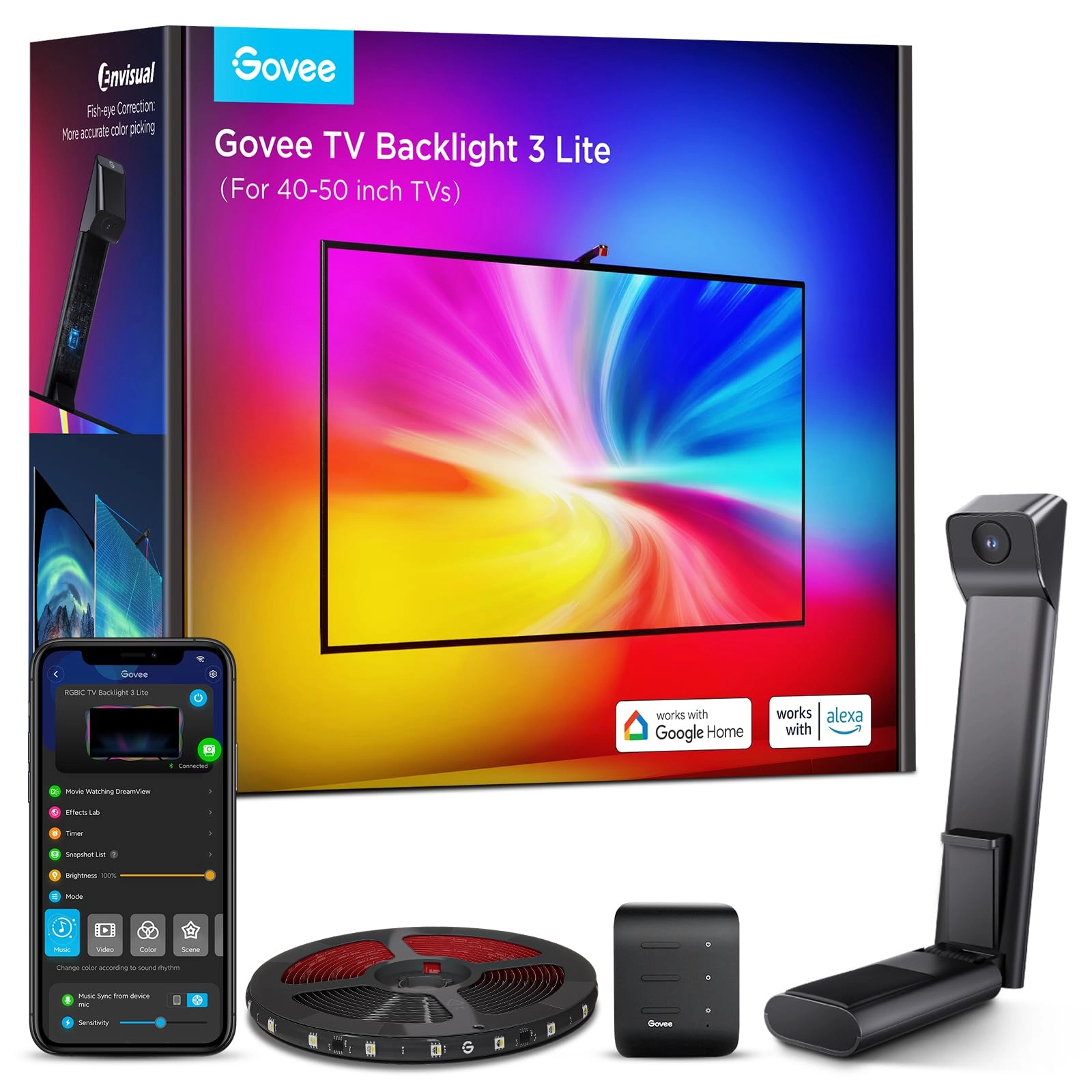
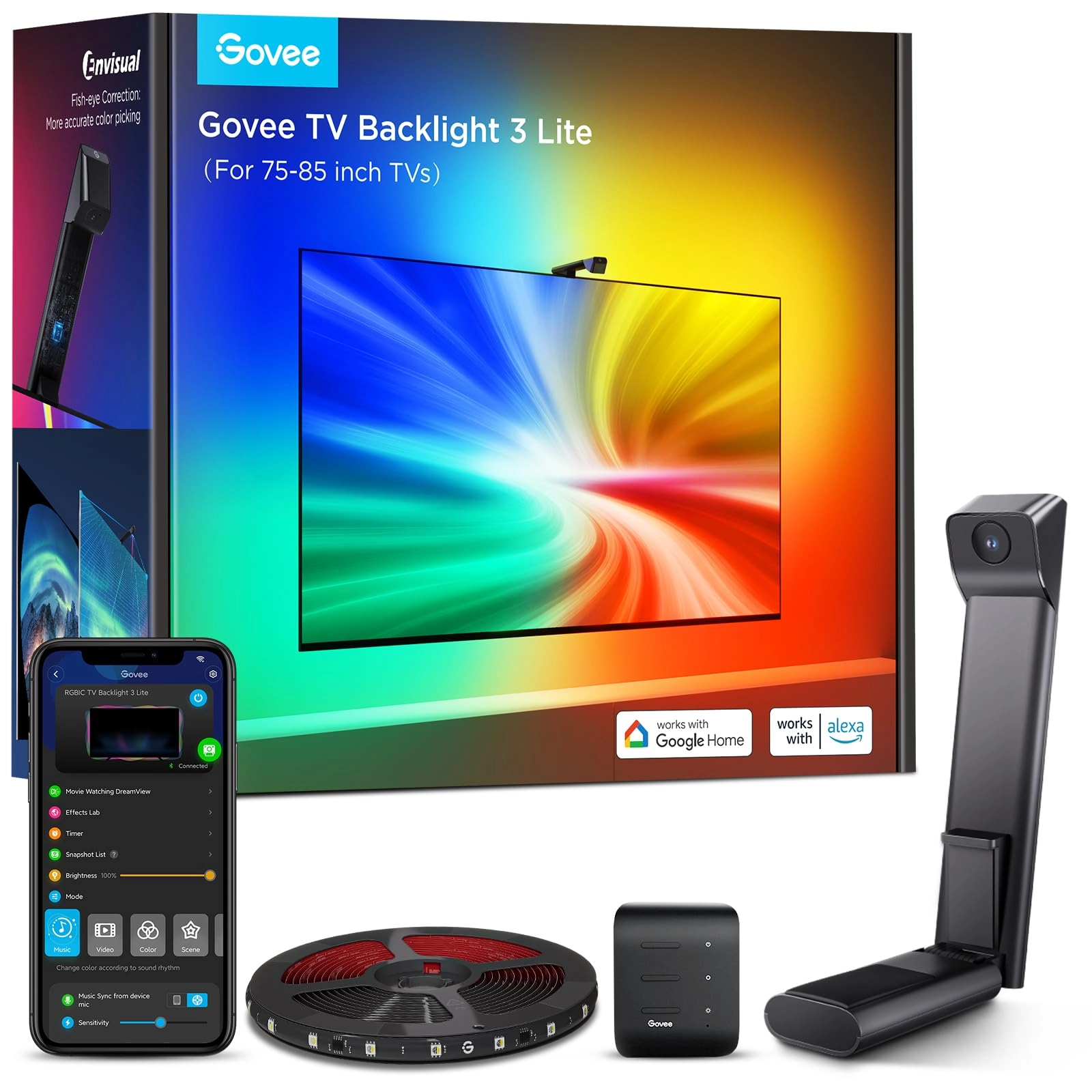
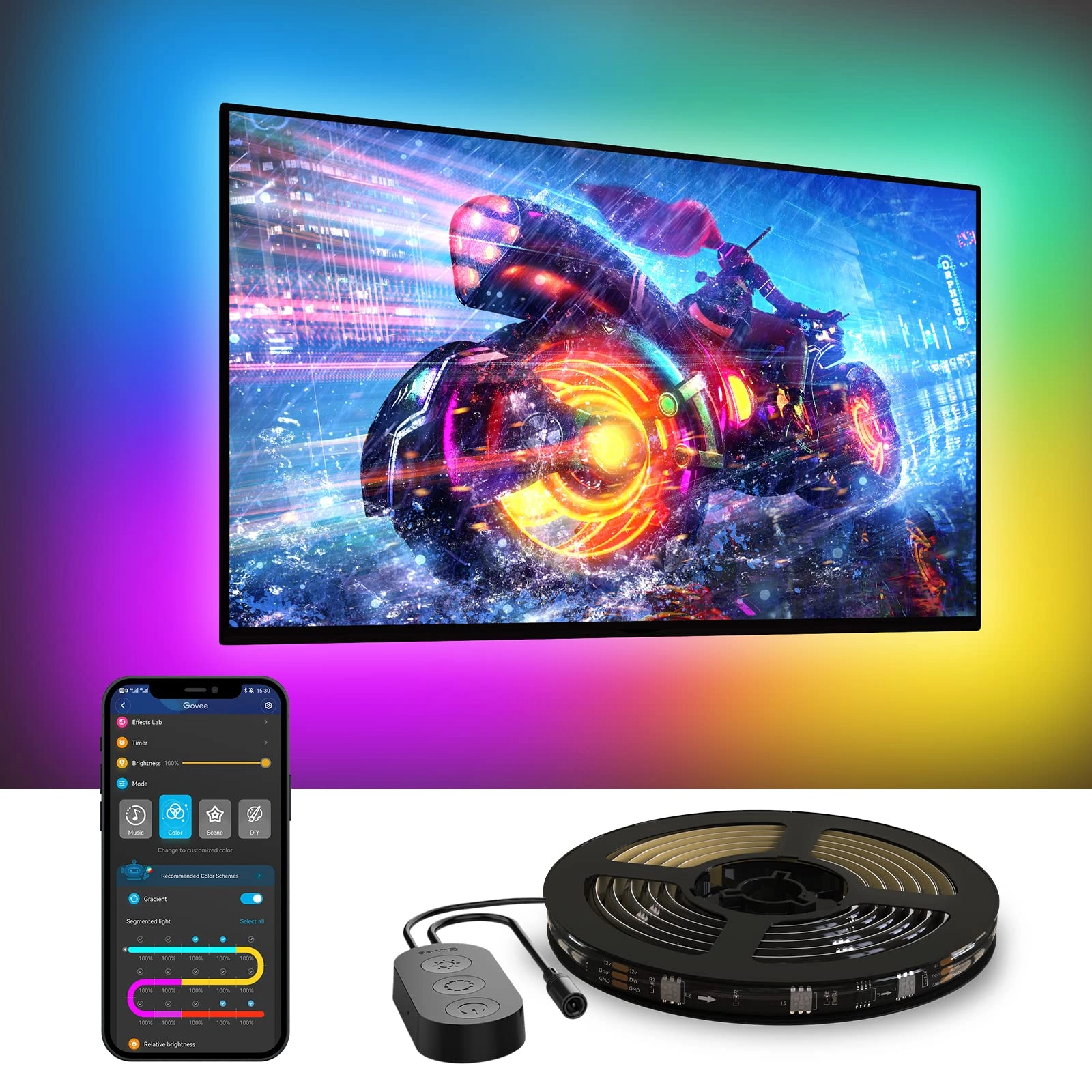
desertcart.com: Govee TV Backlight 3 Lite with Fish-Eye
Correction Function Sync to 40-50 Inch TVs, 7.8ft RGBICW Wi-Fi
LED Strip Lights with Camera, 4 Colors in 1 Lamp Bead, Voice and
APP Control, Adapter : Tools & Home Improvement
Review: Magical TV Backlight With Amazingly Accurate and Vivid
Colors - I had very high expectations for this Govee 3 Lite
backlight and it surpassed all of them by a mile. This Govee 3
Lite with proper set up, calibration and correct settings looks
absolutely magnificent with beautiful and accurate colors that it
adds so much to my TV viewing experience. Most of the "bad"
reviews on here is USER ERROR because the person can't bother to
do even the most basic research therefore he/she doesn't know how
to set it up, calibrate and adjust settings correctly. So here
are some tips and settings that may help others: For accurate
colors it's vital to set your white light accurately first since
all other colors blend off of white. Also, ALL of your TV
SETTINGS like BRIGHTNESS, COLOR TEMPERATURE, PICTURE MODE, COLOR,
CONTRAST, etc. has an impact on the LED strip brightness,
vividness, accuracy and density as well. So play around and pause
a scene on your TV that's really colorful and then turn your
individual TV settings all the way up and all the way down to see
how it affects your Govee lights. Now I have an LG OLED and
OLED's have perfect black levels and near perfect colors out of
the box, so you may not get the exact results I did. But it
doesn't hurt to give it a try and see if it helps your Govee set
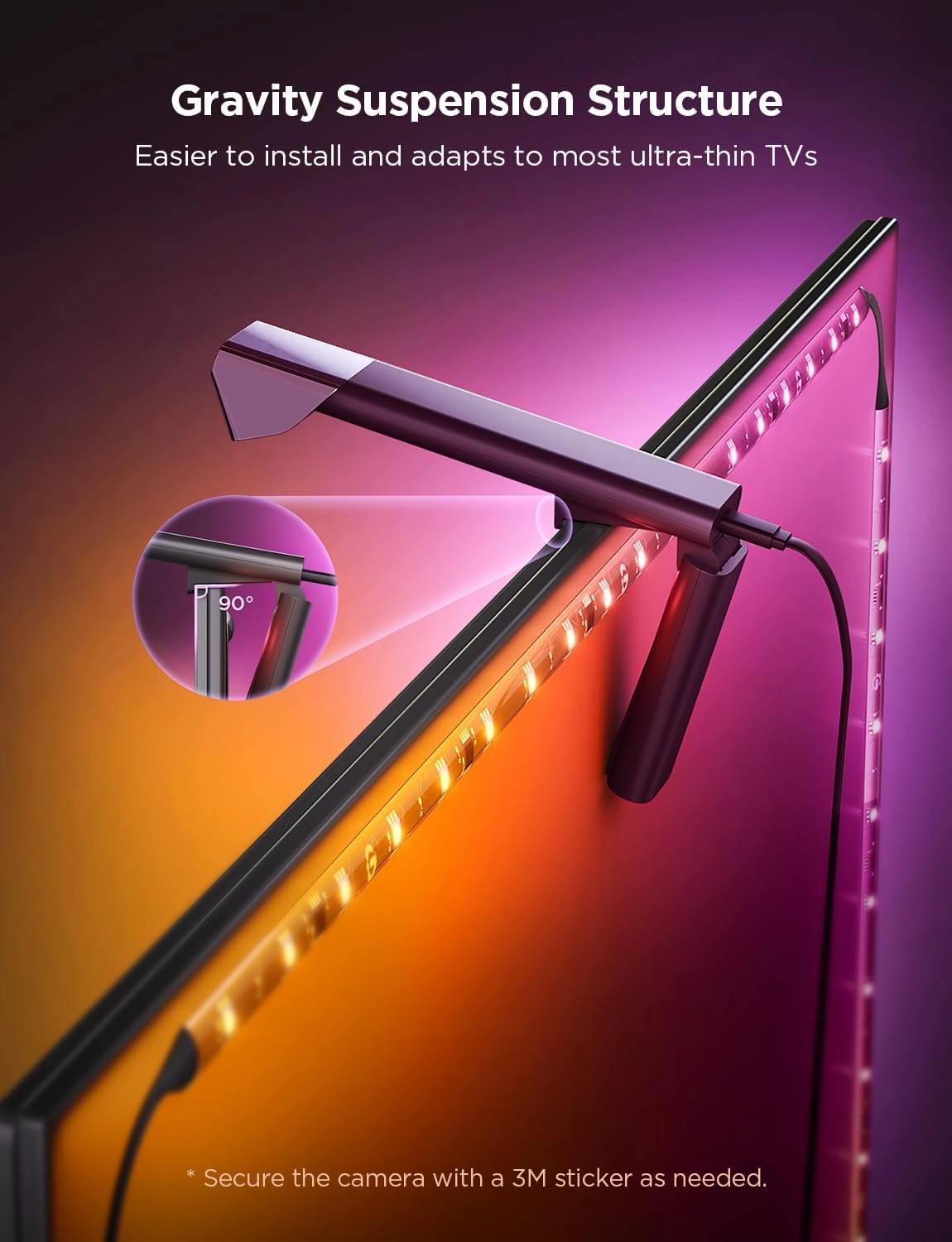
up if you are not satisfied with your colors. 1. Put the camera
dead center of your TV and at 90 degrees (or as close as you
can). 2. Install the light strip as close as you possibly can to
the edge of your TV. I've seen youtube videos where people
install them 2" to 3" inward from the edge (I get it if you have
no choice because your back panel has a weird shape or is not
completely flat along the edges) and that gives such a tiny light
spread on the wall and also leads to dead spots in the corners
because the light is set too far away and that causes the TV's
corners to cast a shadow on the wall leaving a dead spot. 3. When
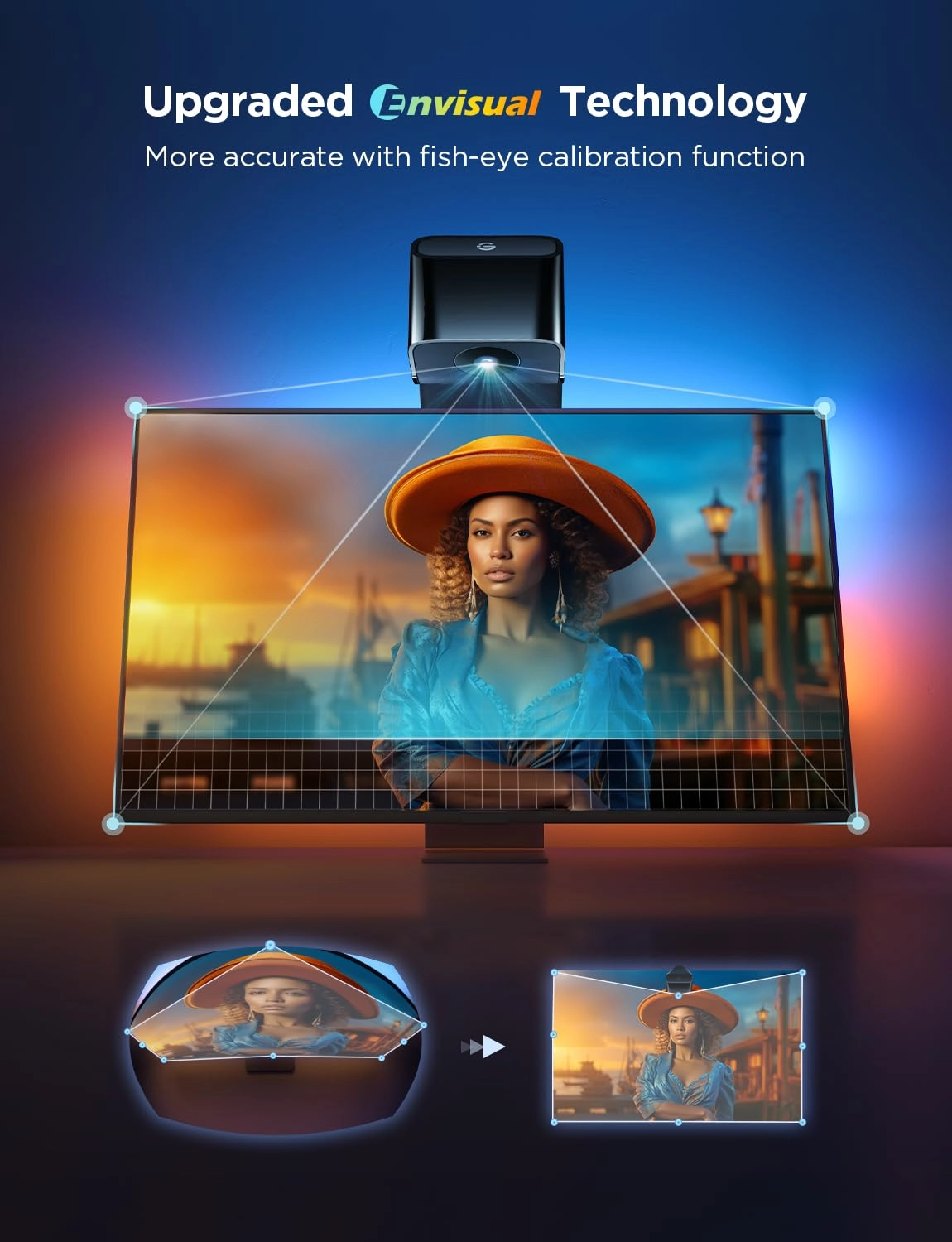
you calibrate with the orange squares make sure the gray box ends
up looking either like a rectangle or a bow tie. I added pictures
of my actual calibrations of both shapes to my review to give you
an idea of what I'm talking about. If your TV is wall mounted or
on a TV stand where there's nothing underneath the camera that
may interfere with it, I'd probably go with a rectangle shape
which is the ideal shape according to Govee. But after playing
around with the calibration I discovered that for my set up a bow
tie shape gives me the most accurate and uniform colors because I
have a semi-glossy TV stand and it helps to prevent the camera
from seeing past the bottom edge of my TV and catching whatever
colors that are reflecting back up off my TV stand so it doesn't
interfere with the actual colors coming from my screen. 4. When
you adjust the "color calibration, saturation, white balance,
etc." in the app do it in a dark room. 4a. "Saturation" setting
needs to be dropped way down to give you accurate colors. I keep
mine between 1%-5%. If you're one of many people that's having
problems with your white light looking green, dropping the
saturation down a lot should fix that problem and give you a nice
white light that will go a long way in giving you accurate colors
across the board. 5. "White balance" default is 50% but it looks
a little too blue on my LG OLED so I keep my white balance a
little more on the red side at 70%-75% and I get a nice slightly
warmer white that works wonders in getting accurate colors all
around. Google "pure white" background and use that to adjust
your white balance and saturation. 6. "Relative Brightness"
default is 50%. I set mine all the way up to 100% on all four
sides and then I control the brightness level with the main
brightness slider which when it's a bright room I set it to 100%
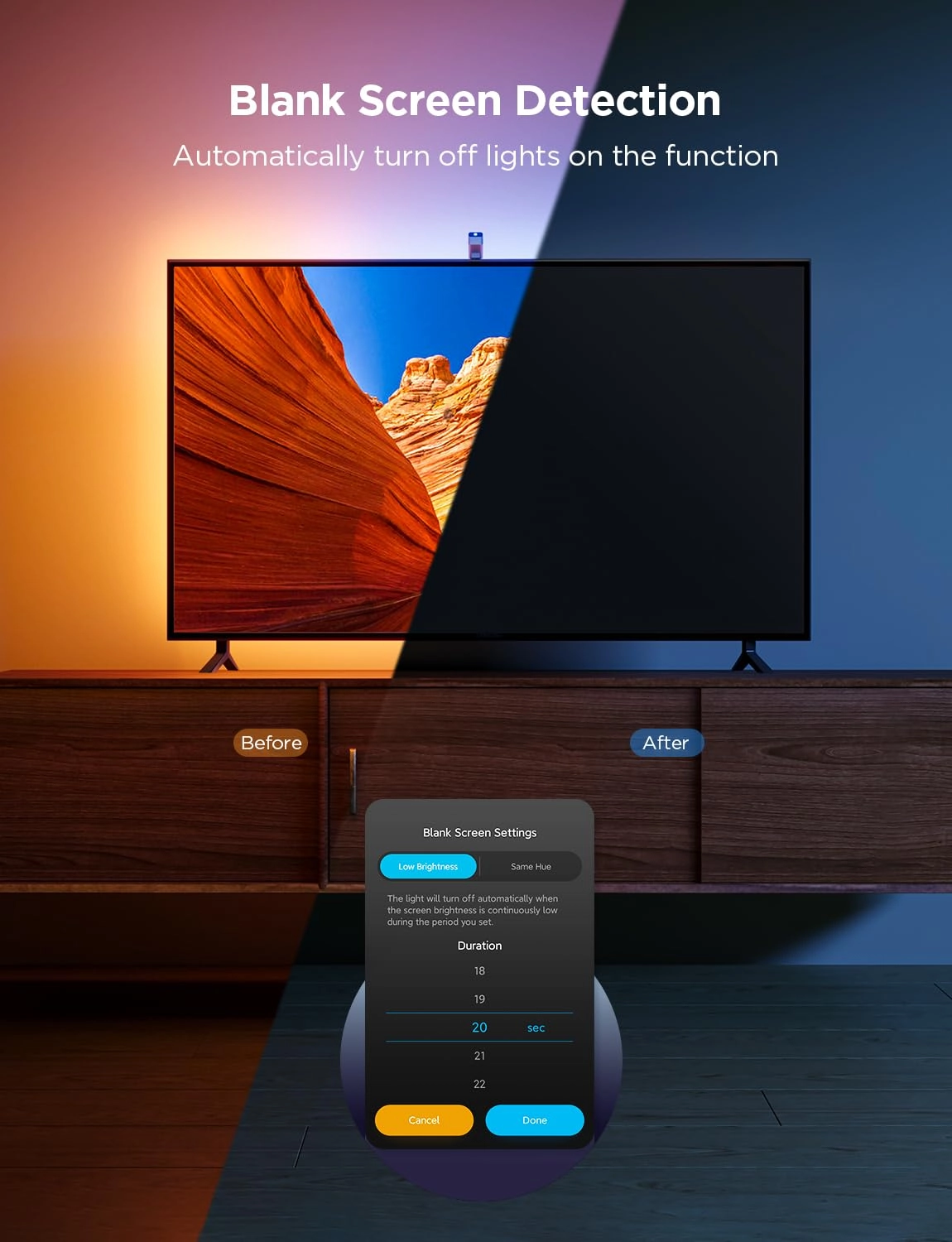
and when it's a dark room I set it to 47% because that's the
percentage I found that when the screen or parts of the screen
goes dark so do the corresponding lights which only adds to the
immersive viewing experience. 7. If you want your lights to show
all the different colors as you watch TV you need to choose
"part" in the app. If you choose "whole" you will get only solid
colors on all four sides. 8. You can choose either "movie" or
"game" but personally I leave mine to "movie" 90% of the time
even if I'm gaming. The difference between them is with "game"
the colors switch a little faster but that leads to a lot more
flickering which can be very distracting. With "movie" it's a
softer and smoother transition. 9. I love that I can connect my
Govee kit to my Alexa app by adding it in the "skills" section
which allows me to control the backlight with voice commands for
things like turning the LED strip on and off or the brightness up
or down or setting a timer/routine to turn the LED strip on or
off at a certain time of day I set. Thankfully I had a few weeks
to do a lot of research and also check out youtube videos before
Prime Day when I was able to purchase this kit for $46 for the
40"-50" size. And it was in doing this research that made my set
up super easy with no problems at all when my kit arrived. All
told it took me about two hours from start to finish to install
and set up my backlight settings to get it perfect for my LG OLED
TV. It took me longer than most people since I went all OCD when
figuring out the exact placement, spacing, height and
measurements of the lights to get the best possible light spread
on my wall and it was all worth it since my LED's look fantastic
because I have a full and wide light spread and the colors are so
evenly dense with no dead spots in the corners like I've seen on
so many other set ups. I was worried that the whole calibration
thing would be a PITA since a lot of reviewers seem to struggle
mightily with getting it right. For me, it was super simple
because through my research I learned what not to do and avoided
all the pitfalls that plague others. The proof is in the pudding.
I've added screenshots of the settings I use and a sample video
with those settings and my lights are mesmerizing and gorgeous.
Check it out!
Review: Great Buy - Great product , I was not too sure reading
some of the reviews but luckily I didn’t have to calibrate mines
it was working just right out the box, but it was easier
installing than I thought . Just take your time and should be a
breeze and well worth it , works way better than I had hoped ,
lights are extremely bright