

Allware
Loading...
  • News
  • Price drops
  • New arrivals
  • Featured categories
  1. Building & Construction
  2. Electrical Equipment & Supplies
  3. Power Conditioning
  4. Electrical Switches
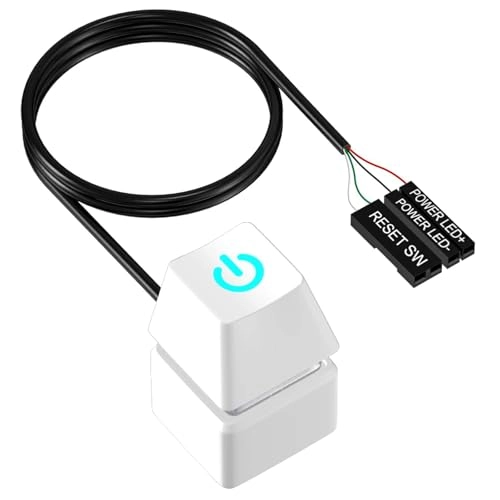
PC Power Button - 1.8M Extension Cable LED

Colexy PC Power Button - 1.8M Extension Cable LED

Key Features

  • Product colour: White
  • Weight: 40g
  • Batteries included: No
  • Offers
  • Price History
  • Specifications
  • Product Details
  • Review IconReviews

Specifications

Features

Product colour
White

Weight & dimensions

Weight
40 g

Packaging content

Batteries included
✗

Product Details

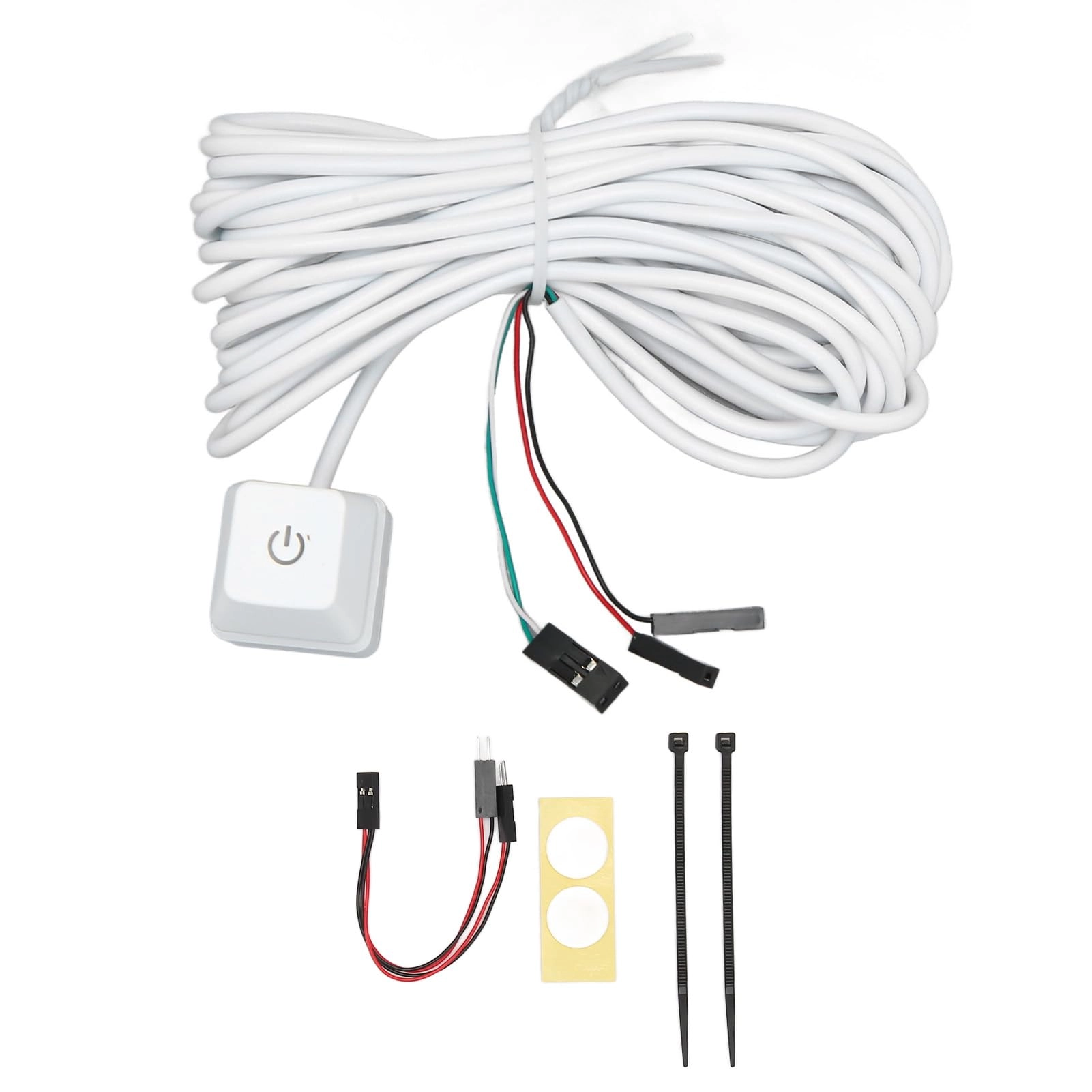
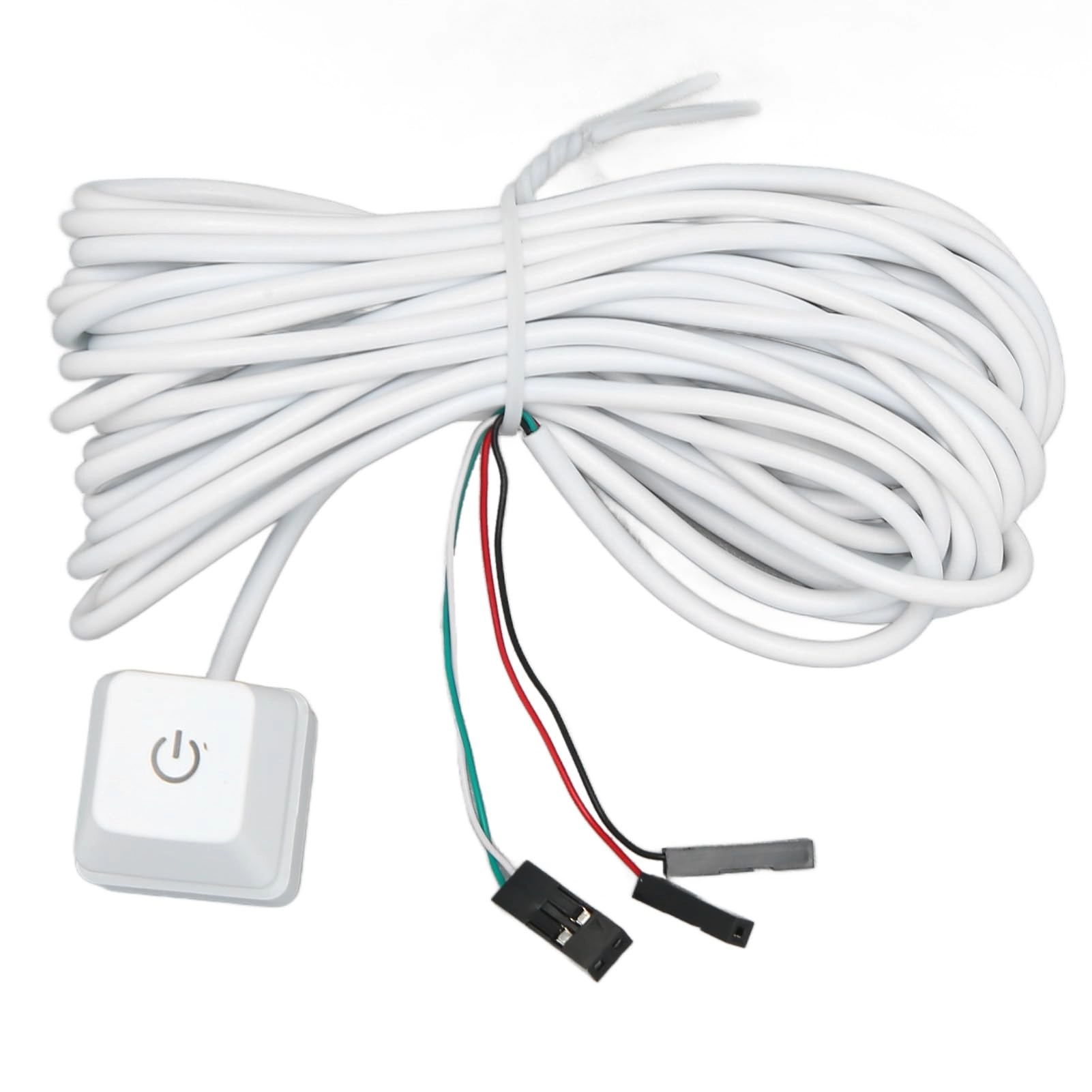
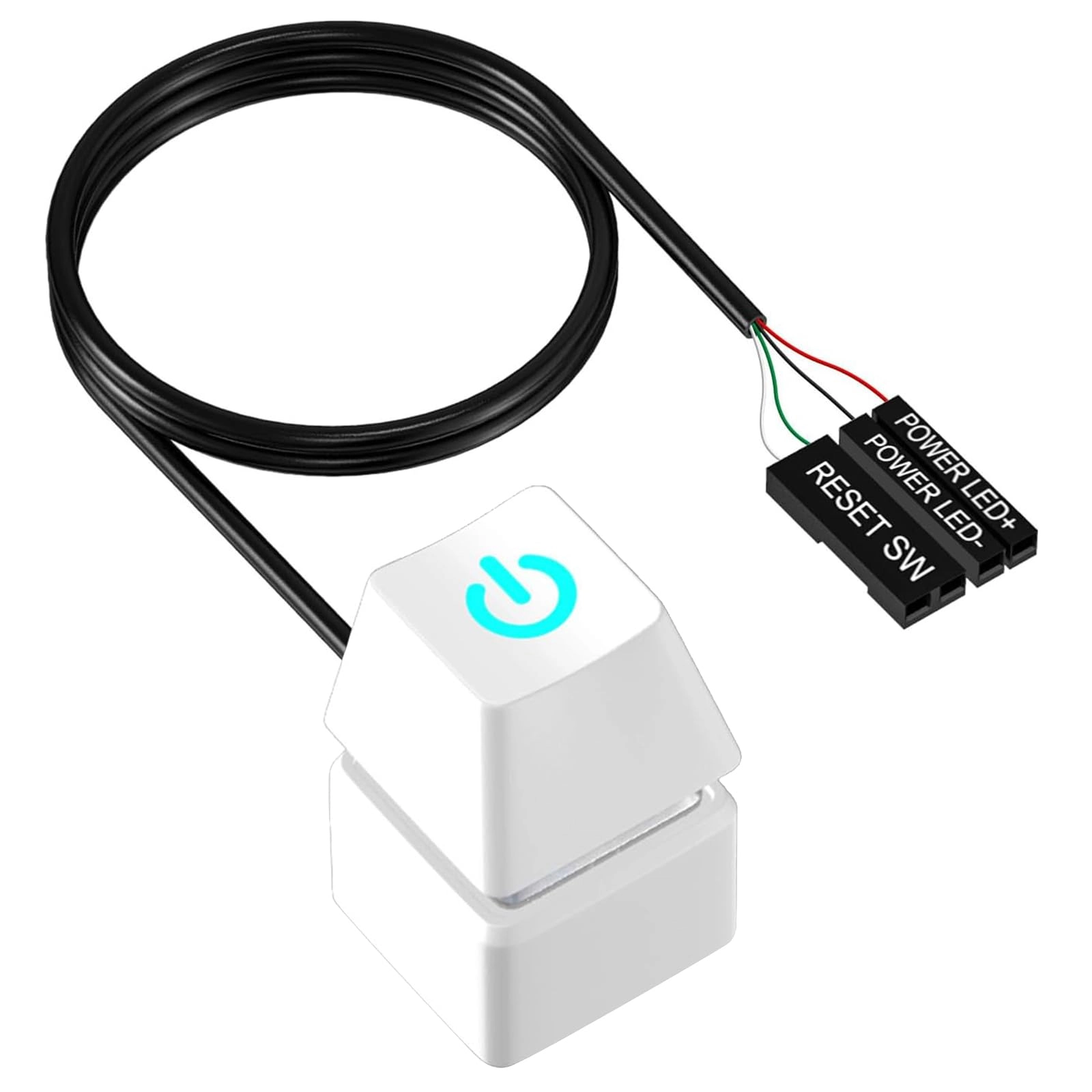
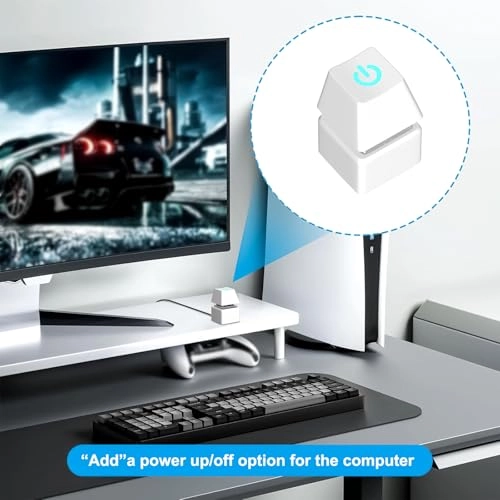
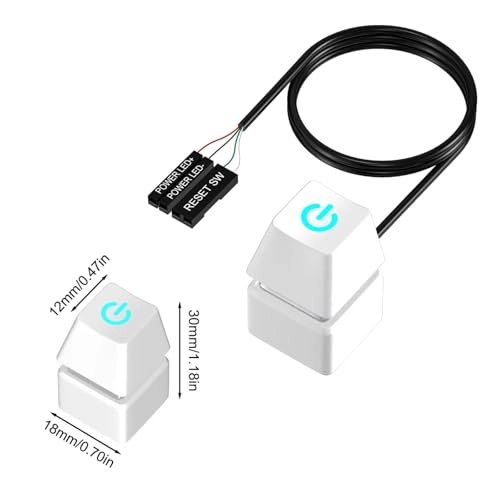
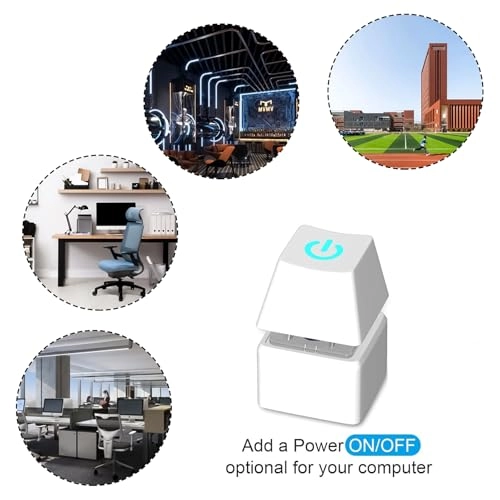
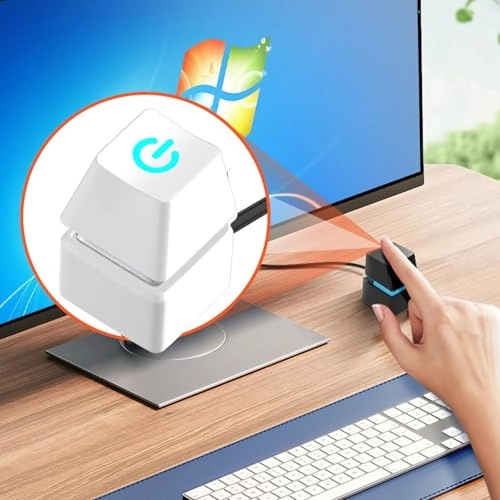
Description: Move the desktop computer switch to a more convenient position. Frequently used in apartments, offices, hotels, internet cafes, etc. You can buy other keys to replace your switches, better fit your computer case and keyboard design. Item details: Colour: black / white. Material: PVC, Plastic Power switch size: approx. 2 x 2 x 3.2 cm/0.79 x 0.79 x 1.26 inches. Extension cable size: approx. 1.8 m/70.89 inches long. Package size: approx. 17 x 12 x 2 cm/6.69 x 4.72 x 0.79 inches. Package Weight: 40g Package Includes: 1 PC Power Button Installation method: 1. The switch must be installed with the computer turned off and completely disconnected from the power supply; 2. Choose a suitable hole on the back of the housing to install the three plug ends of the switch, the position can be chosen after reasonable examination; 3. First, individually confirm the original positions of POWER SW, POWER LED+ and POWER LED- on the original motherboard. If only this extension switch is used to turn on, no additional branch line is required, simply replace the plugs in order (please note that the two LED+ and LED- lines should not be connected upside down); 4. If the original power button on the front is to continue to work, first connect the branch line socket provided by the side user, and then the two plugs of the motherboard POWER SW connection are connected to the expansion switch. and the original front switch respectively; 5. Check again whether the connections are correct, then perform a test by connecting the power supply under normal conditions; 6. After confirming that the functions are normal, lay out the extension cords, restore the computer case and install the switch to the desired position with double-sided adhesive pads. Note: ◆ Due to the light and screen settings, there may be slight color differences. ◆ The size is measured manually, so there may be slight errors. ◆The package only includes the PC power switch, other items shown in the picture are only accessories and are not included in the package.

Reviews

Loading...
Loading...
Loading...
Loading...
Loading...
Loading...
Loading...
Loading...
Loading...
Loading...
Loading...
Loading...
Loading...
Loading...
Loading...
Loading...
Loading...
Loading...
Loading...
Loading...
Loading...
Loading...
Loading...
Loading...
Loading...
Loading...
Loading...
Loading...
Loading...
Loading...
Loading...
Loading...
Loading...
Loading...
Loading...
Loading...
Loading...
Loading...
Loading...
Loading...
Loading...
Loading...
Loading...
Loading...
Loading...
Loading...
Loading...
Loading...
Loading...
Loading...
Loading...
Loading...
Loading...
Loading...
Loading...
Loading...
Loading...
Loading...
Loading...
Loading...
Loading...
Loading...
Loading...

Join our newsletter

Be the first to know about new arrivals, sales, and exclusive picks

Sign in to unlock newsletter access and stay in the loop

Allware
info@allware.com
+971522500911
World technology awards winner badge

Allware

  • About Us
  • Terms And Conditions
  • Privacy Policy
  • Contact Us

Partners

  • Why become a partner?
  • How to list your Online Shop?

Newsletter

  • Subscribe

Info

  • How Allware works
All Rights Reserved.
Please enable location access or select an emirate
-
00:00:00
Prayer timings

Offers (1)

Amazon logo

1 offer

From
AED
Infinity

Colexy PC Power Switch, Desktop Computer Switch, External PC Power Button with LED Light, 1.8M Extension Cable (White)

Unavailable

Price History

Price History Skeleton
Price History Shimmer Effect
Loading price history...

Similar Products

See all
-42%
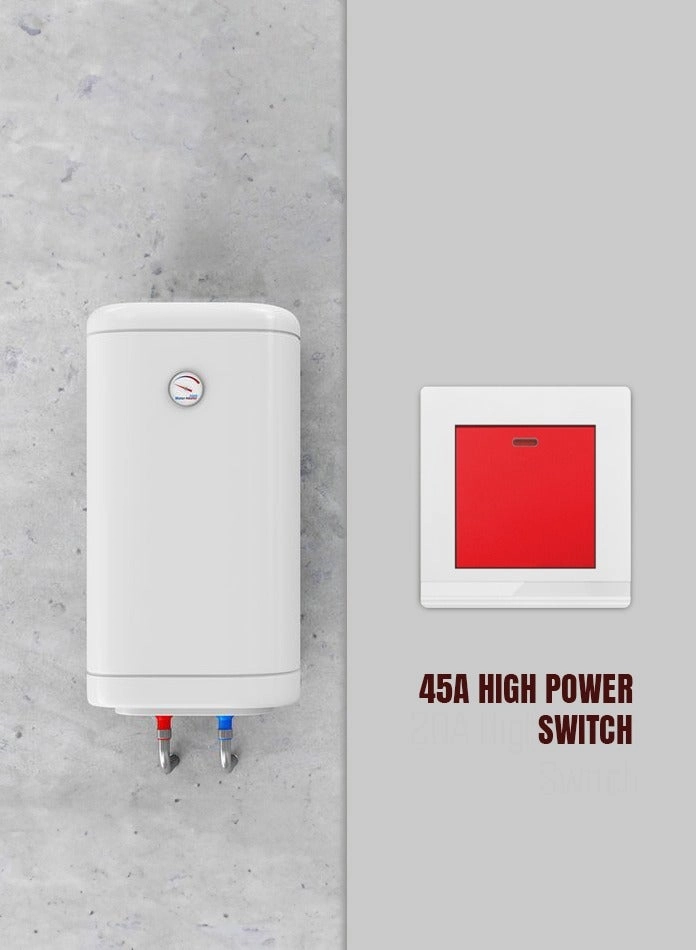
V.MAX 45A High Power Switch - Neon Indicator Fire-Resistant PC

V.MAX 45A High Power Switch - Neon Indicator Fire-Resistant PC

AED
6800
AED
3900
3 offers
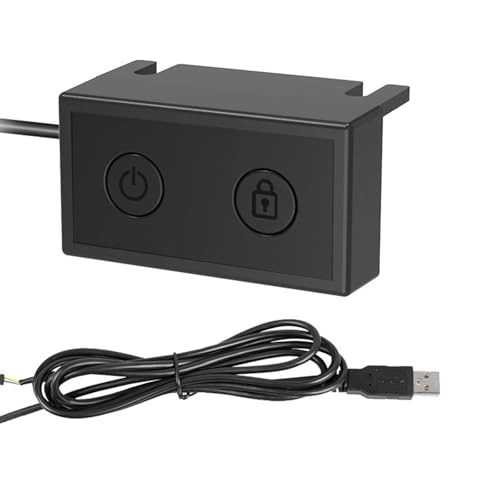
Domary Desktop Power Button Switch - Wireless USB 5 Meters

Domary Desktop Power Button Switch - Wireless USB 5 Meters

AED
5559
1 offer
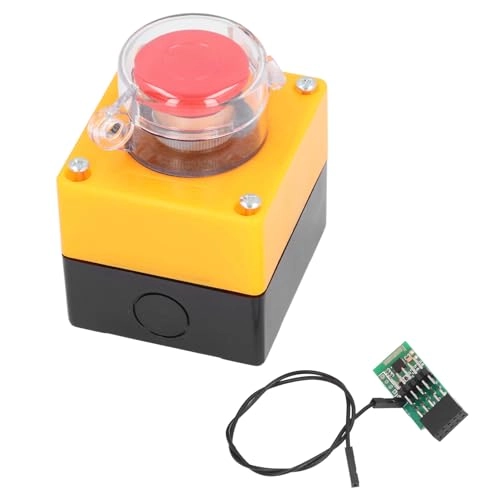
Oxtxuzdm PC Power Switch - Desktop External Button

Oxtxuzdm PC Power Switch - Desktop External Button

AED
4159
1 offer
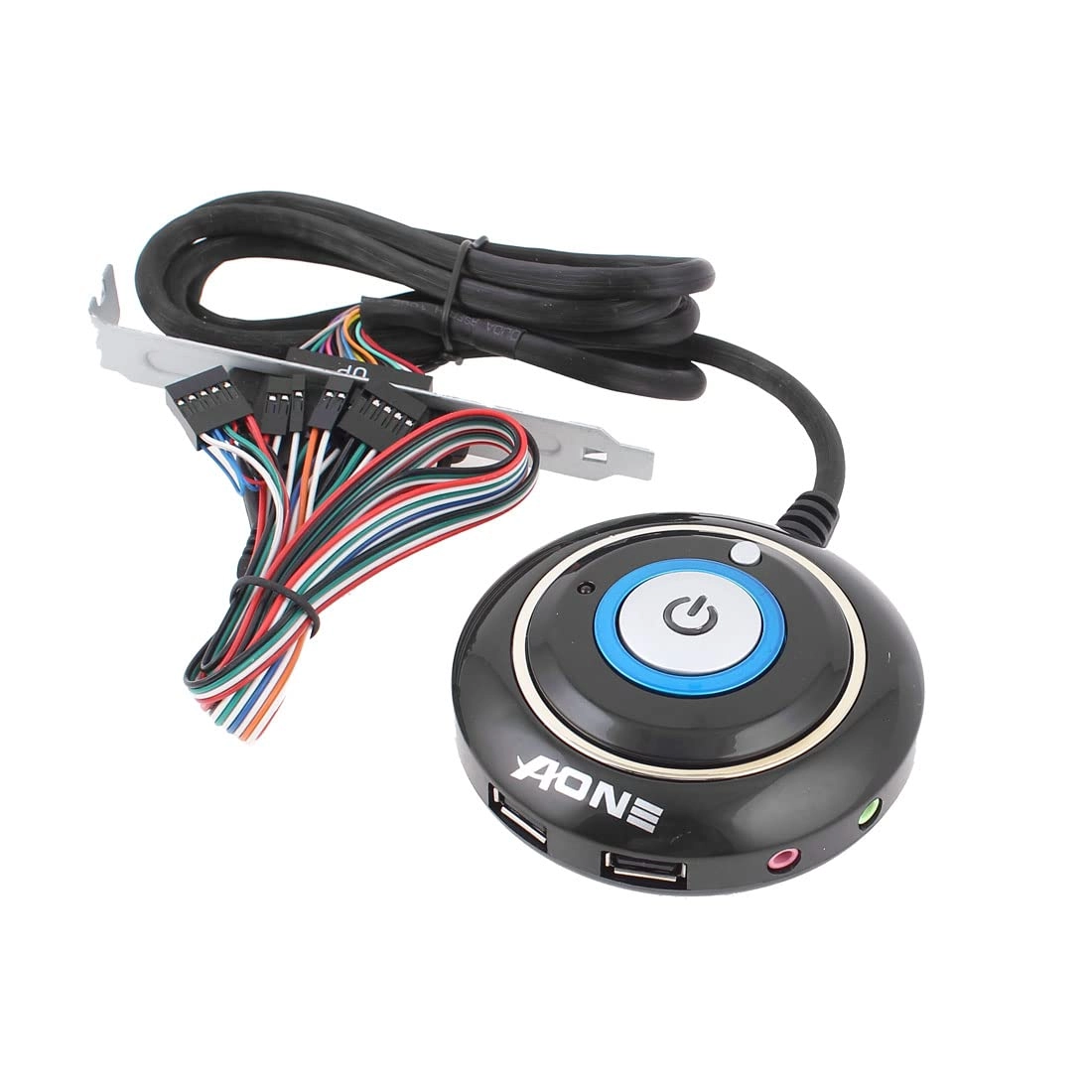
Ruilogod Dual USB 2.0 Port LED Light Desktop Power Reset Button Switch

Ruilogod Dual USB 2.0 Port LED Light Desktop Power Reset Button Switch

AED
5159
1 offer
HASTHIP PC Power Button - Desktop External Power Supply Switch

HASTHIP PC Power Button - Desktop External Power Supply Switch

AED
3990
1 offer
Bewinner PC Power Switch - Mechanical Blue Switch Backlit Plug and Play

Bewinner PC Power Switch - Mechanical Blue Switch Backlit Plug and Play

AED
2561
1 offer
Jectse PC Power Switch - Push Button Backlit Plug and Play

Jectse PC Power Switch - Push Button Backlit Plug and Play

AED
5642
1 offer

More from Colexy

See all
Colexy PC Power Button - 1.8M Extension Cable LED

Colexy PC Power Button - 1.8M Extension Cable LED

Unavailable
1 offer
Loading...
Loading...
Loading...
Loading...
Loading...
Loading...
Loading...
Loading...
Loading...
Loading...
Loading...
Loading...
Loading...
Loading...
Loading...
Loading...
Loading...
Loading...
Loading...
Loading...
Loading...
Loading...
Loading...
Loading...
Loading...
Loading...
Loading...
Loading...
Loading...
Loading...
Loading...
Loading...
Loading...
Loading...
Loading...
Loading...
Loading...
Loading...
Loading...
Loading...
Loading...
Loading...
Loading...
Loading...
Loading...