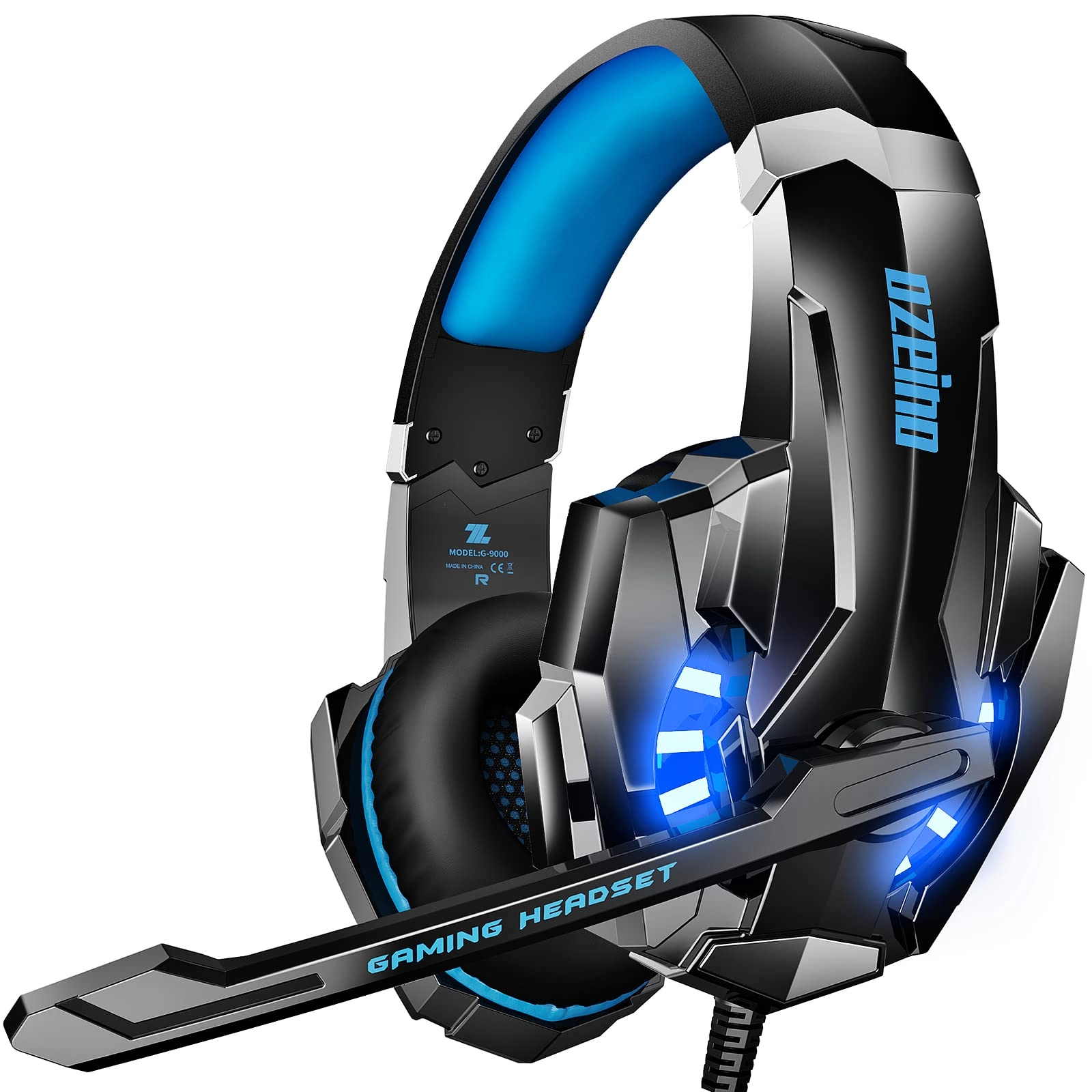
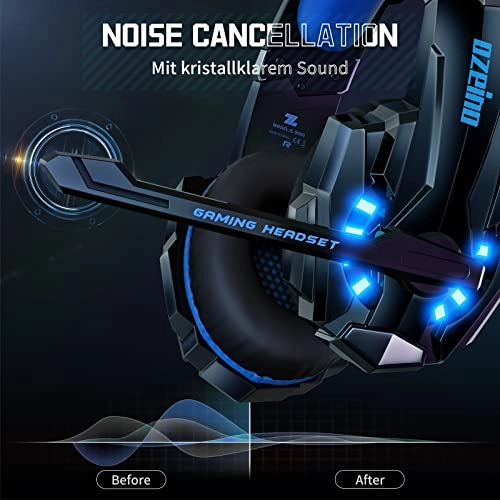
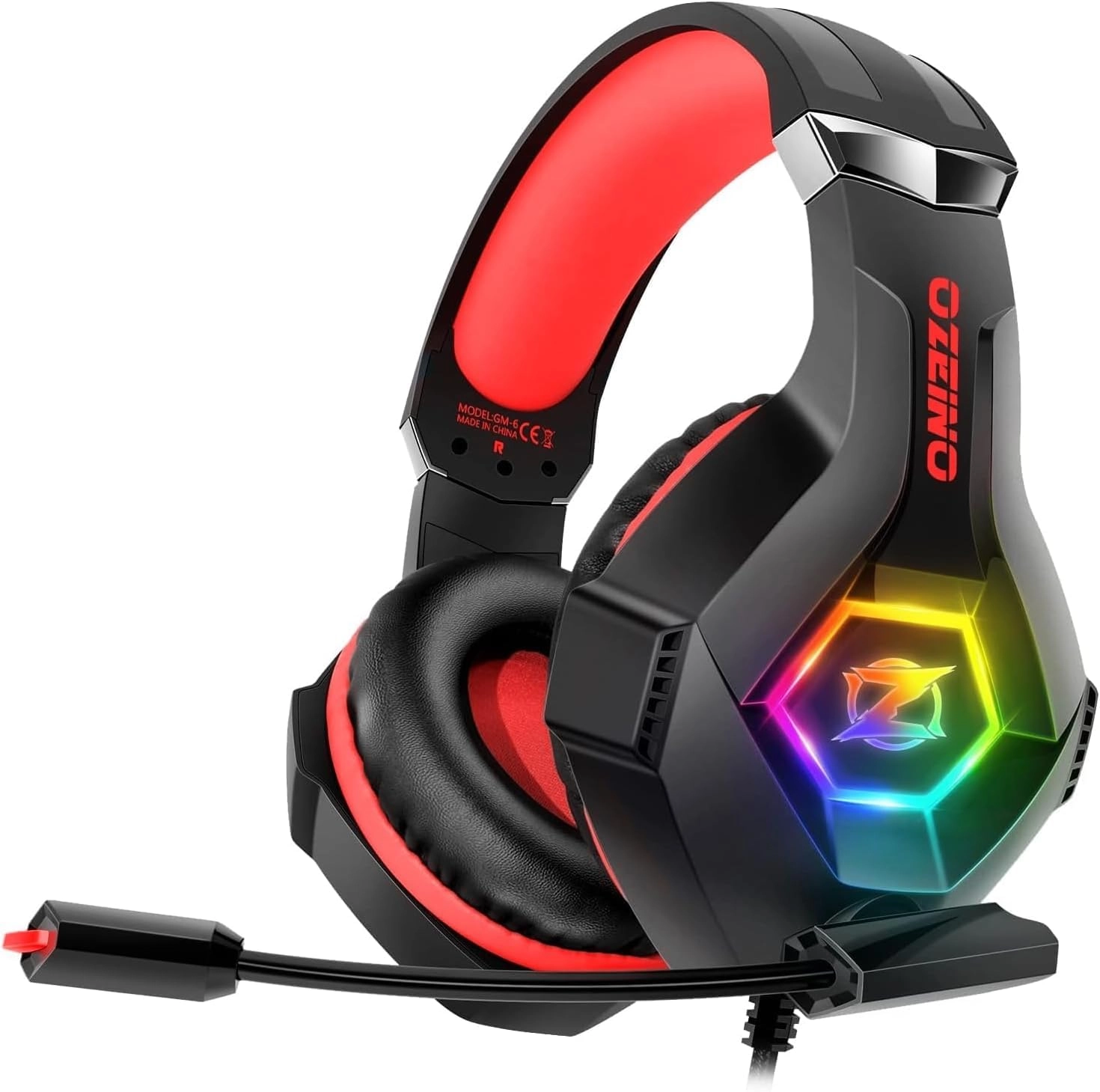
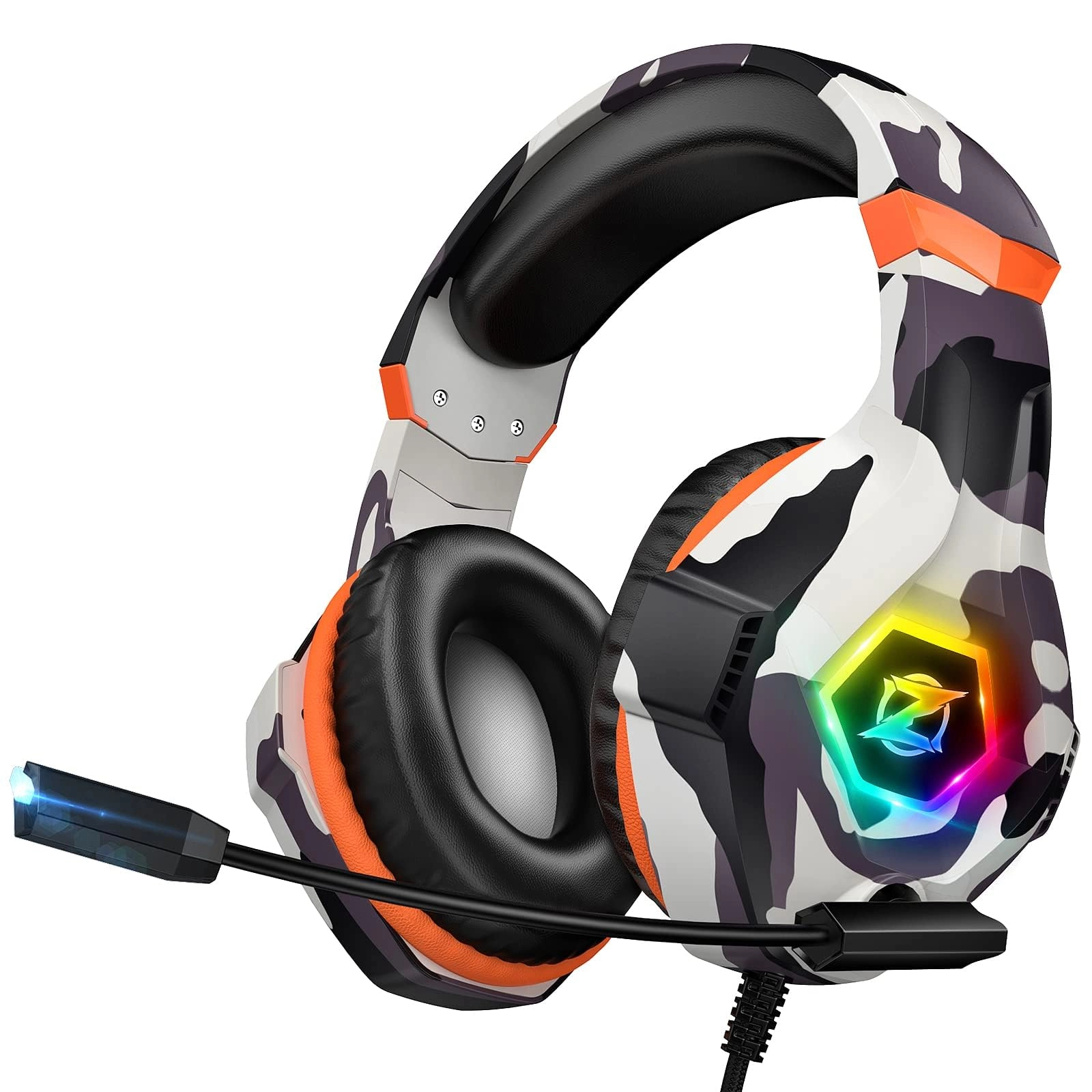
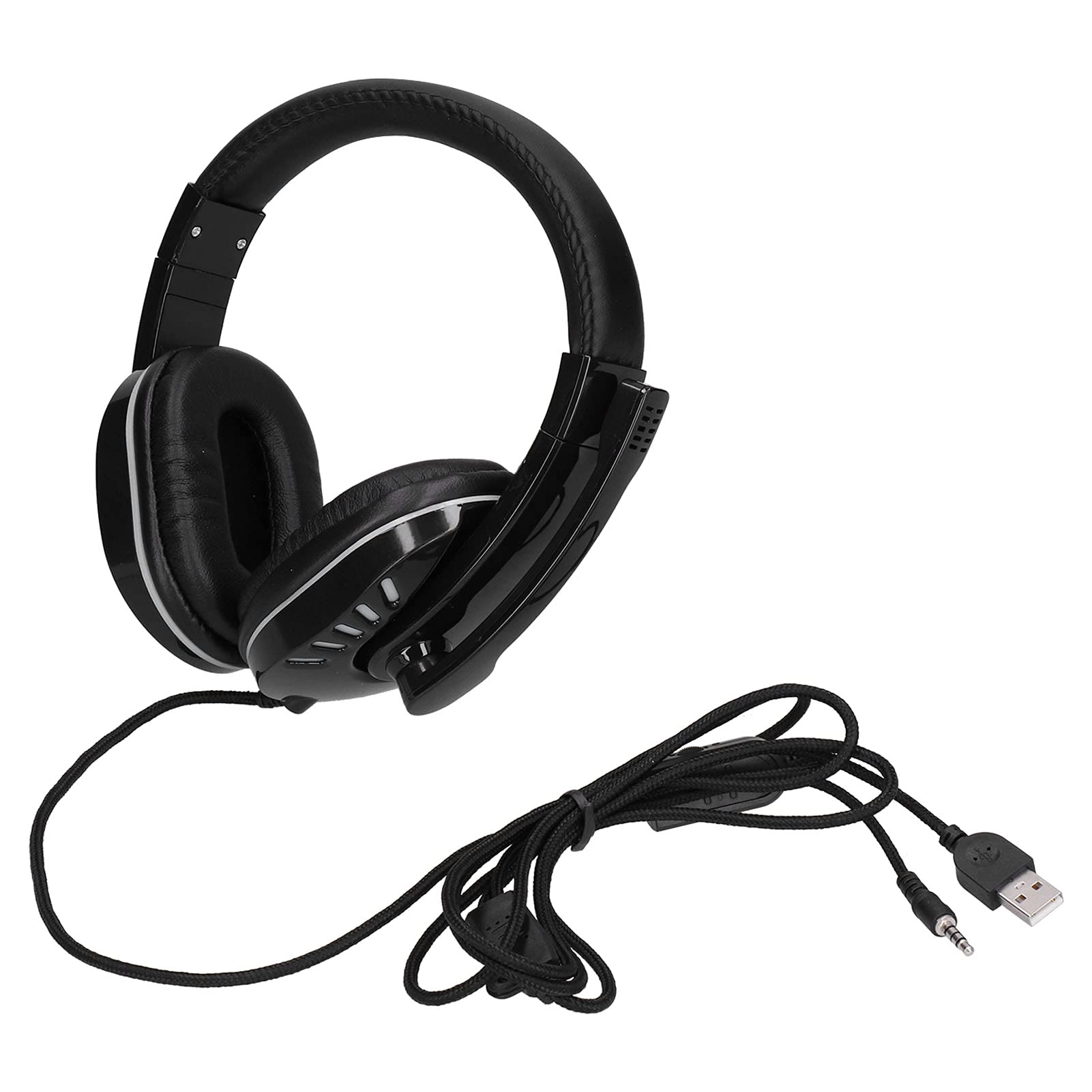
Product description How to make the mic get to work? 1) Connect
the 1-to-2 jack splitter cable with the 3.5mm jack to work on PC.
2) Make sure insert the right jack (Pink for the microphone).
3)Adjust and rotate the 3.5mm interface until both sides of the
headphones have smooth sound output. How to make the mic get to
work? 1) Connect the 1-to-2 jack splitter cable with the 3.5mm
jack to work on PC. 2) Make sure insert the right jack (Pink for
the microphone). 3)Adjust and rotate the 3.5mm interface until
both sides of the headphones have smooth sound output. How to
light on the LED light? The USB jack is help to light on the RGB
light. If your device does not come with a USB jack, you can link
the USB plug to a power bank or to a computer host or other USB
charger. How to light on the LED light? The USB jack is help to
light on the RGB light. If your device does not come with a USB
jack, you can link the USB plug to a power bank or to a computer
host or other USB charger. How to connect PS4 PS5? 1.Insert the
3.5mm jack plug into the controller 2.Press the ps4 button or
enter the settings system, there is a options, choose "adjust
audio and devices", "output to headphones", then change to "all
audio " 3.Suitable for ps4 ps5 xbox one pc mac. How to connect
PS4 PS5? 1.Insert the 3.5mm jack plug into the controller 2.Press
the ps4 button or enter the settings system, there is a options,
choose "adjust audio and devices", "output to headphones", then
change to "all audio " 3.Suitable for ps4 ps5 xbox one pc mac.
How do I check if the microphone is on? Please check that you
have turned on the mute button, the microphone mute button is
located in the headset in-line control position. How do I check
if the microphone is on? Please check that you have turned on the
mute button, the microphone mute button is located in the headset
in-line control position. How to connect Xbox one? 1.Use the
3.5mm jack to connect the devices. 2.Check the Xbox settings to
ensure set on the correct output mode. 3.Set on the mic input and
volume. 3.Adjust volume of the headset. How to connect Xbox one?
1.Use the 3.5mm jack to connect the devices. 2.Check the Xbox
settings to ensure set on the correct output mode. 3.Set on the
mic input and volume. 3.Adjust volume of the headset.
Review: Excellent Purchase — Great Sound and Super Clear Mic - I
bought this headset for my son, and it’s been an absolutely great
purchase. He uses it daily to talk with his friends
online—sometimes they don’t even play a game; they just hang out
in the lobby having what they call a “conference call.” The
microphone is crystal clear, and his friends say his voice comes
through perfectly with no static or echo. The sound quality is
surprisingly powerful—deep, full, and immersive—making both
gaming and regular chatting a lot more fun. It’s comfortable
enough for long sessions, feels sturdy, and still looks brand-new
after months of use. For the price, the clarity and build quality
really stand out. If you’re looking for a dependable headset for
online gaming or just staying connected with friends, this one is
a solid win.
Review: Top Tier Gaming headphones - I was genuinely impressed
with the Ozeino Gaming Headset right out of the box, and it
quickly became my go-to for both competitive PC gaming and
late-night PS5 sessions. The advertised 7.1 Surround Sound isn't
just a gimmick; it provides excellent positional audio in
shooters, letting me pinpoint enemy footsteps with surprising
accuracy, which is a massive competitive advantage. Comfort is
also top-tier—the earcups are plush and breathable, allowing for
several hours of continuous wear without any painful clamping or
overheating. While the build feels sturdy, the noise-canceling
microphone is clear and folds away nicely, making communication
sharp and static-free across all major platforms, including PS4,
PS5, Xbox, and PC. For the price point, the Ozeino headset
delivers premium features and performance, making it a fantastic
value that I wholeheartedly recommend to any serious or casual
gamer looking for an upgrade.