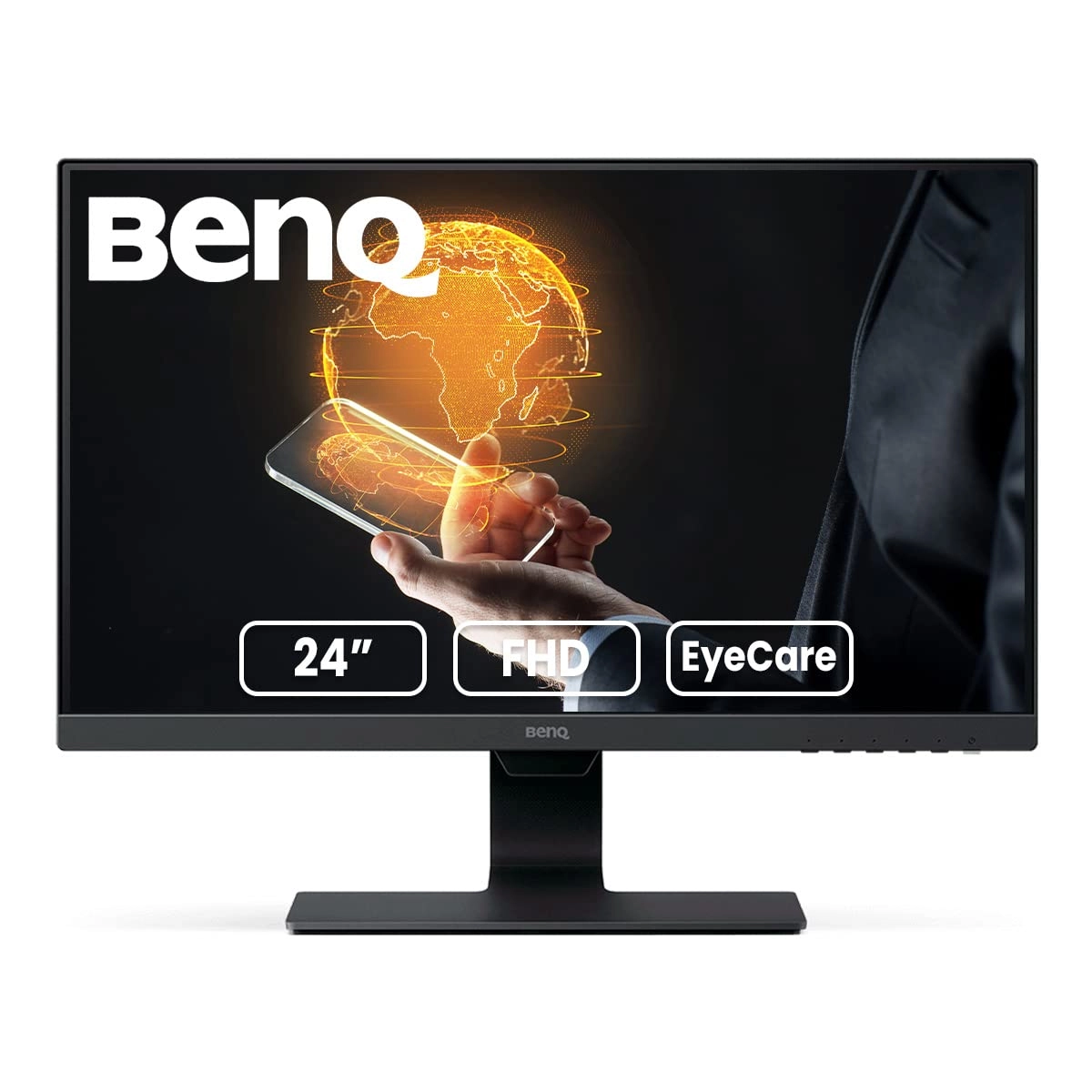
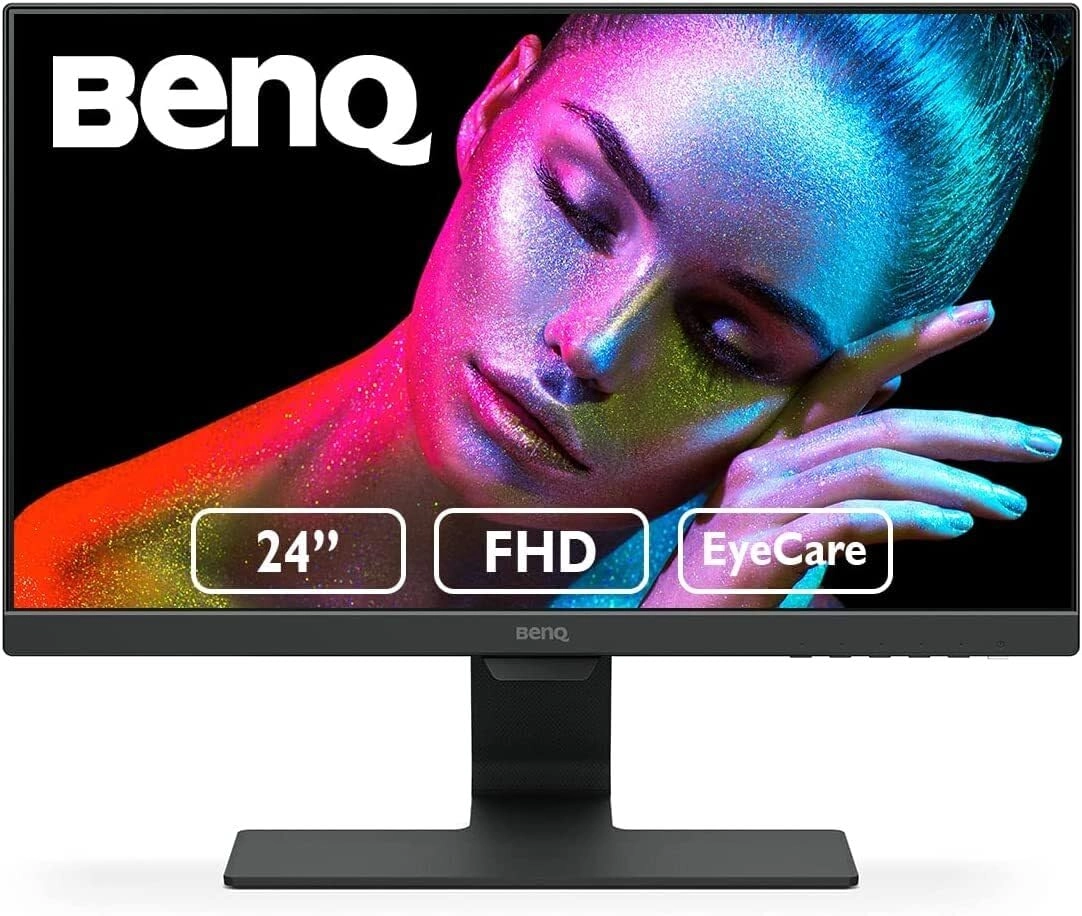
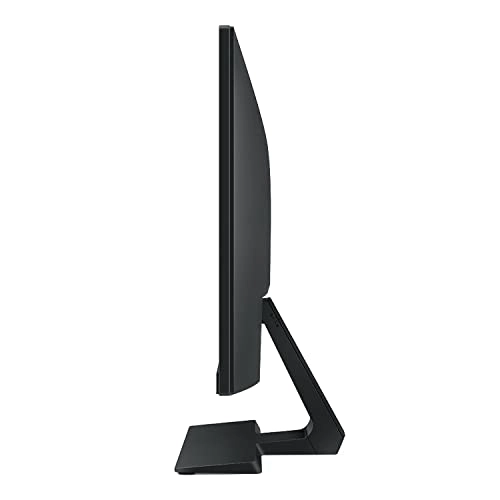
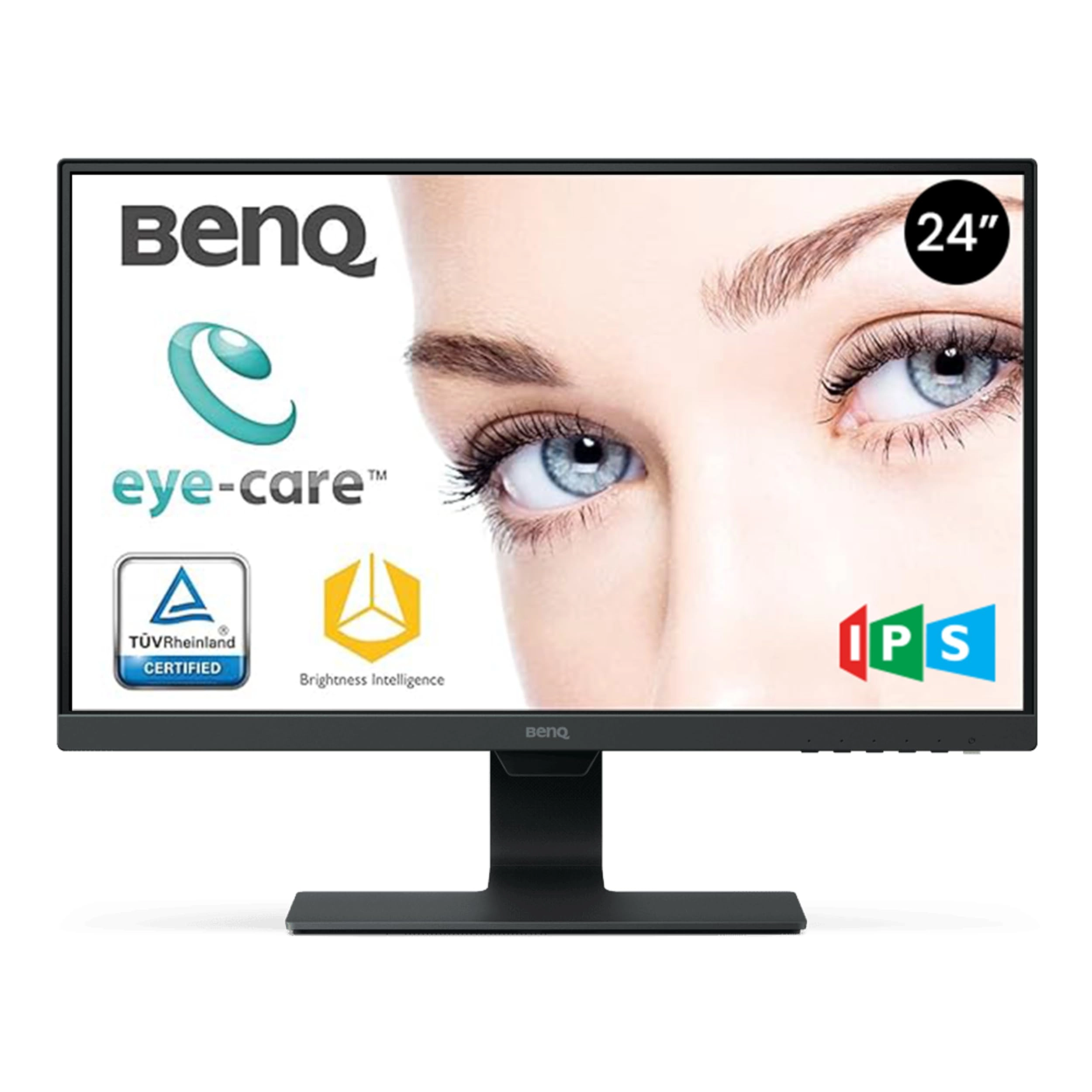
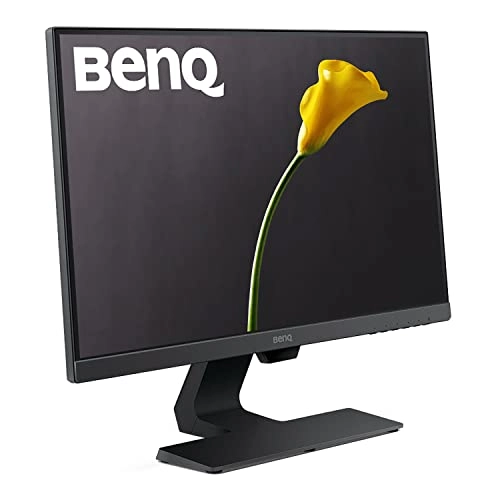
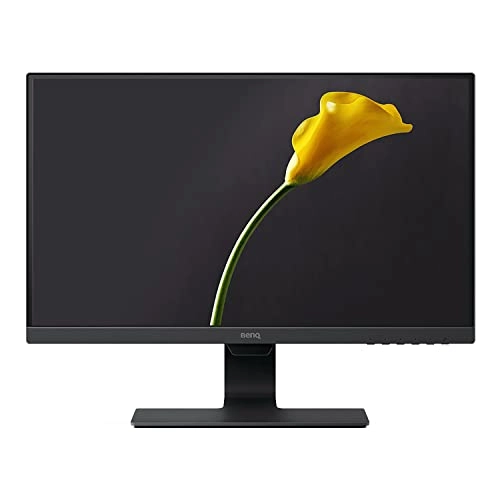
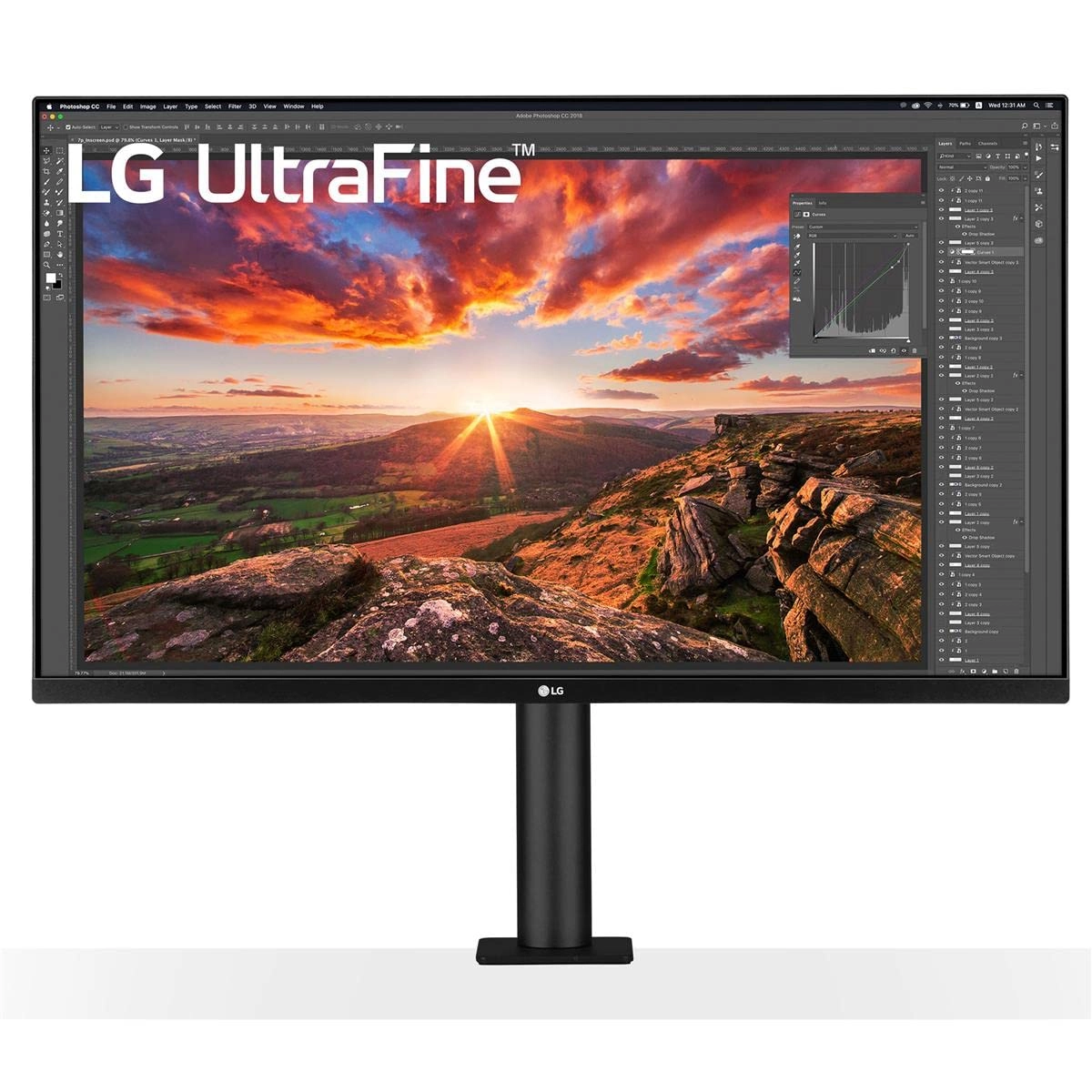
Designed for beautiful simplicity, BenQ GW2480 24 inch frameless
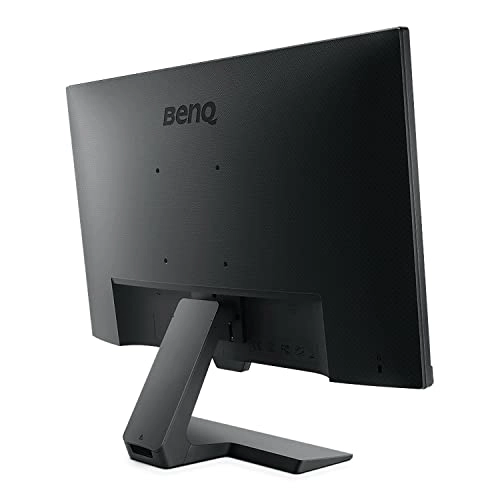
IPS monitor combines Ultra slim bezels with hidden cable
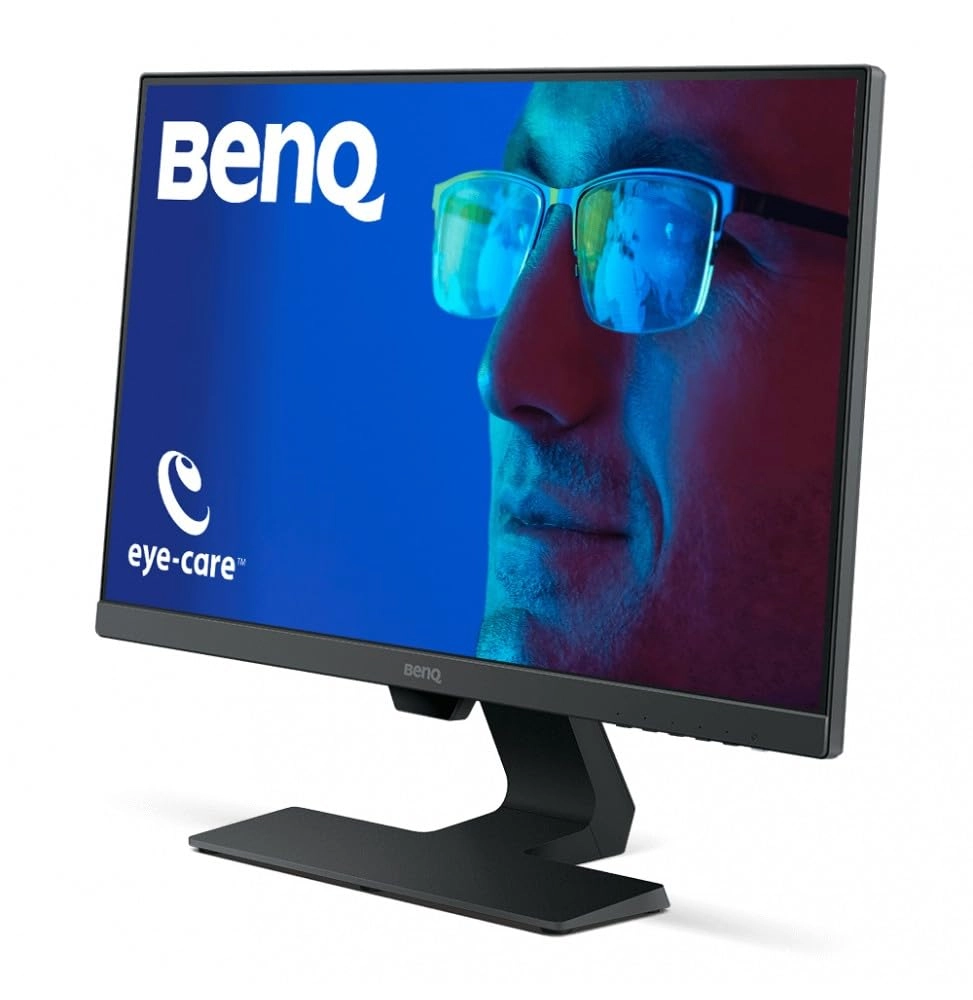
management. Complementing BenQ exclusive eye-care technology with
low Blue light technology and flicker-free performance for
extended viewing comfort, industry-leading brightness
Intelligence technology delivers exquisite details in any ambient
lighting environment. With the ideal combination of LED and IPS
technologies, GW2480 delivers a new level of visual enjoyment
with truly authentic colors, Deeper blacks, higher contrast, and
sharper details. BenQ patented brightness Intelligence technology
sensor will automatically detect your ambient lighting surrounds
and automatically adjust the screen brightness to protect your
eyes from longer on screen periods
Review: A Affordable Quality IPS Monitor That Is Good For Most
Things! - BenQ is a new brand to me, never heard of them before.
But I saw the reviews and most people were raving about this one,
so I thought I would give it a shot, considering the price was
good on it. I bought this monitor for use with my tablet, I use
it to monitor a security camera feed, as well as surf the web,
watch video's, and do a little gaming. I have a 55" 4K TV for my
main computer, so I really only needed the monitor for the
tablet. PACKAGING: The package that it comes in is certainly not
thrilling to look at. It has a generic look to it to re-emphasize
the fact that, you did not buy a high end monitor. However, they
did package the monitor up very well in the box it came in, foam
on both sides, and everything that comes with it neatly tucked
away in the foam as well. WHATS INCLUDED: The box contains the
monitor itself, a power cord, and a short HDMI cable. Also
included, is a quick start guide, warranty sheet, and a driver
disk, which also has the full product manual in PDF form.
WARRANTY: BenQ monitors come with a 3-year warranty, which is
pretty good! Oddly however, they changed their policy, and you no
longer have to register your product with them, in order to
validate your warranty. You are however, required to keep your
purchase receipt as proof of ownership, if you should ever have
to use your warranty. For online shoppers, that is your invoice
page, take a screenshot. SETTING UP: Setting this monitor up is
super simple, place monitor face down on the protective foam bag.
Grab both pieces that make up the stand, connect them together,
then screw in the built in nut, then push the stand into the
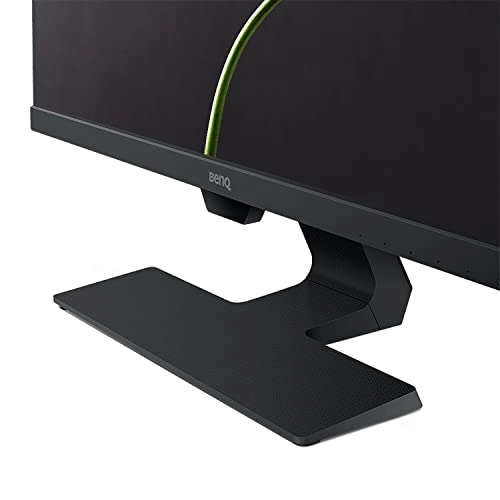
monitor until it locks in place. What is great about this stand,
is that it has a place to rout your cables for a neat install.
Rout your power cable, and your data cable through the keepers
within the stand, then plug them in. Then put the backing cover
back on the stand, it only wants to go on properly one-way.
PORTS: This monitor has the standard 3-pin computer cable port
for power. This monitor comes with the ancient standard VGA port,
the previous standard HDMI port, and the latest standard, Display
port. It also has a speaker port, and a microphone port. I have
it connected up to my tablet using HDMI at 1080P 60-hertz.
SPEAKERS: Some people might not know that this monitor is a
unique one, that actually comes with speakers. The built-in
speakers however are pretty horrible, but this is to be expected
due to the monitors size. The speakers can't be over 2-inches in
diameter more then likely, which is why the sound is so weak in
volume. The sound quality is terrible, the speakers do not
produce quality bass, nor quality highs. The speakers pretty much
just produce mid-range. Recommendation, use a pair of Edifier
R1700BT bookshelf speakers, or a pair of headphones. SCREEN: The
screen is an IPS (In Plane Switching) design that measures
23.8-inches diagonally from corner to corner. Unlike a TN
(Twisted Nematic) panel which suffers from poor blacks, and major
color distortion when viewed at an angle, IPS panels maintain
quality deep rich color, with quality blacks, and practically no
viewing angles. The only drawback to an IPS display, is that it
has a higher response time, and as is with this screen 8ms, and
is only 60 herts refresh rate, which is why its not great for
gaming. GAMING: As an addition to the previous paragraph, this
monitor would not be good for competitive gaming. A true gaming
monitor should have a response time of 3ms or lower, and up to a
144 hertz refresh rate or better. The 8ms that this monitor
supports, can cause you to see ghosting. And operating at only
60-herts, an action in the game, can happen quicker, then you can
see it, which means, you have a higher chance of getting fragged
in online play, rather then you doing the fragging. However,
having said that, if your a non-competitive gamer, and you only
play single player games like Dead Effect, or simple games like
Plants Vs Zombies, this monitor will actually be fine for gaming.
QUALITY: The quality that this monitor provides is pretty good
for the price. While it may not be the best monitor for gaming,
it does however produce rich color that actually looks really
good. This monitor seems to prefer warmer tones to colors, even
if I set the display to be a more cooler blue, it still is warmer
then many other screens that I've used. If your looking for a
monitor that provides you 100% accurate color reproduction, this
may not be the one for you. If your willing to deal with the
warmer tones, then this will be just fine for you. The quality of
blacks is probably one of the best I've seen on computer
monitors, there is very little light leak through on the edges,
its hardly noticeable at all. With a TN panel, you would see
grey's instead of blacks, and there would be light leak all over
the place. There are no dead pixel's that I can see, and the
screen is very smooth with a matt finish, which helps reduce
glare. The monitor uses a thin bezel design as well, which I
like. MENU: This monitor uses a simple menu system, with the use
of 4-different buttons, to navigate. Its not the easiest, nor the
most logical menu setup, that I've ever used, but it works. Whats
a cool however, is that the monitor displays what each button
does on screen, so you don't have to look under the monitor with
a flashlight to see its icon. (Icons only display on screen when
in menu) I turned off all dynamic options, both brightness, and
contrast, I don't need my monitor making choices on my behalf. I
set the brightness to 50% and the contrast to 70%. EYECARE: This
monitor comes with patented EyeCare technology. The company makes
it seem so fancy in marketing. All it is, is there is a photocell
under the monitor that senses light. When the light is low in the
room, it darkens your screen. When the light is bright in the
room, it razes the brightness of the screen. Basically, this
EyeCare technology is best suited for those who stair at a screen
all day in an office, and don't want to have headaches. You can
turn this feature on/off in the menu. BEST SUITED FOR?: In my
opinion, this monitor is best for people who do office work,
production work, programming, security office camera feeds, web
surfing, Youtube watching, and light gaming. Additionally, this
would make a great streaming monitor as well. WHO IS THIS NOT
FOR?: This monitor is not for people who are heavy gamers.
Because of the naturally warmer color tones, this may not be the
most accurate monitor for photo editing or video editing.
However, if your not bothered by that, I still say its a good
monitor for production work. WHAT WOULD I PREFER? I'd prefer a
menu layout that was more logical. I'd prefer separate volume up
and down buttons, instead of having to enter the menu to change
volume. It would be nice if the monitor had a Tosslink port for
audio input, most computer's today have a Tosslink audio output
port. I'd also prefer higher quality speakers, if your going to
put speakers in your monitor, do it right. And if you had a
Tosslink connection, you'd have a high resolution sample rate and
frequency response, which could actually produce quality sound.
CONCLUSION: This monitor has been working out great for me. I am
actually surprised at how good the quality of the screen is, for
the cost. It used to be you had to spend 400 dollars or more to
get an IPS monitor of this size, I'm very impressed, for the
purpose I am using it for. While it may not be the best monitor,
its a pretty good one for the price. Considering my usage of this
monitor, I am going to give it a 5 out of 5 stars. PS: Picture of
monitor showing rainbow color, is me running the tablet in
Daydream COLORS mode, which is like a screensaver. And the other
picture showing me playing a game on my tablet, is the game Dead
Effect.
Review: Nice - Pros: - 3 inputs: VGA, HDMI, DP - has speakers -
Ambient light sensor - VESA 100 - Narrow bezel - Stand with cable
management - Bright IPS and nice colors - Good OSD with DDC/CI
(this is when you can adjust settings via software, in addition
to the monitor buttons) Cons: - Only 60 Hz - Matte finish, not
glossy (just my personal taste, although some people might find
this a plus) Generally good feature set compared to similarly
priced models. Honestly I had in mind other monitors but they
were either out of stock or had issues with the connector
locations when mounting to VESA 75 (meaning the mount plate on my
VESA 100/75 dual monitor stand would block the connectors on a
VESA 75 monitor, specifically the Philips 246E9QDSB). In any
case, I settled for this one and can't complain. I'm sure you can
find others at this price range just as good or perhaps trading
off features such as 75 Hz but only with two inputs for example.
Or maybe no IPS or not VESA compatible. I use this for basic
desktop applications, work, etc. Not a gaming monitor, although
if you are not a hardcore gamer you may get away with this. If
you have an nVidia card you can set the RGB dynamic range from
16-235 to 0-255. This means that you'll use the full color gamut
the monitor can handle and get (marginally) better contrast and
more colors. Not a massive noticeable improvement, but it's
there. Image is pretty good and even (not much backlight bleed).
The monitor is 60 Hz out of the box but I overclocked it to 75 Hz
using the nVidia control panel. You can verify your refresh rate.
I searched online for "hz checker" and used www.testufo.com. I
confirmed the before and after refresh and it works fine. Do it
at your own risk as I don't know anything about overclocking
monitor refresh rate. The last thing I'm gonna say is not
necessarily specific to this monitor, but it grinds my gears that
it's so hard to find a gloss finish monitor this days. Most are
matte finish. I personally prefer gloss because the colors tend
to be more vivid. Reflections don't bother me as much as the
washed out color effect you get on a matte monitor.