Discover the perfect blend of performance and eco-friendliness
with the AOC 22B2HM2 monitor. Designed for the modern user, this
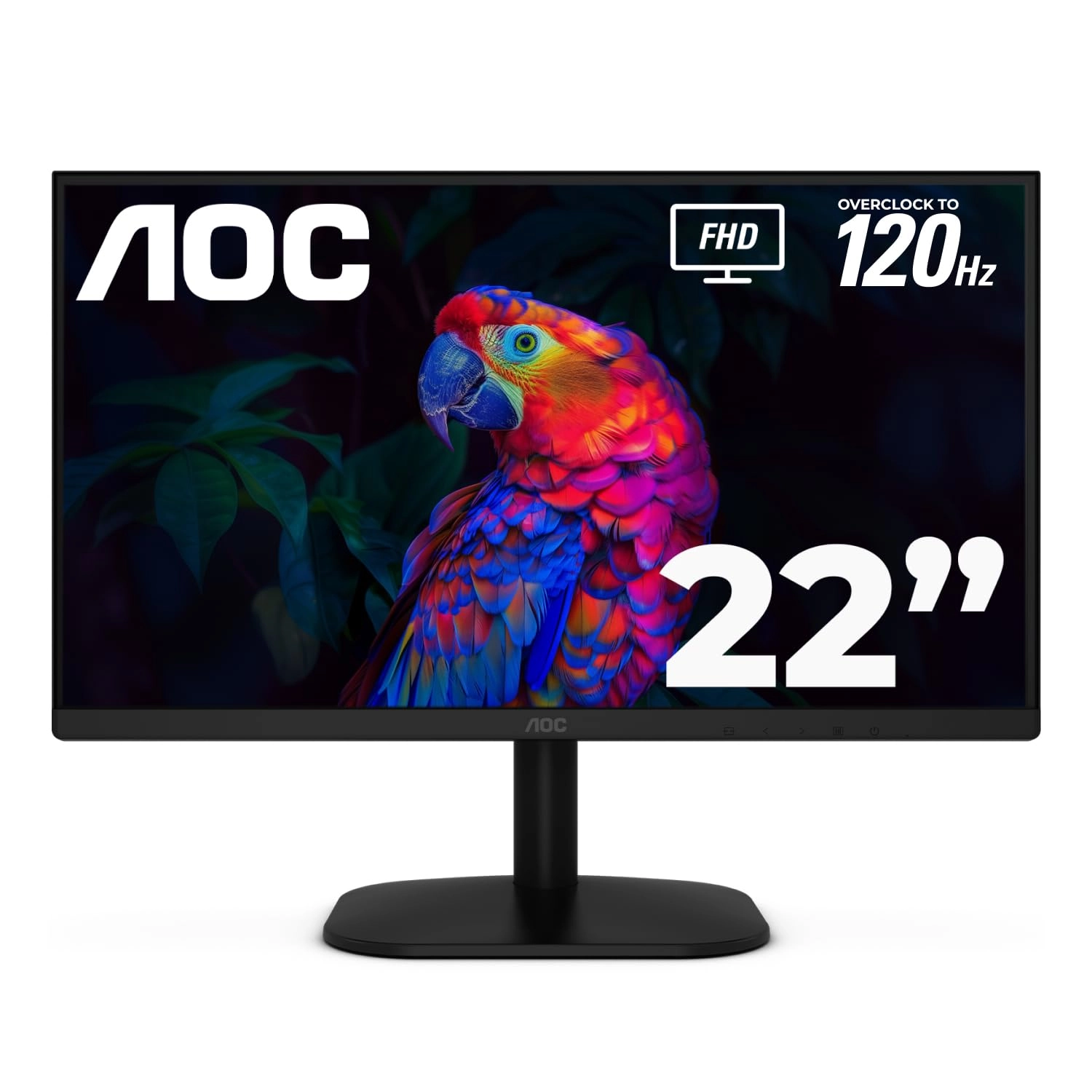
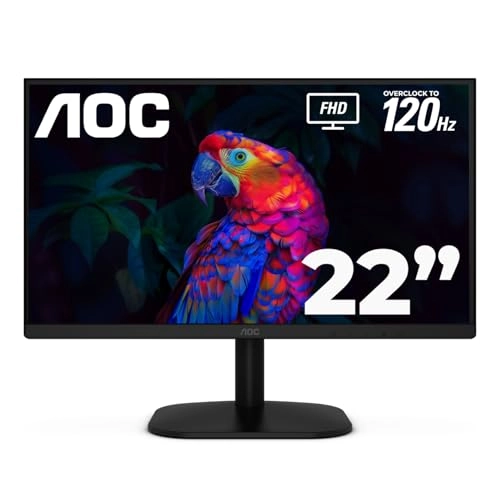
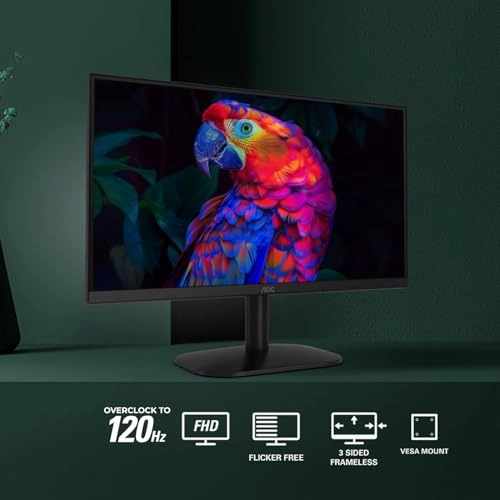
monitor combines a 22" class widescreen VA panel with Full HD
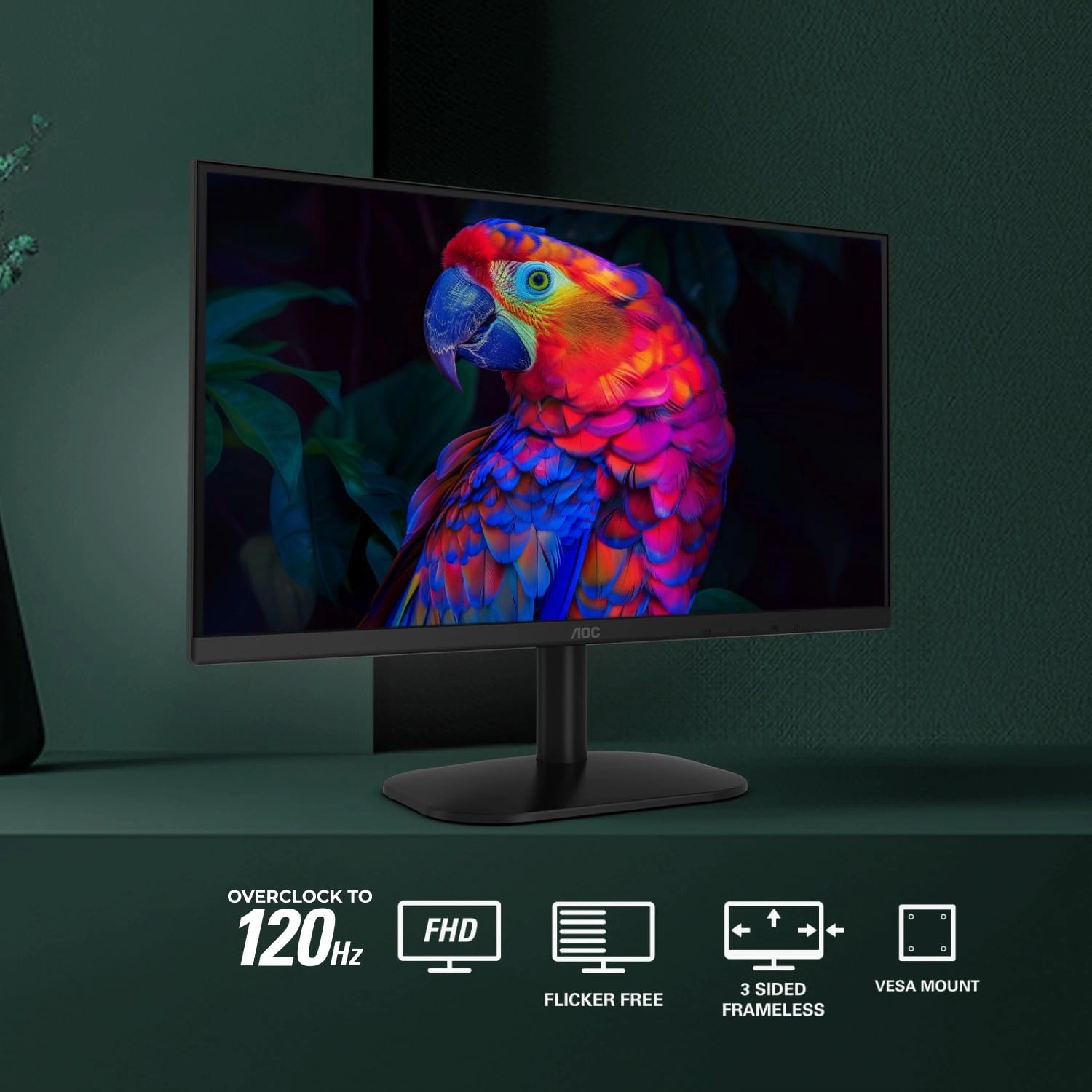
resolution and a high 120Hz refresh rate via HDMI for crisp,
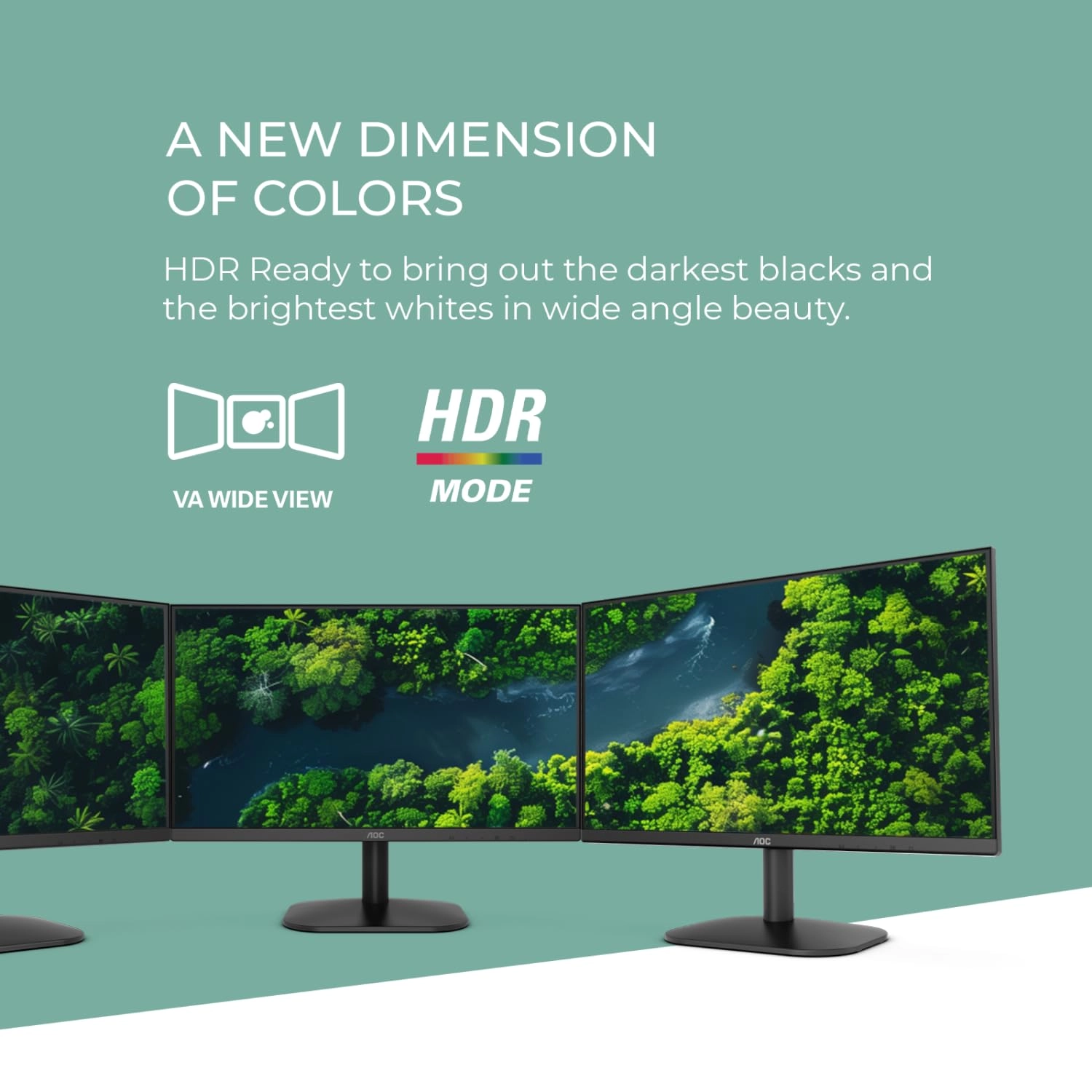
fluid visuals. Experience wide viewing angles, vibrant colors,
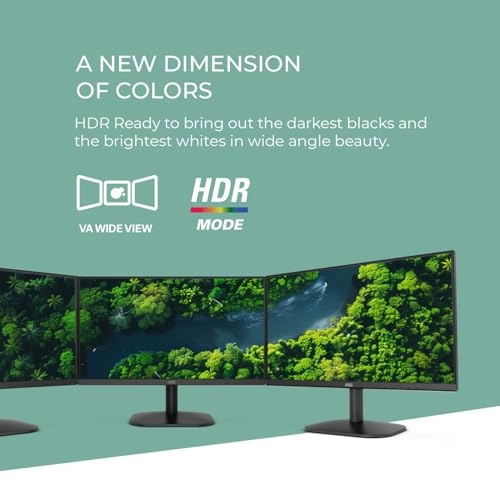
and detailed images with the high color gamut, HDR Ready
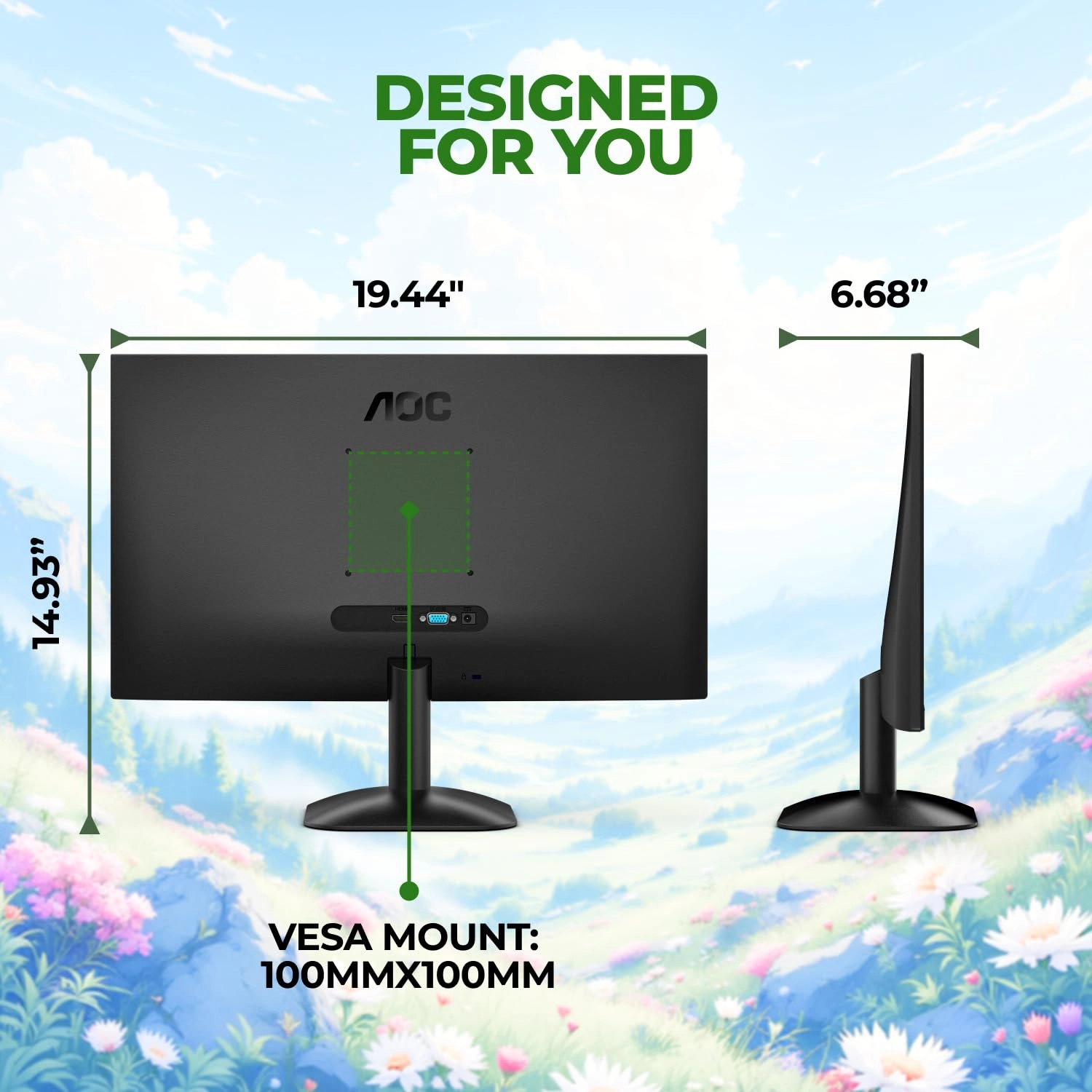
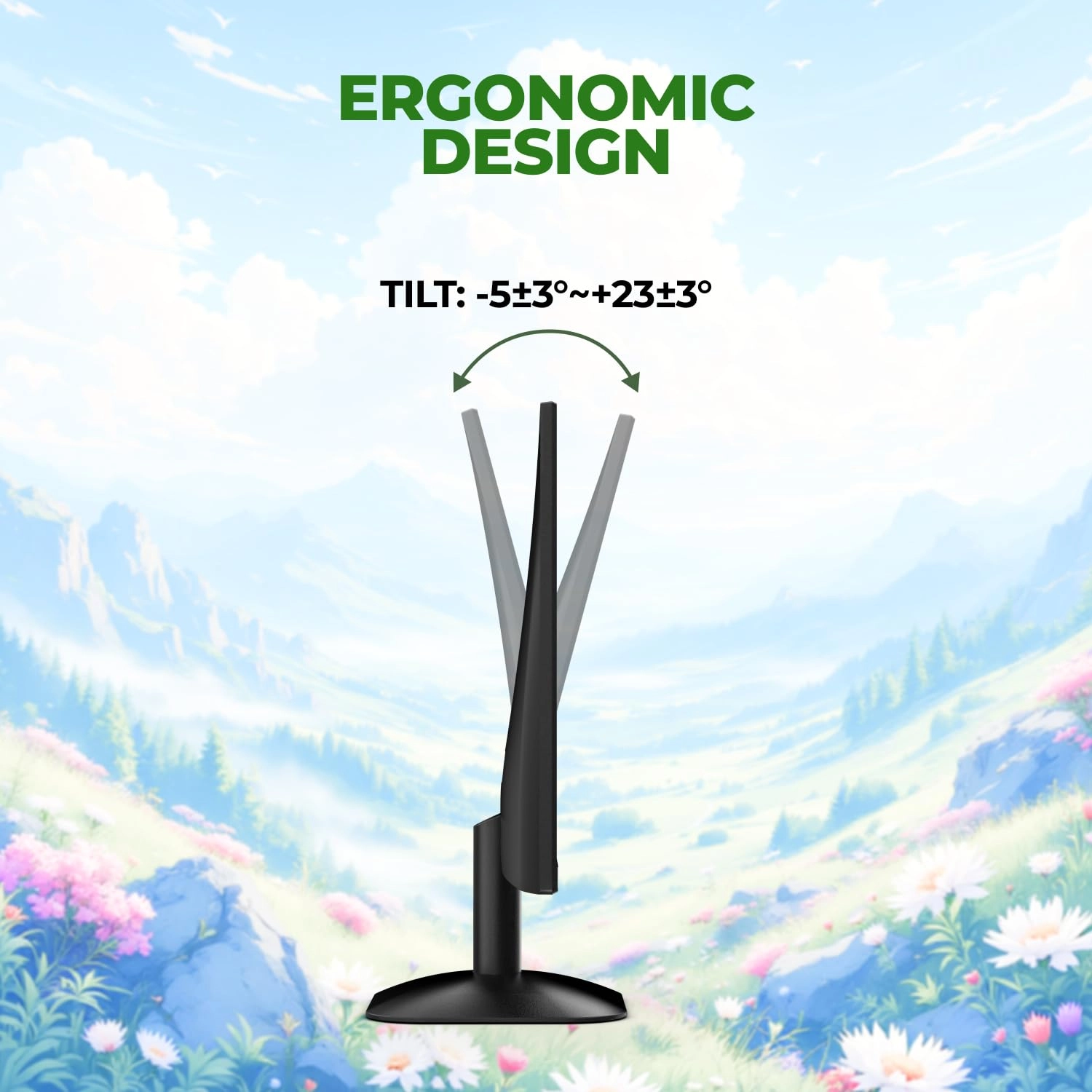
capability, and fast response time. Its adjustable tilt, VESA
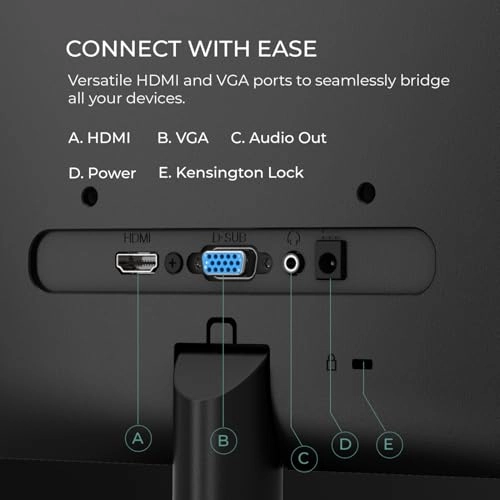
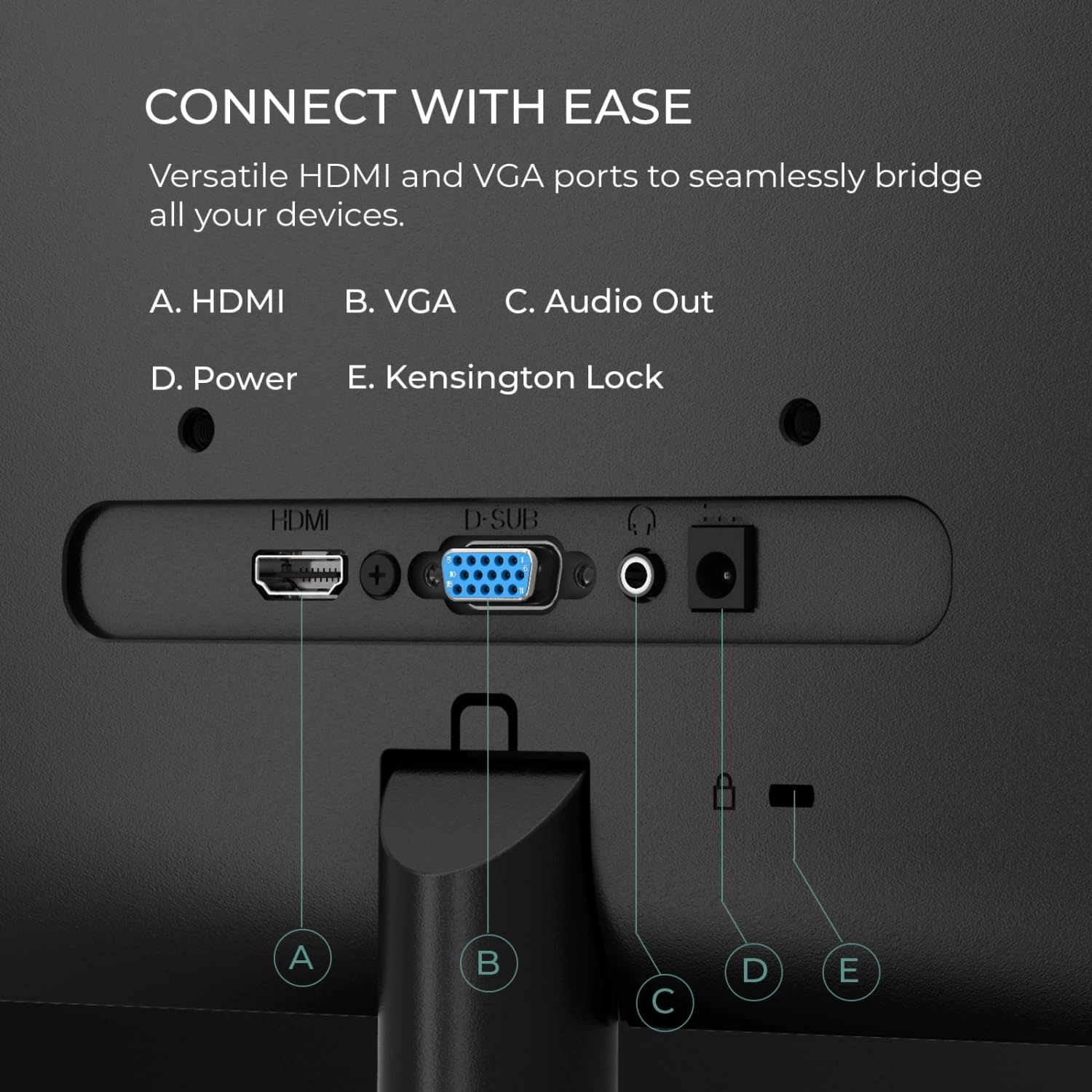
compatibility, and convenient connectivity options, including
earphone out, ensure comfort and versatility. Whether for work or
play, the 22B2HM2 is your gateway to superior viewing.
Review: AOC 24B2H2 24" Monitor & HOMEWORX HW250STB HDTV Tuner
Make the Perfect Team!!! - My 15 year old LG M237WD 23" Flatron
Monitor/HDTV finally died on me leaving me in a strange new world
where you can no longer find a new, low-cost Monitor/HDTV with a
built-in antenna input and tuner. Today you need a monitor with 2
HDMI inputs and a separate HDTV tuner with antenna input to do
the job. The question today is which ones do the best job at the
lowest price? After extensive online research, I decided on the
AOC 24B2H2 24" LCD Monitor and the Mediasonic HOMEWORX HW250STB
Convertor Box/Tuner. In short, I am extremely happy with the
choices I've made. Before you make your decisions, I highly
recommend you download and read the online user manuals available
by searching for them online. In particular, you need the online
AOC user manual to properly describe and utilize the the 5 tiny
buttons on the bottom edge of the screen used to power on and
access monitor settings. The paper guide included with the AOC
monitor does NOT describe how how to use these buttons. The
HOMEWORX manual omits fully describing how to prepare for,
record, and playback TV programs on a USB flash drive. If you are
computer savvy, formatting, recording, playback and deletion of
TV programs is easy to figure out. If not savvy, you may need to
ask HOMEWORX for help. The AOC monitor is very easy to set up.
You just need to insert the neck at the bottom of the screen into
the base. The screen can be tilted from 20° up to -5° down. You
plug in your 1 or 2 HDMI cables from the HOMEWORX tuner and your
computer, the power cord, and your speaker or earphone 3.5mm
connector cable, and you're done! The HDMI button under the
bottom screen edge allows you to easily switch between the tuner
and your computer. Audio is automatically switched between
devices with the HDMI button. On Windows 10, a 24B2H2 Intel(R)
Display Audio interface is automatically installed by the AOC
monitor and becomes the Default Playback Device. I have an audio
cable running from my computer to my speakers in addition to the
HDMI cable. If needed, I can switch the Default Playback Device
back to Realtek High Definition Audio to enable me to record
audio using Audacity software, which I use to record stock market
Earnings Webcasts. (Note: Audacity requires a wire connection
between the Realtek audio output and input to enable recording
audio off the Internet.) The AOC display itself is excellent,
strong clean colors and high definition. The screen is matted,
NOT glossy as incorrectly listed by desertcart. The HOMEWORX
tuner has a handy easy to use large remote control along with
manual control bottons on the tuner itself. In addition to the
HDMI port, it also has RCA jacks and can act as a HDTV converter
box for an old analog TV or as audio output for a stereo
amplifier. It has a USB-A port for a USB flash drive or other
form of storage drive. When not turned on, the HOMEWORX digital
display acts as a clock showing the time of day. Signal reception
by the HOMEWORX is excellent. This has the best reception of any
HDTV tuner I've used so far, and I receive stations I could not
receive before so long as the weather and temperature inversions
permit. AOC 24B2H2, 27B2H2 LCD Monitor User Manual
https://mmd-aoc2.oss-cn-hongkong.aliyuncs.com/Products/Monitors/B%20Line/B2/24B2H2/24B2H2_manual.pdf
Mediasonic HOMEWORX HW250STB User Manual
https://www.teklib.com/library/mediasonic-homeworx-hw250stb-user-manual/
Review: Great for great price - So, I needed a new monitor for my
Xbox. and I wasn't looking to break the bank. I stumbled across
this monitor and figured for the price, it was worth a shot.
Here's the lowdown after using it for a few weeks: What I Liked:
* Easy on the Wallet: Seriously, this thing was a steal! I was
able to snag it on sale, and it was way cheaper than a lot of the
other monitors I was looking at. * Looks Pretty Slick: I'm not
gonna lie, the "frameless" design gives it a modern vibe that I
dig. It definitely elevates the look of my desk setup. * Movies
and YouTube Look Great: The picture quality is pretty darn good
for everyday use. Colors seem vibrant, and I haven't noticed any
weird blurring or anything when watching videos. * No More Eye
Strain: I tend to spend hours staring at a screen, and I've
noticed my eyes don't feel as tired with this monitor. I think
those "Flicker-Free" and "Low Blue Mode" things actually make a
difference. What Could Be Better: * Not So Great for Photo
Editing: I tried touching up some photos on this monitor, and the
colors seemed a bit off compared to how they look on my laptop.
It's fine for casual use, but if you're a pro, you might need
something more color-accurate. * Not Enough Ports: This is kind
of annoying. It only has one HDMI port, and I need to switch
cables depending on whether I'm using my work laptop or my gaming
console. * The Stand is Meh: The stand is kind of bulky and only
lets me tilt the screen. I wish I could adjust the height too.
Overall Thoughts: For the price, its a solid monitor. It's
perfect for everyday tasks like browsing the web, working on
documents, and watching videos. If you're a casual user who needs
a decent monitor without spending a fortune, this one's
definitely worth checking out. Just don't expect it to be perfect
for professional-level color work or hardcore gaming.