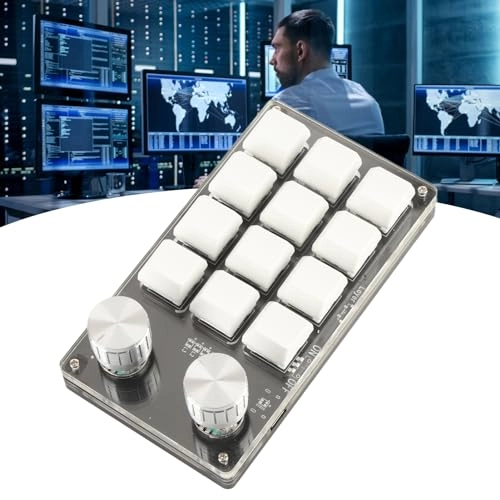
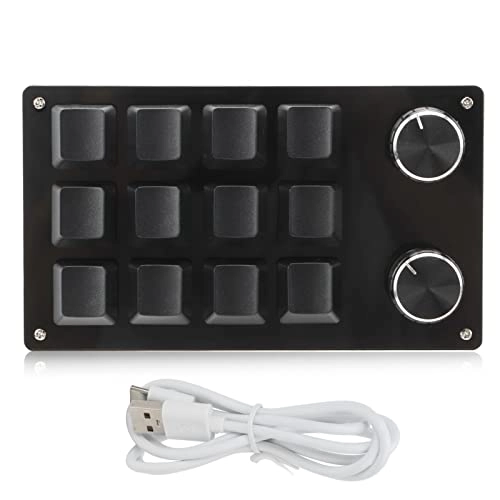
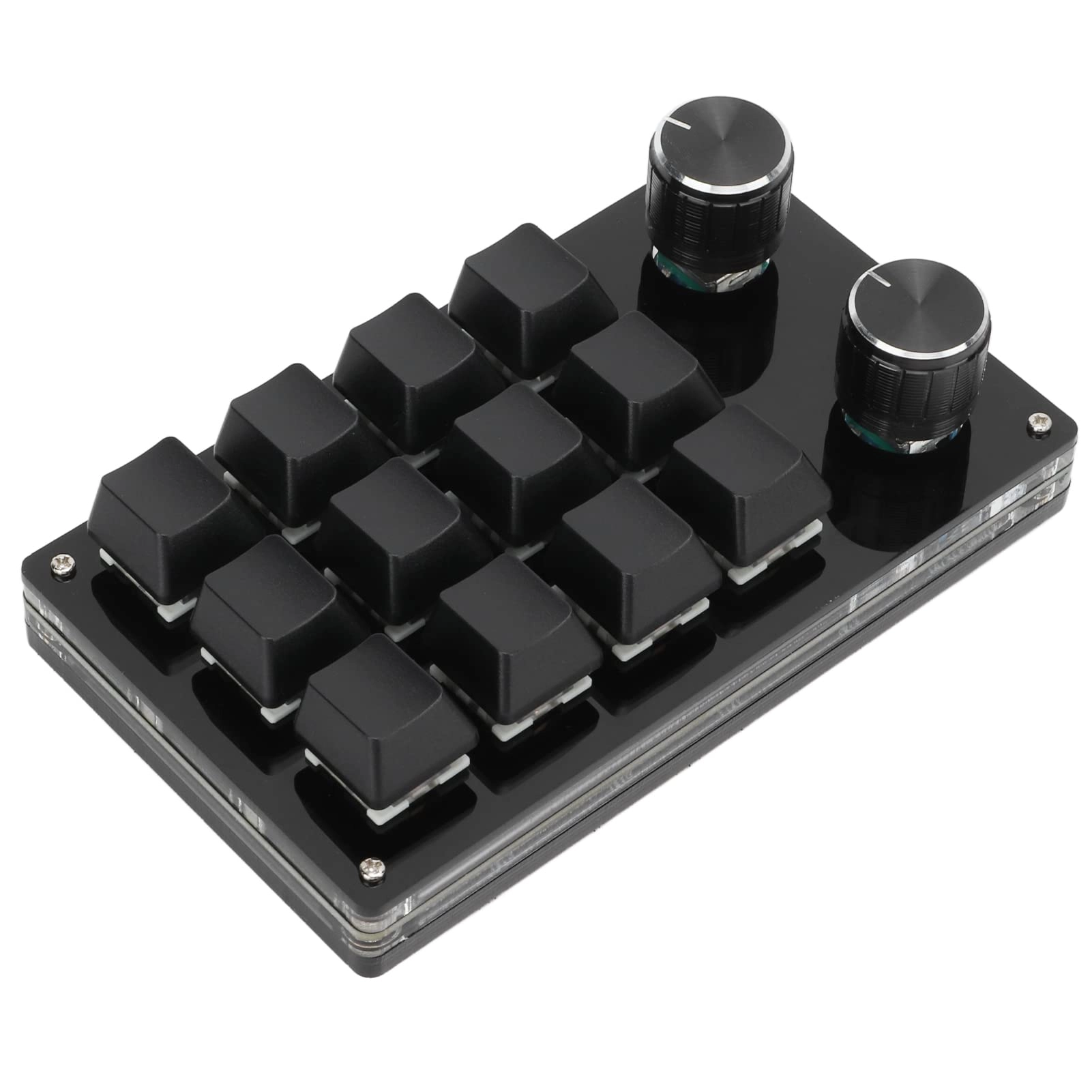
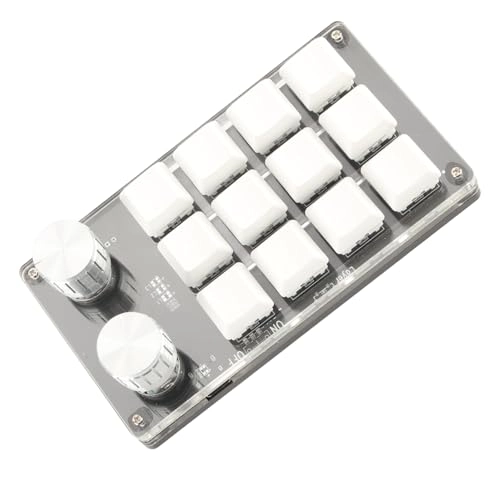
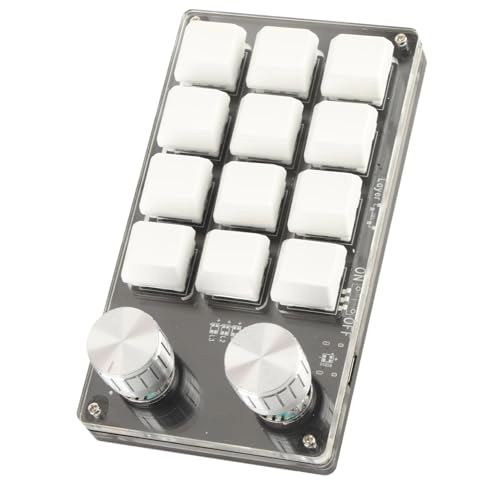
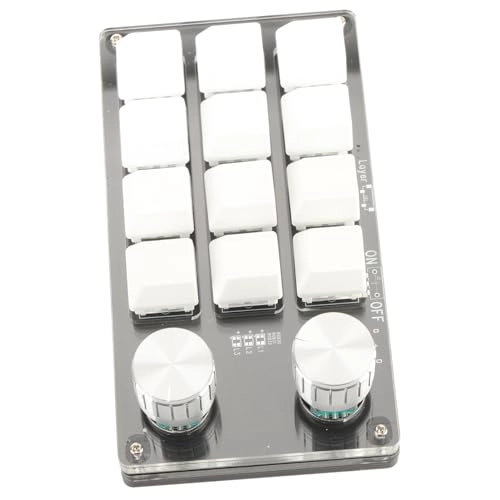
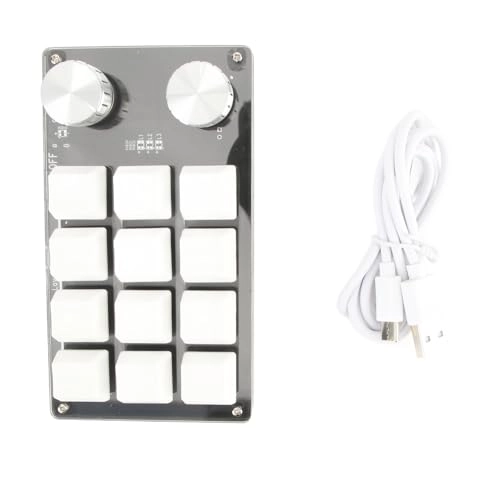
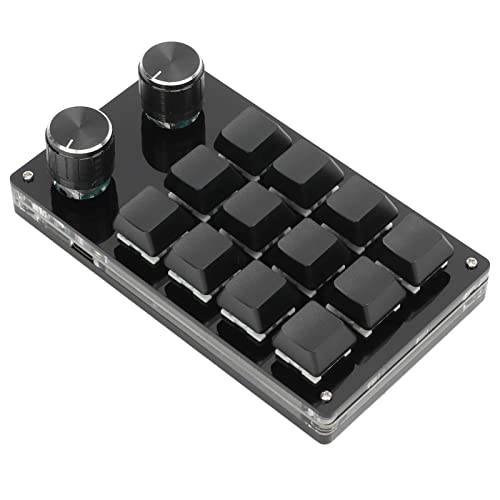
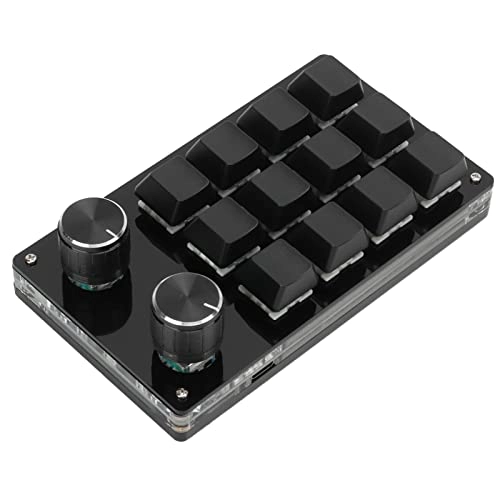
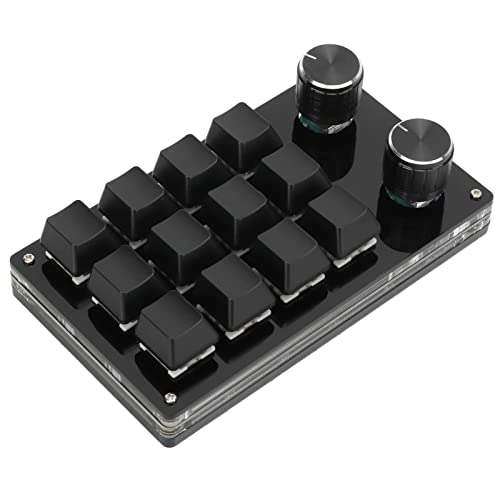
1. [CONVENIENT SHORTCUT KEYS] Enjoy the convenience of 12 programmable keys with an adjustment knob to streamline processes.
2. [MULTIFUNCTIONAL] This mini keyboard offers versatile key functions, perfect for gaming, office work, and more.
3. [MEMORY FUNCTION] Store settings for easy use on various systems like and OS X after initial setup on .
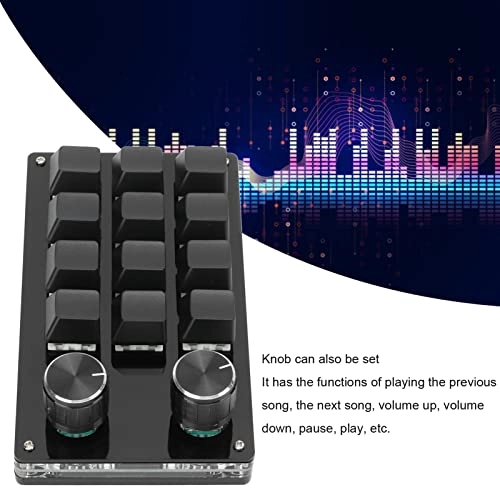
4. [CUSTOMIZABLE KNOB] Set the knob for functions like control of music playback and volume adjustment.
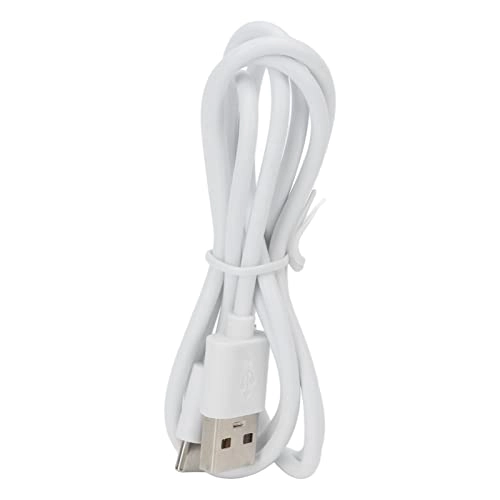
5. [PORTABLE & PLUG-AND-PLAY] With a Type C to USB interface, this compact keyboard is easy to carry and requires no drivers for quick setup.
Spec:
Item Type: Macro Mechanical Keyboard
Material: Acrylic, PCB
Usage: Suitable for office, games, music, media, industrial control, laboratory, production line testing and other fields
System Support: For , for VISTA, for , for OS X
Button Life: Up to 50 Million Times
Type: Dust Proof Green Shaft
Quantity of Keys: 12 Keys
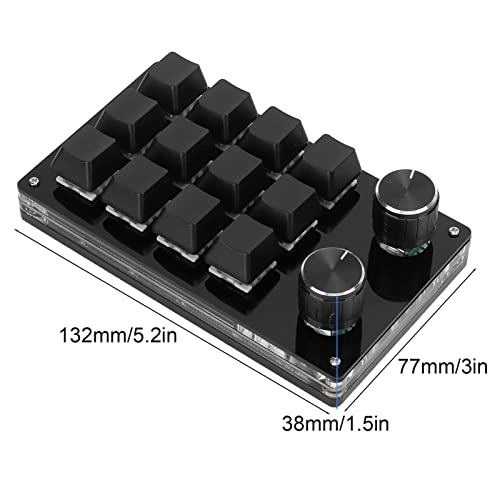
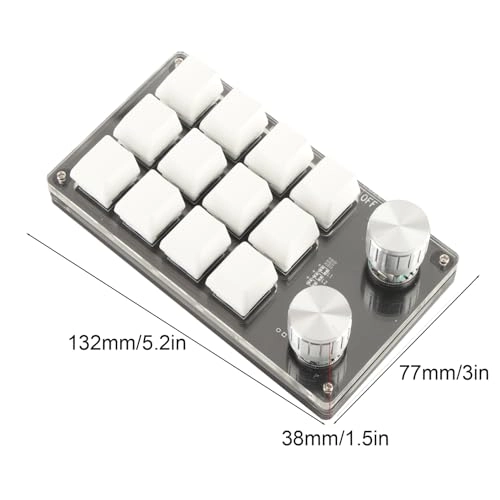
Size: Approx. 132 x 77 x 38mm / 5.2 x 3 x 1.5in (L x W x H)
Current and Voltage: DC 5V/1A
Working Temperature: -10℃-50℃
How to Use:
1. Small keyboard, open the custom software on the computer.
2. On the custom software, click the "key setting area" or "Knob setting area" (yellow area) and then click the key key1‑key12 or any key of knob 1 or knob 2 (green area) to be set; If selected, it will appear red.
3. Click the function key corresponding to the simulated keyboard on the custom software, click download, prompting download success, the custom keypad can be used. For example, if you want to set small keyboard key 1 as the shortcut key of copy (Ctrl+C), click "Key Setting area" on the software, click "KEY1", then click Ctrl and C on the software simulation keyboard, click Download, and the message "download successful" is displayed.
Common troubleshooting methods:
Problem 1: When the keyboard is connected to the computer, there is no response or a message indicating that the device is running abnormally.
Solution: Check whether the cable and interface are connected properly, and remove and reinsert them. Replace the USB port on the computer and plug it back in.
Fault 2: The custom software cannot be opened after being downloaded.
Solution: Check whether the antivirus software intercepts the operation and set it as a trusted file.
Question 3: After connecting the computer, why is it always "a" when pressing a key or knob?
Solution: Output a is the normal factory setting, please open the custom software to redefine the key function.
packing list:
1 x Keyboard
1 x USB Cable
Notice:
1. This software can only be run on for system temporarily, try to download it on the PC side of the computer, the setting software does not need to be installed, it can be run directly after opening it, and it will be automatically stored on the chain disk after setting, and then plug it into the USB protocol that supports the USB protocol. Use on for , for OS X and other systems (the first time you run it, pay attention to the release of antivirus software and set it as a trusted file)!2. When customers read the manual, please note that the product does not come with RGB function, but the product manual is a , which describes the RGB function; please ignore the RGB function description of the manual.