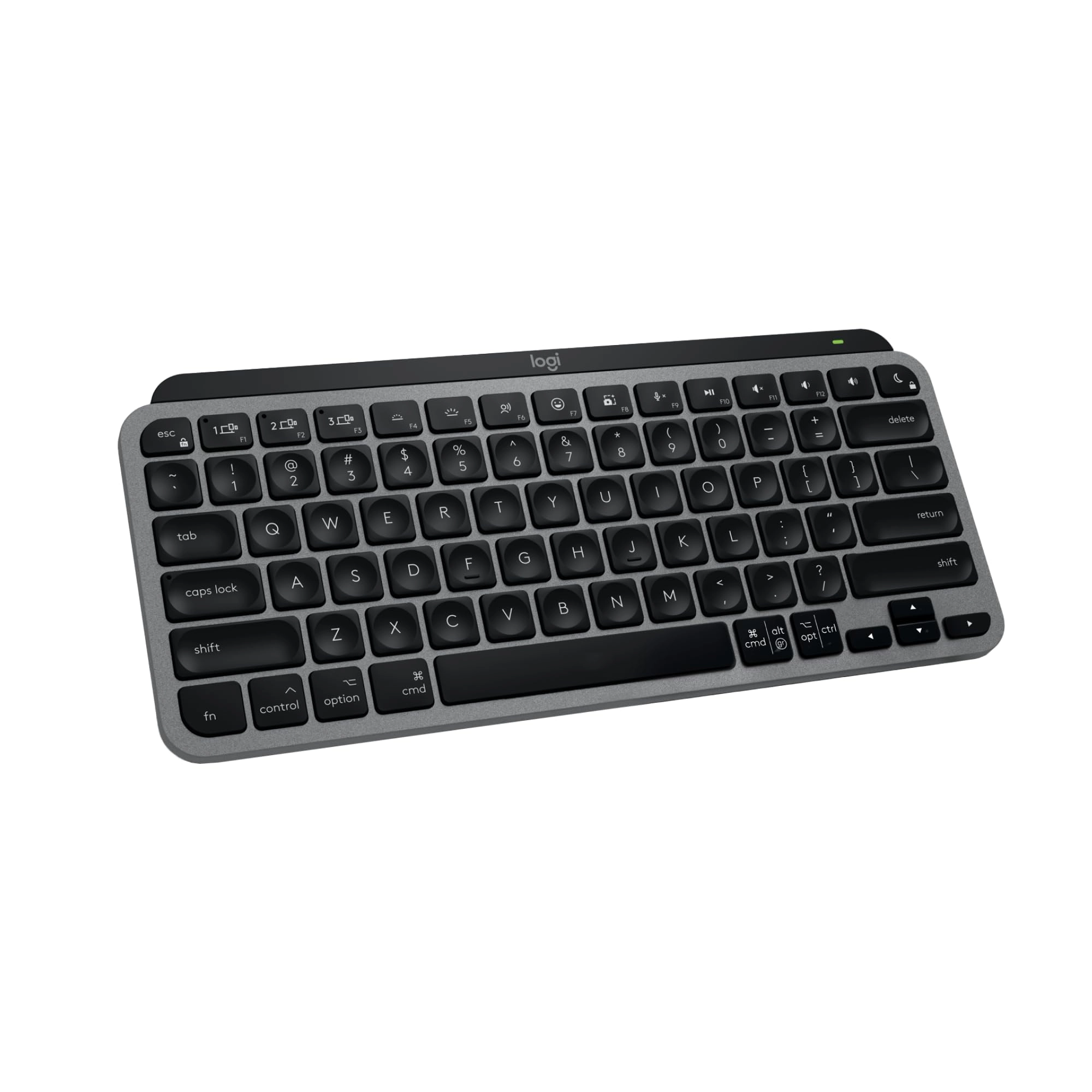
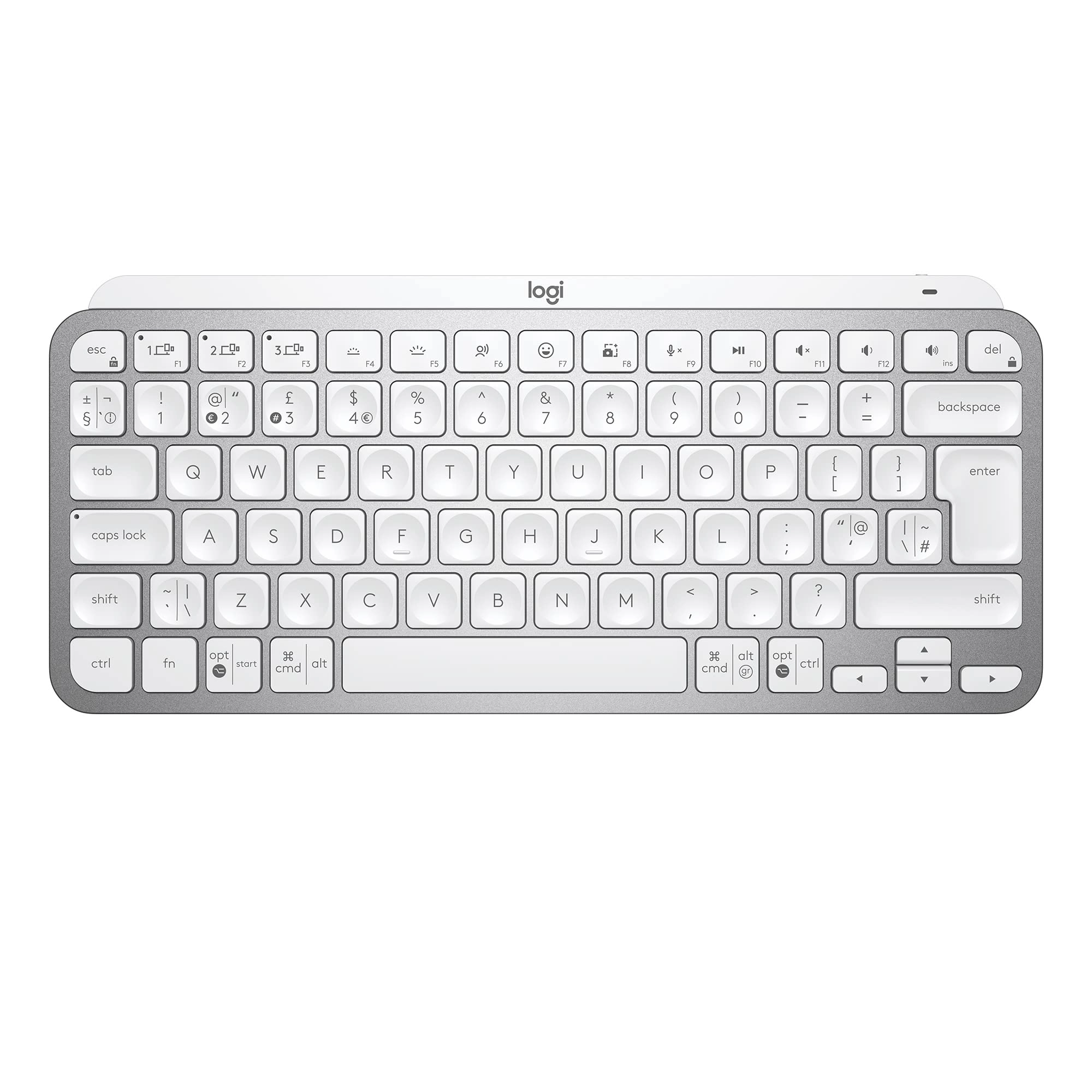
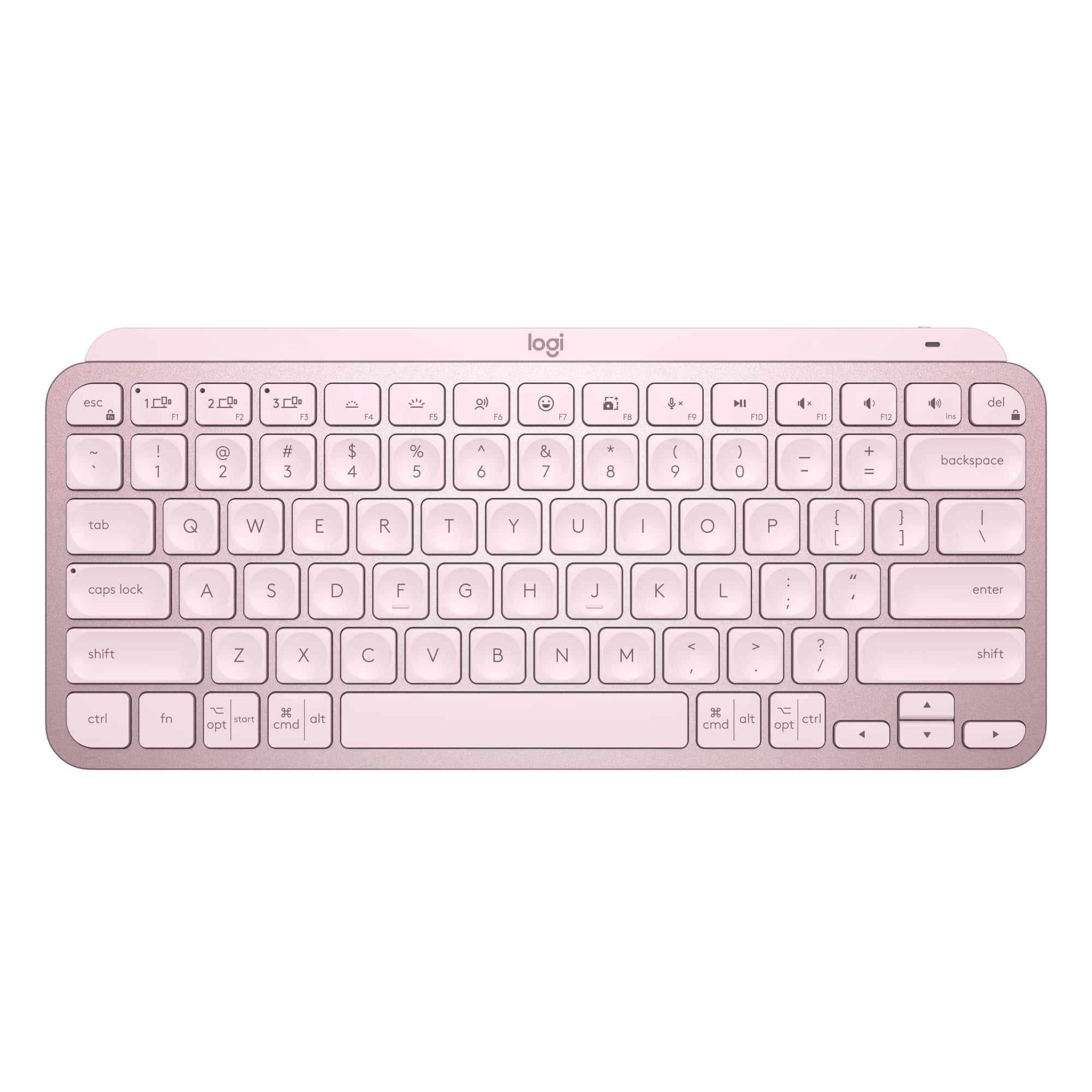
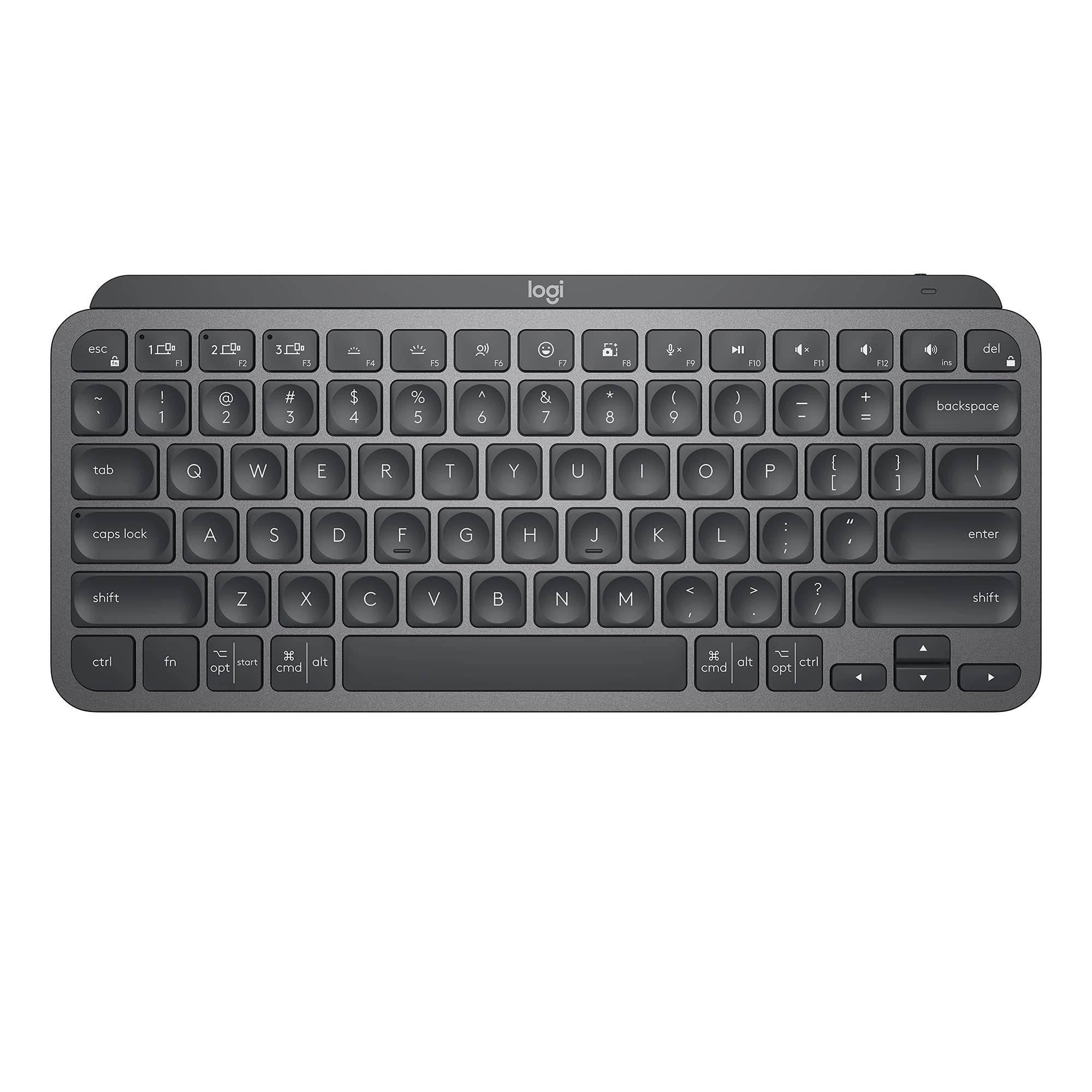
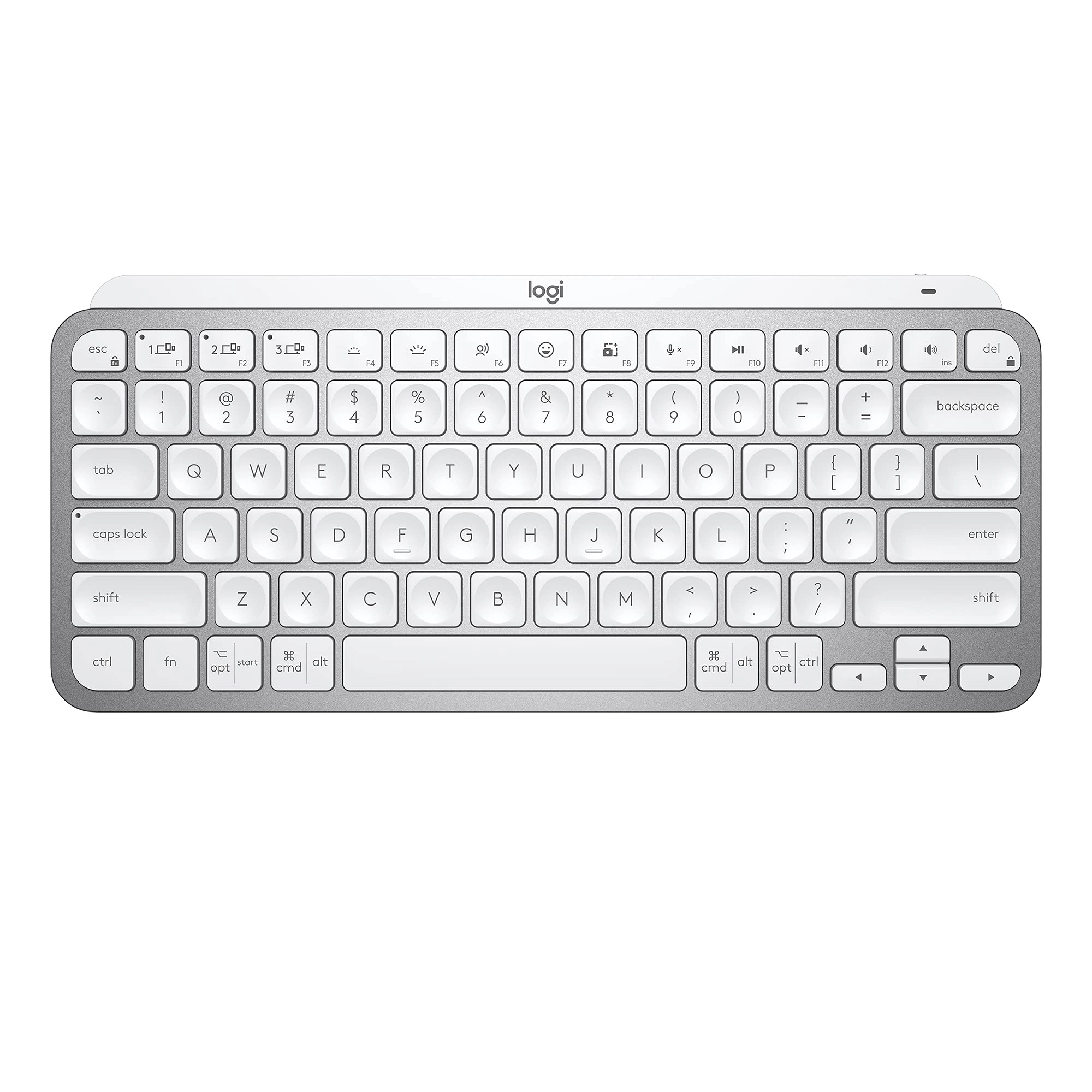
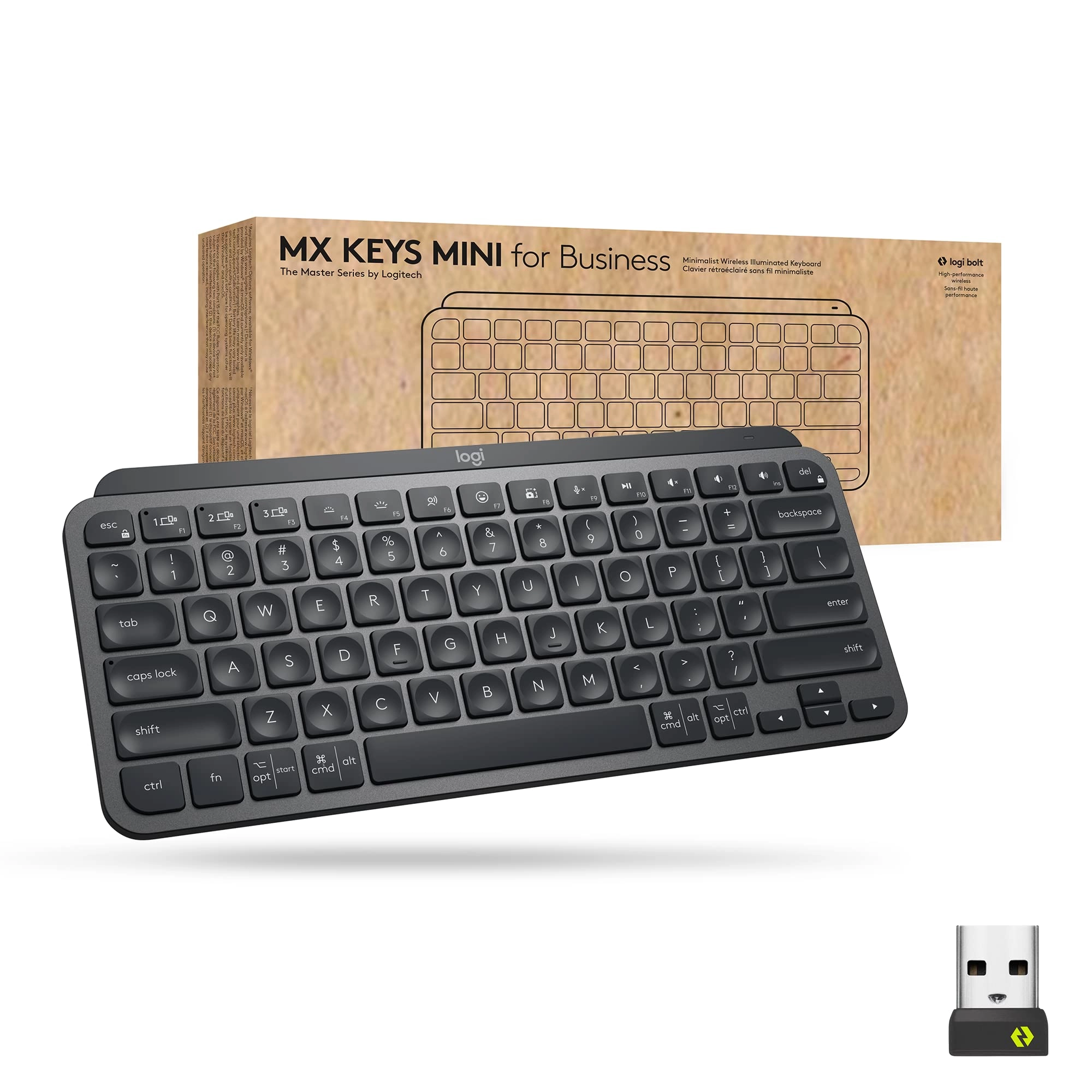
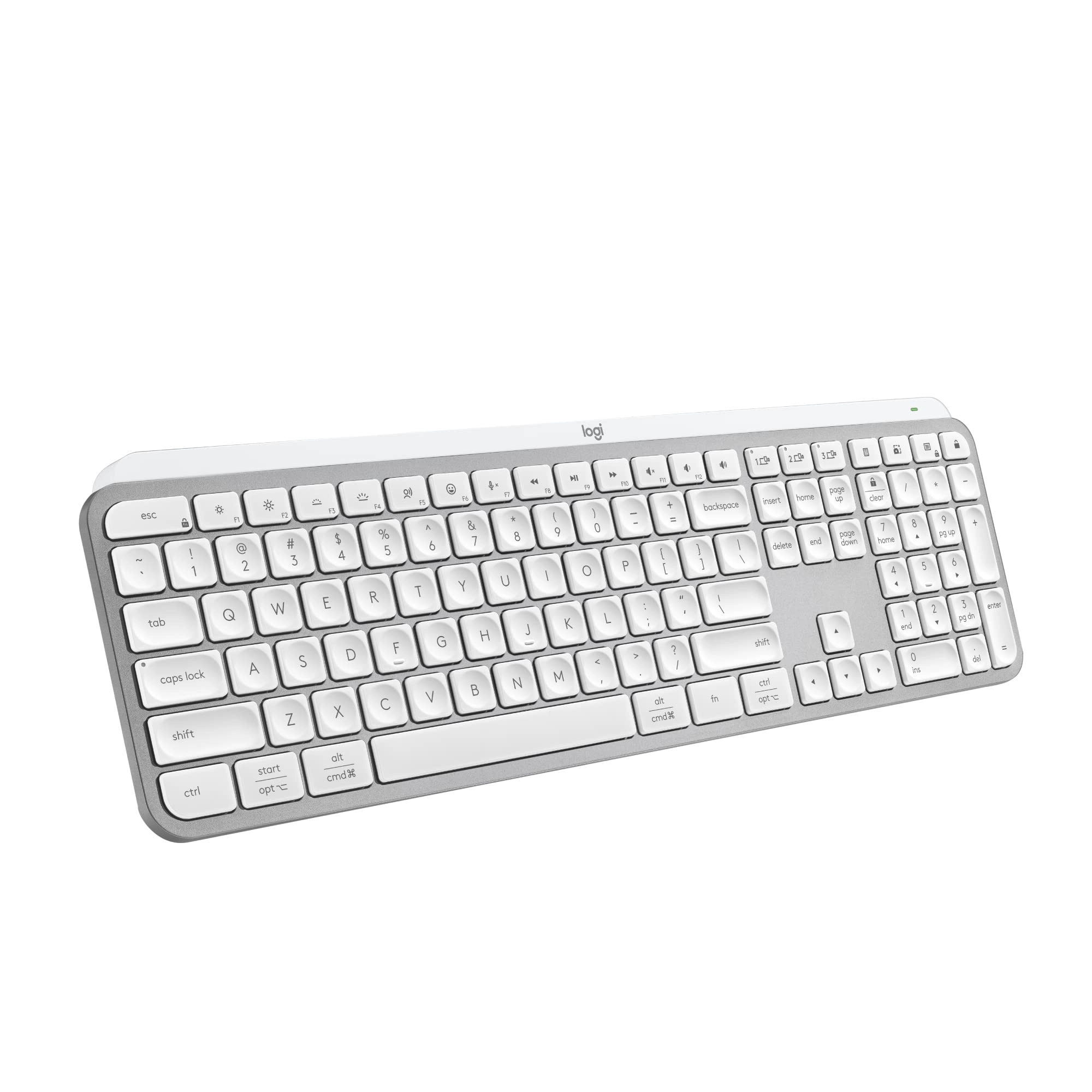
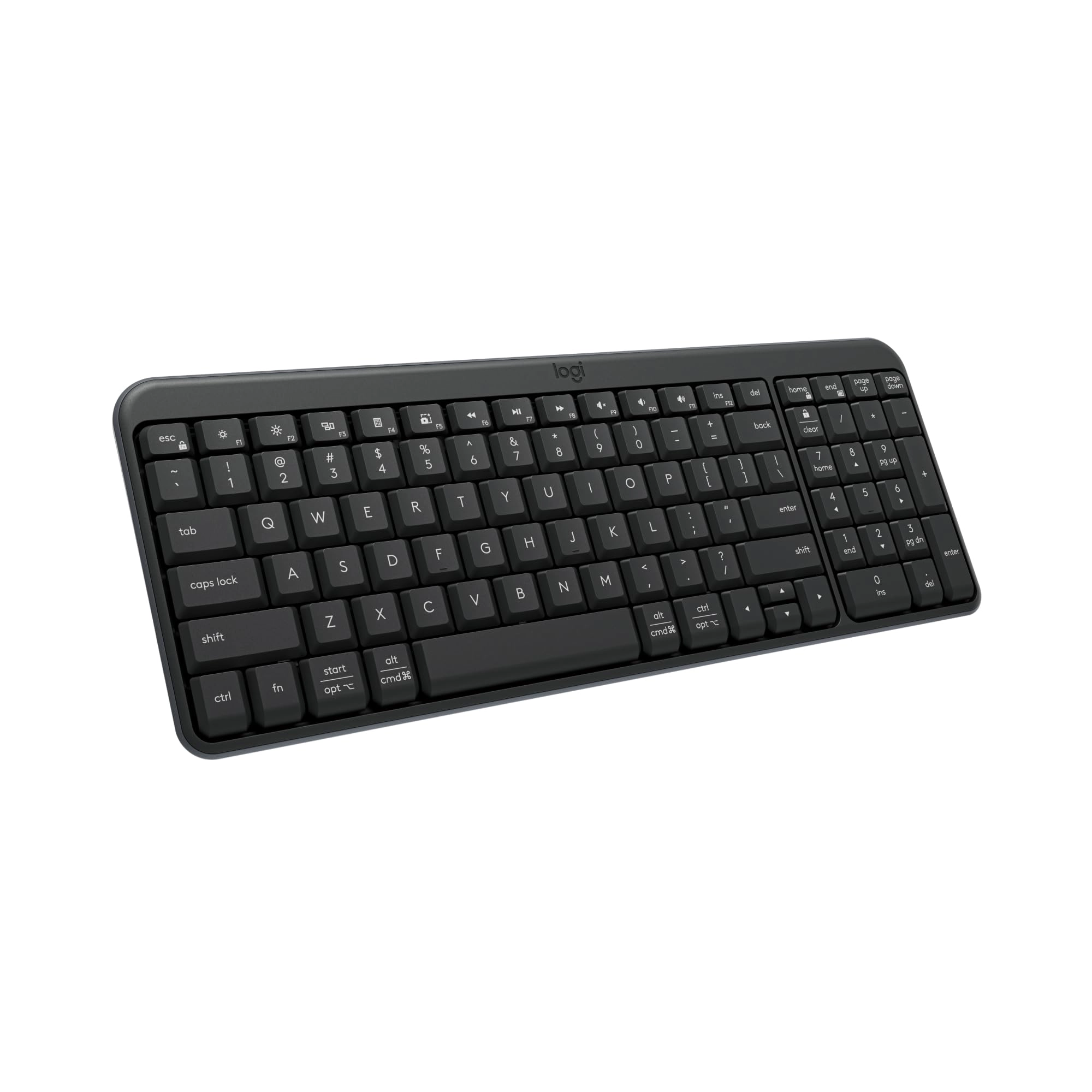
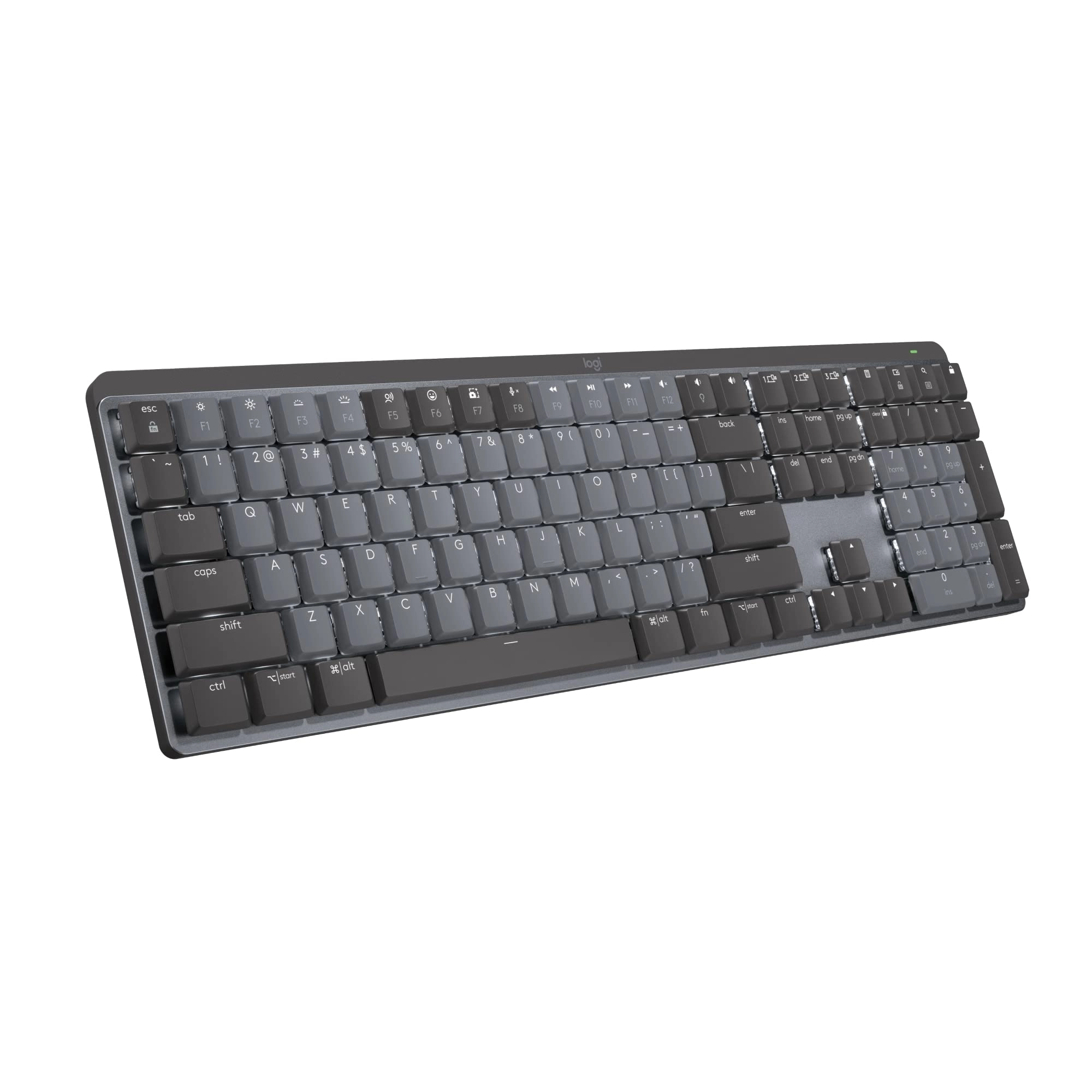
Logitech MX Keys Mini Introducing MX Keys Mini – a smaller,
smarter, and mightier keyboard made for creators. Type with
confidence on a keyboard crafted for efficiency, stability, and
precision. The ergonomic design aligns your shoulders, allowing
you to place your mouse closer to your keyboard for less arm
reaching, more comfort, and improved body posture. Easily pair MX
Keys Mini via Bluetooth Low Energy with up to 3 devices. Smart
Keys transform the way you work, with a Dictation key to
talk-to-text with the press of a button (1) , an Emoji key to
instantly open your emoji window, and a Mic Mute/Unmute button
for smooth video calls. Team up with a Flow-enabled MX Master 3
or MX Anywhere 3 and type on multiple devices in one fluid
workflow(1). Transfer files, documents, and images across
computers and Mac and Windows operating systems(2). Not
compatible with Logitech Unifying Receiver Technology. Product
details: Weight: 17.86 oz (506.4 g) Dimensions: 0.83 x 11.65 x
5.19 in (20.97 x 295.99 x 131.95 mm) Battery type: LiPo
rechargeable battery Battery life: Up to 10 days on a full charge
or up to 5 months with the backlighting turned off(3) Compatible
with Windows, macOS, iOS (2), iPadOS (2), Android (2), Chrome OS
(2), Linux (2) (1) Requires Logitech Options software, available
for Windows and macOS (2) Device basic functions will be
supported without software for operating systems other than
Windows and macOS (3) Battery life may vary based on user and
computing conditions.
Review: So Far I Like Everything About This Keyboard - I bought
the pale gray MX Keys Mini keyboard to replace my Logitech K380
keyboard, not because the K380 is no longer working but because I
like the keyboard feel, keyboard keys, and overall ergonomics of
the MX Keys Mini over the K380. The K380 is one of the best, if
not the best, compact, multi-device Bluetooth keyboard in its
price range currently available on the market. I simply like the
MX Keys Mini more and will move the K380 to a different
workstation setup. Pairing the MX Keys Mini with my Windows 11
Pro PC and my M2 MacBook Air was a breeze. It paired just like
all of the other Logitech keyboards I own, very quickly and
reliably. Switching between devices is a single button press on
the MX Keys Mini keyboard. It would be kind of nice if my MX
Master 3 mouse could be slaved to the MX Keys Mini device
selection, but both devices do switch over to the other device
very quickly and with a single button press on each MX device.
Since my two devices/computers are sharing the same monitor,
switching the input source on the monitor takes a lot more time
than does switching the two Logitech MX devices. The Logi
Options+ application recognized my MX Keys Mini immediately. All
of the controls, settings, and user interface workflow for the MX
Keys Mini in the application were very familiar since I have used
Logi Options+ with many of my other PC and Mac Logitech devices.
This is my first experience using a separate keyboard with
backlighting. I am relieved that the backlighting is restricted
to white hues only. I often use a monitor light bar that is
mounted on the top of my monitor to illuminate my workstation
area, including the keyboard and mouse. I discovered that my
monitor light bar and the MX Keys Mini backlight functionality
are ergonomically incompatible with one another, at least for my
setup. When my monitor light bar is illuminated, even at the
dimmest setting, the adaptive backlight functionality on the
gray/silver MX Keys Mini adjusts the backlighting based on the
ambient light to the where the white backlit characters on the
white keys become nearly invisible to see. I was greatly relieved
to discover that I could simply adjust the brightness level of
the MX Keys Mini all the way down to the point where the key
characters are black. This completely solved my problem when
using the MX Keys Mini with my monitor light bar. I will
definitely encounter situations in the future where I do not use
my monitor light bar and can simply increase the brightness level
on the MX Keys Mini to take advantage of the backlighting
feature. I have not encountered any compatibility issues while
using the MX Keys Mini with either my PC or my Mac. The MX Keys
Mini seems to be conforming very nicely to the functional and
quality standards that I've come to expect with all Logitech
products I've owned, dating back to my first 3-button C7 mouse.
So far I am very pleased with my purchase of the MX Keys Mini.
Review: Great keyboard for my purpose - A couple years ago I
wrote a scathing review about the decline of Logitech products
quality. I was having problems with the mice, the buttons where
acting up, and I needed a mouse (NOW) that worked so I went to
the local brick & mortar store and bought the same mouse, which
had the same problems. I ended up getting hundred dollar mouse
made for CAD professionals. Since then I got a Logitech
mechanical keyboard, with the cherry keys, great product and I
love it. I've also purchased a couple Logitech mice lately and
had no problems with them. This keyboard is much nicer than what
I expected, I love the solid feel of it, it is very heavy for its
size. I wanted this one for the ability to switch between three
different computers. I have one Windows 10 machine and two Linux
ones in a corner of my man cave. I've purchased two HDMI KVM
switches recently, and both where DOA, not working at all right
out of the box, and from different manufacturers. My monitor has
three inputs, so all I really needed was a single keyboard and
mouse for all three. The Logitech MX mouse is still on the way.
The set up was a bit problematic. The Windows machine set up very
easy, but after a restart the keyboard was no longer paired. I
had to drag out my old one to log into Windows, not so handy
since Windows re-starts itself constantly. Luckily, there was a
firmware update for this keyboard that fixed the problem. You can
get the update through the Logitech software that can be
downloaded from their website. On one Linux machine I am
currently running Linux Mint. Mint came with the blueman software
preinstalled, I had to make several attempts to get the pairing
to stick, partly because I've only used blueman a couple of times
in the past to pair BT headphones to my old laptop. You must mark
the keyboard as trusted to get a connection that lasts. I had a
situation where it was connecting and disconnecting constantly
until I did that. Works fine now, and it pairs itself after a
restart. On the third computer I am running Debian 12, and I have
not been able to get the keyboard paired at all. This computer is
actually part of my stereo system. It is connected to my amps by
way of a DAC, but I can control it from a phone or tablet, or
from a web GUI on a different computer. It would be nice if this
would work on Debian, but it's not the end of the world. I almost
docked this product a star because the product info is not
completely accurate. On the product page it says:"Compatibility:
Compatible with Logi Bolt USB Receiver (not included) . Logi Bolt
wireless products will not pair with other Logitech USB
receivers". OK, you don't need the Bolt USB Receiver to use this,
I ordered them because it says this. The keyboard works with any
Bluetooth receiver, I'm using one made by TP Link and another
Knvo. The Bolt receivers are not here yet, they will be along in
a couple days with the new MX mouse, even though they where part
of the same order as this keyboard. When the Bolt receivers get
here I will probably use them, because I had to rob the BT
dongles off of my other computers to get this working right away.
The limited instructions that came with the keyboard just said to
pair it with Bluetooth, it does not even mention the Bolt
receiver.