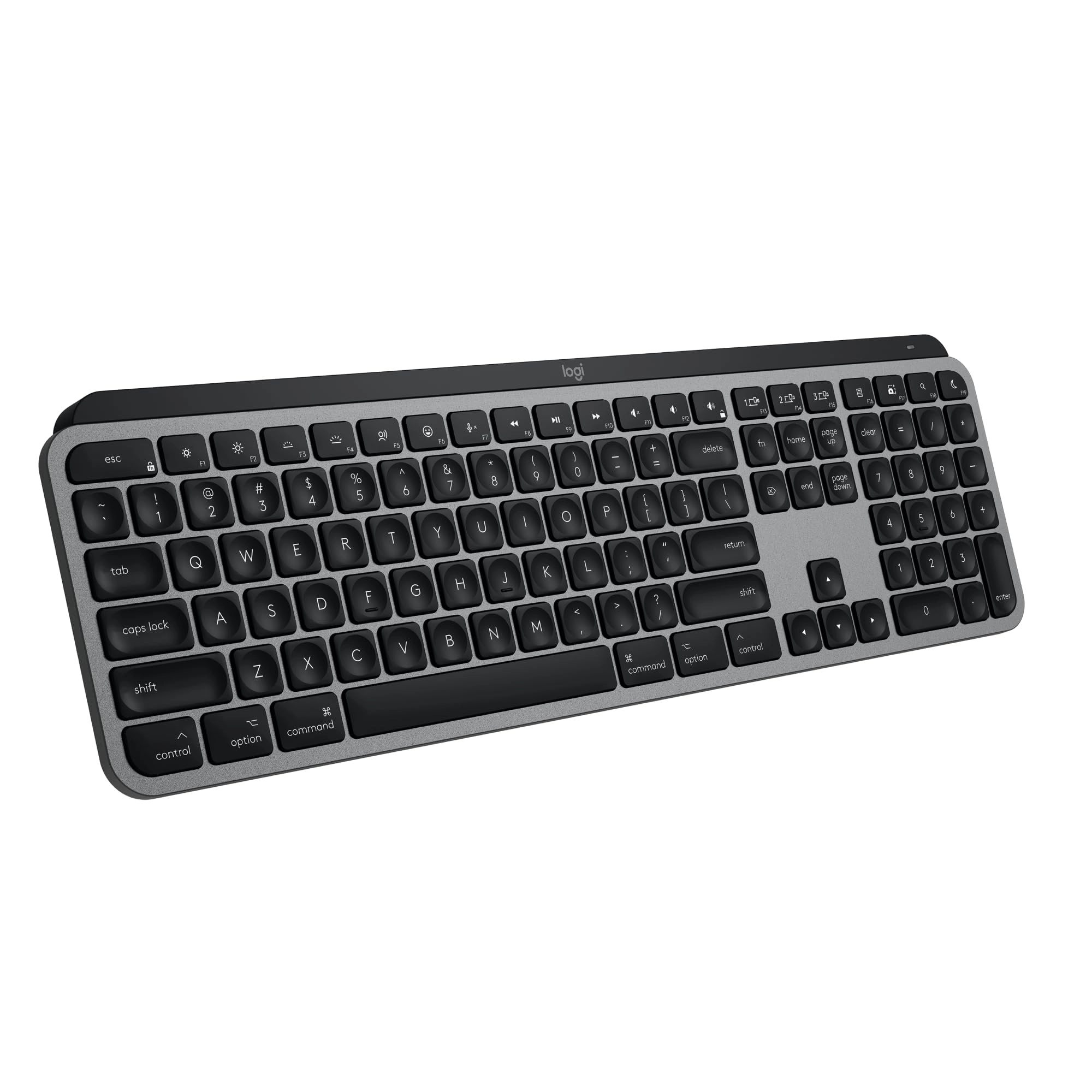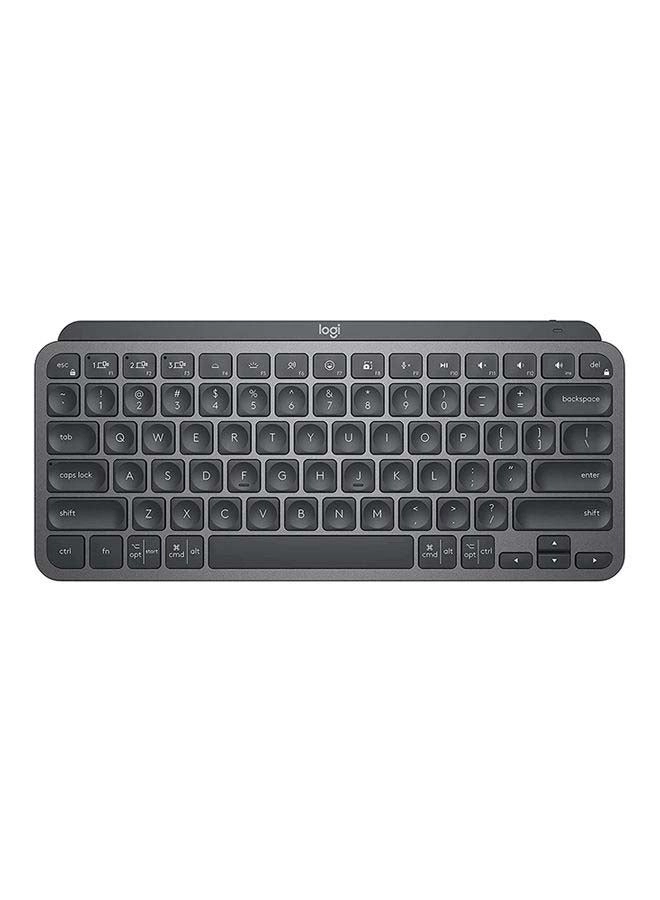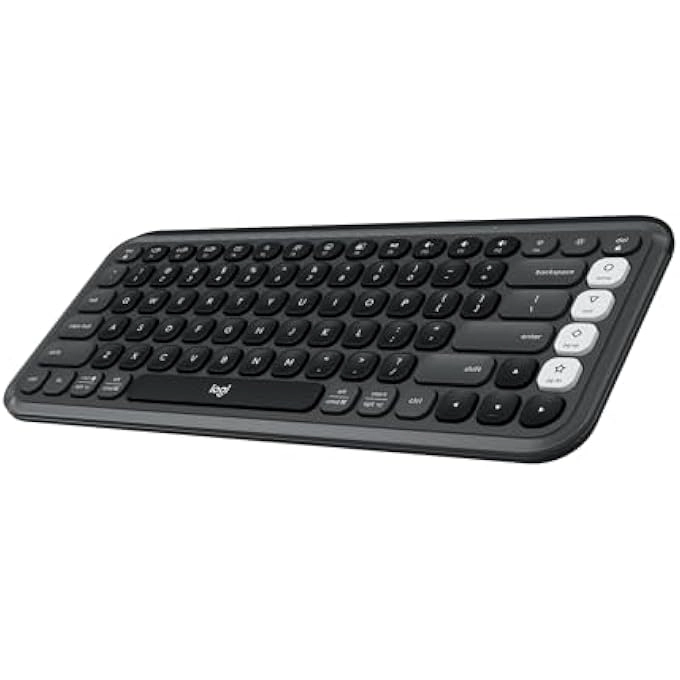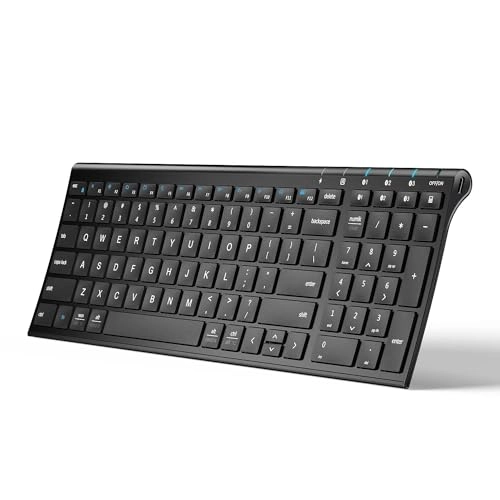
Product Description iClever bluetooth keyboard BK10 Quiet. Sleek.
Smooth Typing. Quiet Scissor-Switch Keys Soft, precise, and
stable typing for effortless comfort. USB-C Rechargeable Power
Power-efficient USB-C charging lasts up to 90 days. Slim Metal
Build. Modern Feel. A lightweight aluminum base that upgrades any
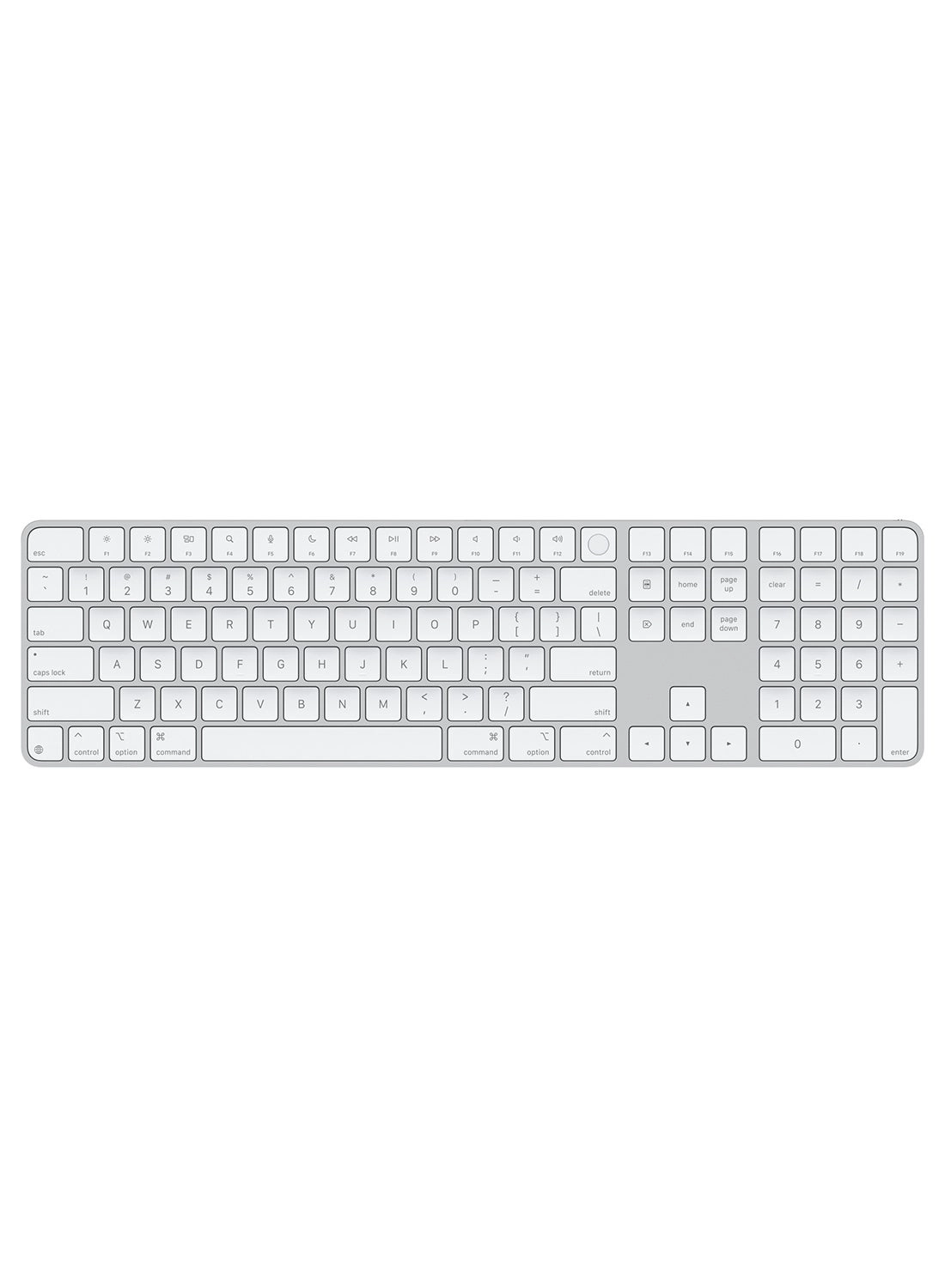
desk setup. Compact Size. Full Function. Saves 20% desk space
while keeping a full numeric keypad and essentials. Made for
Multi-Device Workflows Move between devices instantly to keep
meetings, emails, and multitasking running smoothly. One Keyboard
for Every Workspace. Effortless switching across laptop, tablet,
and desktop — perfect for home setups. Other iClever keyboard and
Mouse iClever keyboard BK10 iClever keyboard GK03 iClever
keyboard GK08 iClever keyboard DK03C iClever Mouse MD172 iClever
Mouse MD165 iClever keyboard BK09 Compatibility OS? Windows 8 or
late, Android 6.0 or late, iOS 9.0 or late, Mac OS X 10.8 or
later with HID profile NOTE: Do not compatible with Mac mini, Mac
studio, XBOX, Samsung Smart TV, Nokia Phones and Bluetooth
adapter. Compatibility OS? Windows 8 or late, Android 6.0 or
late, iOS 9.0 or late, Mac OS X 10.8 or later with HID profile
NOTE: Do not compatible with Mac mini, Mac studio, XBOX, Samsung
Smart TV, Nokia Phones and Bluetooth adapter. Guide to Use for
IC-BK10 1. Power on the keyboard, click BT button to choose
Channel, and each channel can pair with 1 device. 3. Hold and
press BT buttons for 5s to Bluetooth pairing mode. 4. On your
Bluetooth device, find the *iClever IC-BK10 Keyboard* and connect
it. Guide to Use for IC-BK10 1. Power on the keyboard, click BT
button to choose Channel, and each channel can pair with 1
device. 3. Hold and press BT buttons for 5s to Bluetooth pairing
mode. 4. On your Bluetooth device, find the *iClever IC-BK10
Keyboard* and connect it. Fail to connect. 1. Charge the keyboard
for 2 hours. 2. On your device, remove/delete all the Bluetooth
connection records 3. On your device, turn off the Bluetooth and
turn it on again to refresh. 4. Follow the user manual to connect
it again. Fail to connect. 1. Charge the keyboard for 2 hours. 2.
On your device, remove/delete all the Bluetooth connection
records 3. On your device, turn off the Bluetooth and turn it on
again to refresh. 4. Follow the user manual to connect it again.
Delay when typing / frequently gets disconnected or laggy / stop
working 1. Make sure that your device and computer are close
proximity of each other; 2. Try moving away from metal and other
sources of wireless signal; 3. Charge the keyboard for 2h; 4. Try
moving away from any device that could emit wireless waves. Delay
when typing / frequently gets disconnected or laggy / stop
working 1. Make sure that your device and computer are close
proximity of each other; 2. Try moving away from metal and other
sources of wireless signal; 3. Charge the keyboard for 2h; 4. Try
moving away from any device that could emit wireless waves.
Charging indicator frequently switches between green and red The
green indicator means the keyboard is fully charged. However, the
indicator will turn back red even though you use it for 10
seconds. In this case, the keyboard is fully charged, and it
can't indicate any charging problem. Charging indicator
frequently switches between green and red The green indicator
means the keyboard is fully charged. However, the indicator will
turn back red even though you use it for 10 seconds. In this
case, the keyboard is fully charged, and it can't indicate any
charging problem.
Review: Highly Recommended - Worth Every Penny! - I’ve been using
this keyboard for about a week now, and I must say it’s an
excellent choice! The proper spacing between the keys makes
typing super comfortable, and the keys are incredibly smooth to
press. Switching between multiple devices is a breeze, it can
easily pair up to 3 devices without any issues. The sleek design
gives you a premium MacBook-like feel, and the firm base ensures
it stays steady while typing, no unnecessary sliding at all.
Battery life is impressive too; it’s been a week since the last
charge, and it’s still going strong. Sometimes (very rare)
there’s a slight lag (3 - 4 seconds) when switching between
Bluetooth devices, but that’s hardly an issue and perfectly
acceptable. One small thing I noticed, the Bluetooth LED flashes
only when switching devices and then turns off. Personally, I’d
have preferred it to stay on (like a caps lock indicator), but
that’s just a minor preference, not a con. Overall, it’s a solid,
well-built, and thoughtfully designed keyboard. I’d highly
recommend it to anyone confused about which multi-device keyboard
to buy. Just go for it ... you’ll love it! 💻✨
Review: Stopped working after 6 months. - I used it for 6 months
and it just stopped working. My use case was to connect it
wirelessly with 3 devices. (Windows and Mac) . It just stopped
connecting via BT. No response. I even tried the
fn+shift+backspace which was supposed to reset. Again nothing.
(Funny thing is that the charging light with turn green when I
plug in any charger).. sad experience. Not sure if it's worth it.
Not buying again.