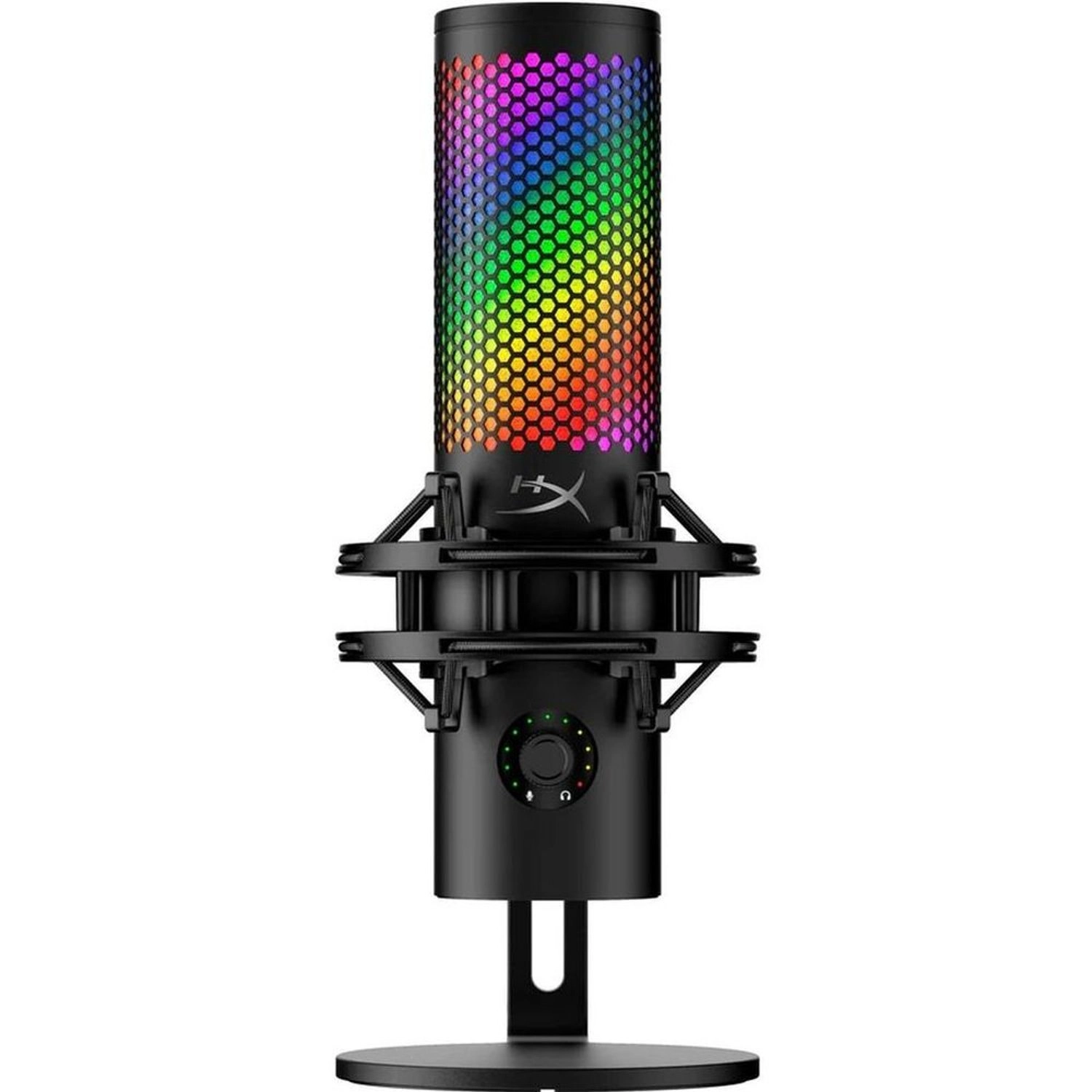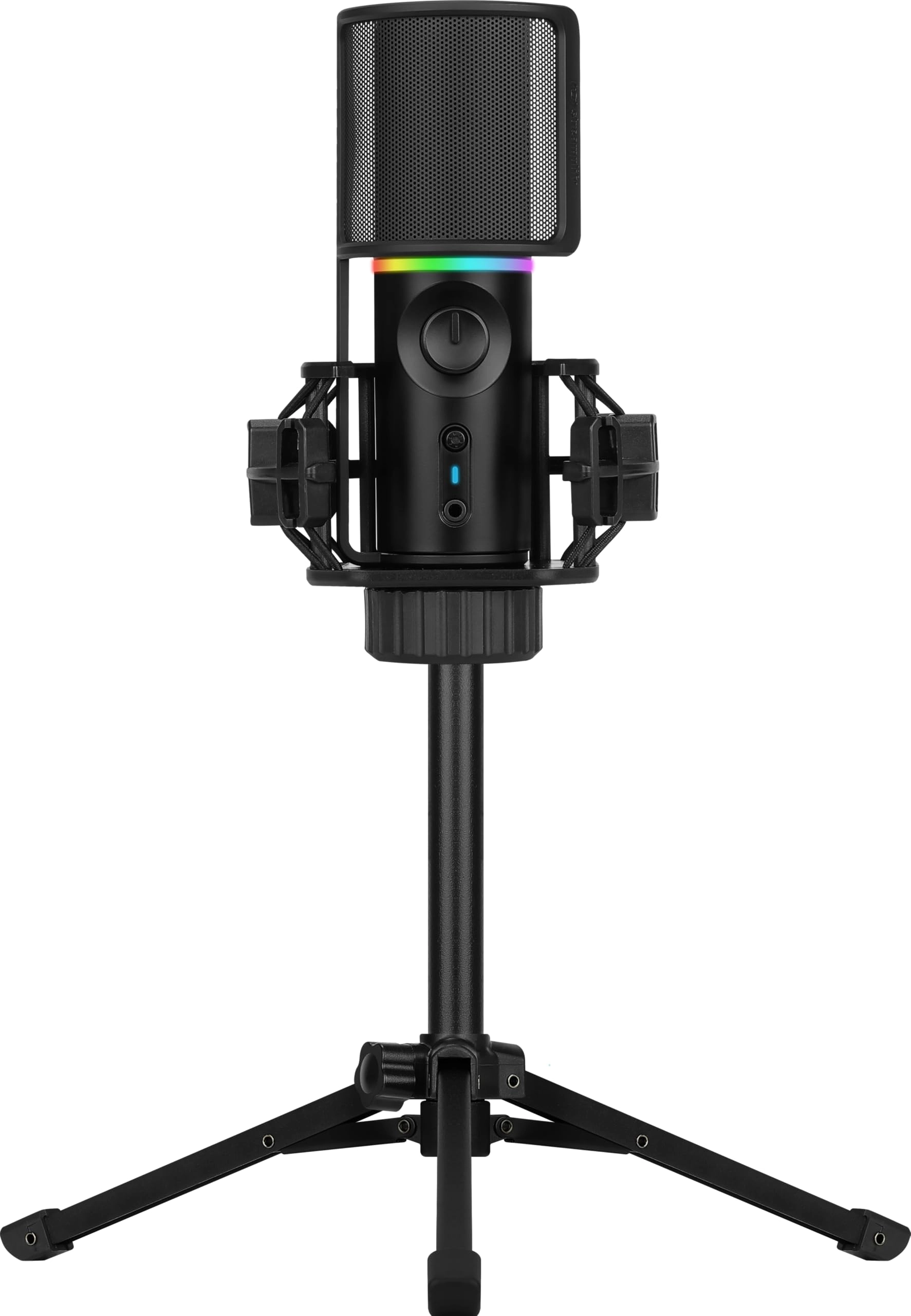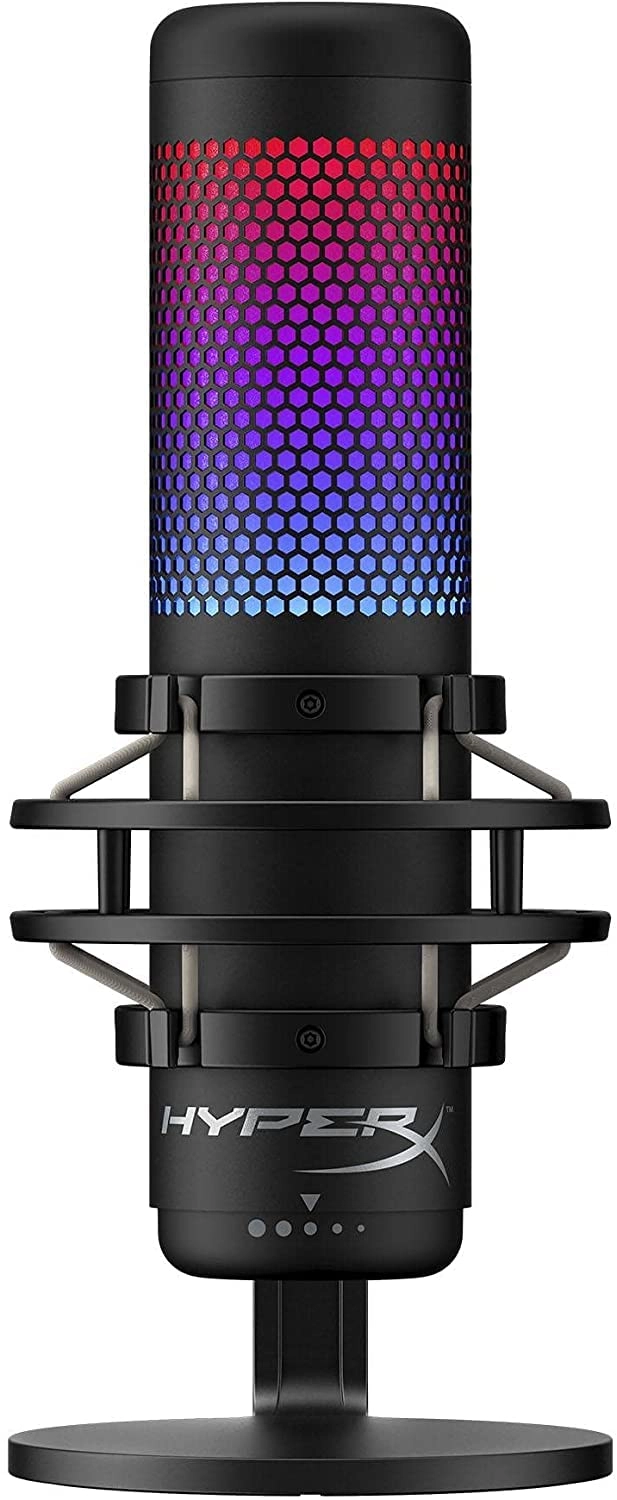
HyperX QuadCast S – RGB USB Condenser Microphone for PC, PS4 and
Mac, Anti-Vibration Shock Mount, Pop Filter, Gaming, Streaming,
Podcasts, Twitch, YouTube, Discord, Black : desertcart.co.uk:
Sports & Outdoors
Review: Whats not to like? - Excellent mic, easy to set up and
pretty much plug and play with excellent sound quality but also
has options to fine tune. The stand it comes with i found good
enough, it worked well but I fitted it to a tonor low profile
boom arm and its perfect for me. Its a very good looking mic goo,
super light the stand it comes with has all the weight its solid
metal. It has a nice mute and volume adjuster on the mic too.
With 4 directional ? Sound Options on it as well I've had no
issues with background noise etc its clear has good range not had
a complaint yet. 3 meter cable so can send it around a desk and
up the boom arm np. And the box it comes in is really well
designed, hard to see any issues regarding that. On offer around
£60 it has to be one of the best on the market. Would highly
recommend.
Review: High Quality Microphone - I bought this microphone last
year but am only now getting around to writing a review. Overall,
this microphone is of excellent quality, the audio sounds crips
and clear. One of its standout features is the adjustable audio
input setting, controlled by a dial on the back, which helps
minimise background noise. The microphone feels sturdy and
well-made, not cheap or overly lightweight, you can easily change
the stand out as well. Additionally, you can easily change the
colour of the microphone with the HyperX NGenuity software, and
it's not too difficult to understand. One downside I’ve noticed
is that, on Windows 11, the microphone automatically switches on
when certain apps are opened. And people can occasionally also
hear my mouse clicks or typing on the keyboard (despite adjusting
the dial) but that is about it. No issues so far with the audio
quality however! 5/5 If your microphone sounds too quiet even
after you've changed the dial, go to the (Windows) Settings >
System > Sounds and scroll down to Input and increase the volume
there.